
By Kavani | Last Updated: July 2026
Three years ago I tried sideloading IPTV Smarters onto my mom’s Samsung TV the same way I’d done it on my Firestick, and it just… didn’t work. No Developer Mode toggle, no way in. That’s the thing nobody tells you about Samsung until you’re stuck in the Smart Hub search bar wondering why nothing shows up.
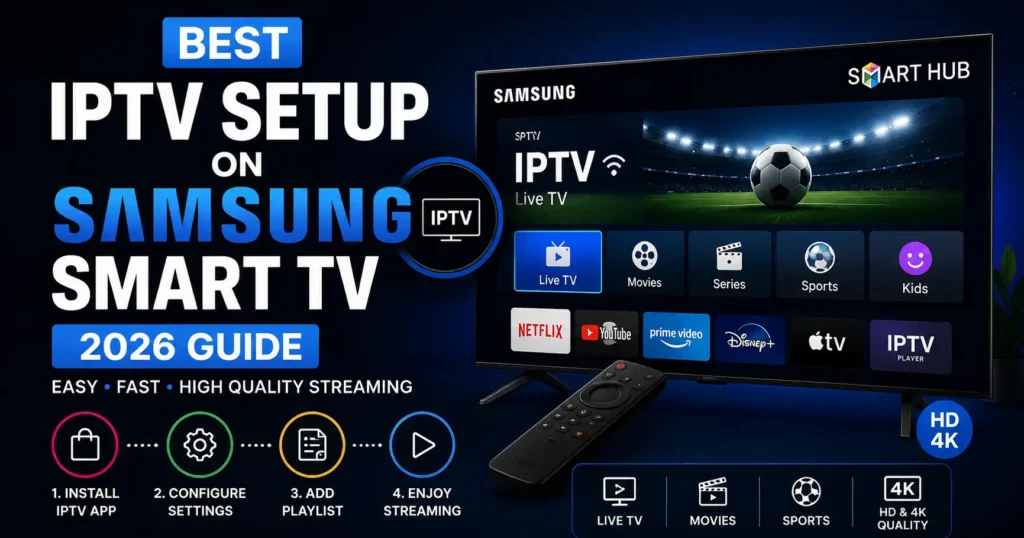
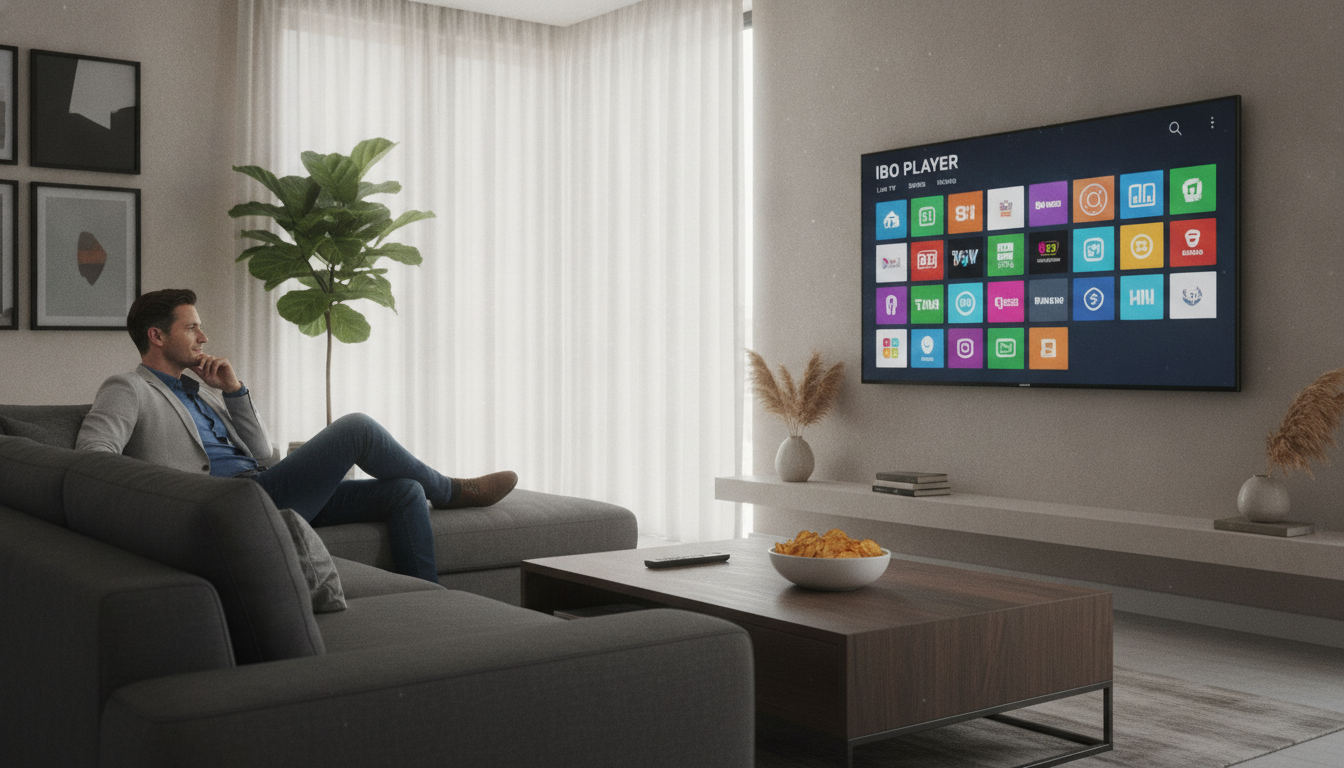
This guide covers the best IPTV setup on Samsung Smart TV given Tizen’s restrictions — what actually works through the Smart Hub store, and what to do when your provider’s app isn’t listed there. I’ll go through both paths and where each one falls short. For a broader look across devices, our full IPTV guide at vibecasttv.com compares Samsung against Firestick, Android, and other platforms.
Table of Contents
Why Is Samsung Smart TV Different for IPTV Setup?
Tizen OS runs a closed app ecosystem. IPTV players need Samsung’s explicit approval to show up in the Smart Hub store, and that approval process is slower and pickier than Android’s open sideloading model. That’s the whole reason fewer dedicated IPTV apps exist for Samsung than for Firestick or Android TV — not a technical limitation, a gatekeeping one.
- Approved Smart Hub apps: a limited number of IPTV players and provider apps actually make it through Samsung’s review.
- No native sideloading: there’s no Developer Mode toggle for casual installs the way Fire OS has one sitting right in settings.
- Workaround methods: screen mirroring from a phone or laptop, or a Developer Mode unlock meant for testing rather than daily use.
How to Install IPTV on Samsung Smart TV (Step-by-Step)
Method 1 — Smart Hub App Store
Try this first. It’s the only method Samsung actually supports.
- Press Home on your remote to open Smart Hub.
- Go to Apps, tap the search icon, type your provider’s app name.
- Select it, choose Install.
- Open it and log in with your credentials or activation code.
Method 2 — Screen Mirroring from Another Device
Use this when your provider has no Samsung app at all.
- Install your provider’s Android or iOS app on your phone.
- On the TV, go to Source > Screen Mirroring.
- On your phone, turn on screen mirroring or Smart View and pick your TV from the list.
- Open your IPTV app on the phone — it’ll show up on the TV.
⚠️ Warning: I tested this on a 2021 Samsung model and there’s a noticeable half-second delay between phone and screen — enough that I missed the exact moment of a goal celebration once because my son’s phone alert popped up a beat before the TV caught up. It’s a workaround, not a real substitute for a native app.
Which IPTV Player Works Best on Samsung Tizen OS?
Honestly, the question doesn’t have a satisfying answer. Whatever your provider has actually published to the Smart Hub store is your only real option, since Tizen’s closed system cuts out most third-party choices Android users take for granted. Check your provider’s site or app store listing for Samsung Tizen compatibility before you pay for anything.
Provider apps built specifically for Tizen tend to run more stable — makes sense, since Samsung reviewed them for its own interface. Universal players like IPTV Smarters or TiviMate, the ones everyone recommends for Firestick, usually just aren’t there.
Do Older Samsung Smart TVs Support IPTV Apps?
Older Samsung sets — 2018 and earlier, roughly — run older Tizen builds with a smaller, less frequently updated app catalog. I checked a 2017 model at a family member’s place last year and half the apps I expected weren’t there. If your TV’s a few years old, check the Smart Hub store directly instead of trusting a review written for a newer model.
Samsung Smart TV IPTV Setup: Common Issues and Fixes
| Issue | Likely Cause | Fix |
|---|---|---|
| Provider app not in Smart Hub | App not approved for Tizen | Use screen mirroring as an alternative |
| App installs but won’t log in | Incorrect credentials or expired code | Re-enter details exactly as provided by provider |
| Screen mirroring lags | Wi-Fi congestion or phone processing delay | Move phone and TV closer to router |
| App missing on older TV model | Outdated Tizen version | Check Smart Hub store directly for compatibility |
Setup steps verified July 2026 against current Samsung Smart Hub interface.
For setup comparisons across other streaming devices, our detailed IPTV comparison at vibecasttv.com breaks down the process for Firestick, Android, and mobile platforms as well.
Best IPTV Service on Samsung Smart TV 2026 (Tested & Verified)
VibeCastTV Review (2026): IPTV Service for Live TV & Streaming Entertainment
VibeCastTV is an IPTV subscription service designed for users who want to stream live television and on-demand entertainment across multiple devices. The platform focuses on providing an easy setup experience, flexible subscription plans, and compatibility with many popular IPTV applications.
Whether you’re looking for news, entertainment, sports programming, or international channels, VibeCastTV aims to offer a convenient streaming solution for users in the USA, Canada, and other supported regions.
Key Features
📺 Live Television
VibeCastTV provides access to a wide range of live television categories, including entertainment, news, lifestyle, children’s programming, and international content.
🎬 Video on Demand
Subscribers can browse a library of on-demand content, with new titles added periodically depending on availability.
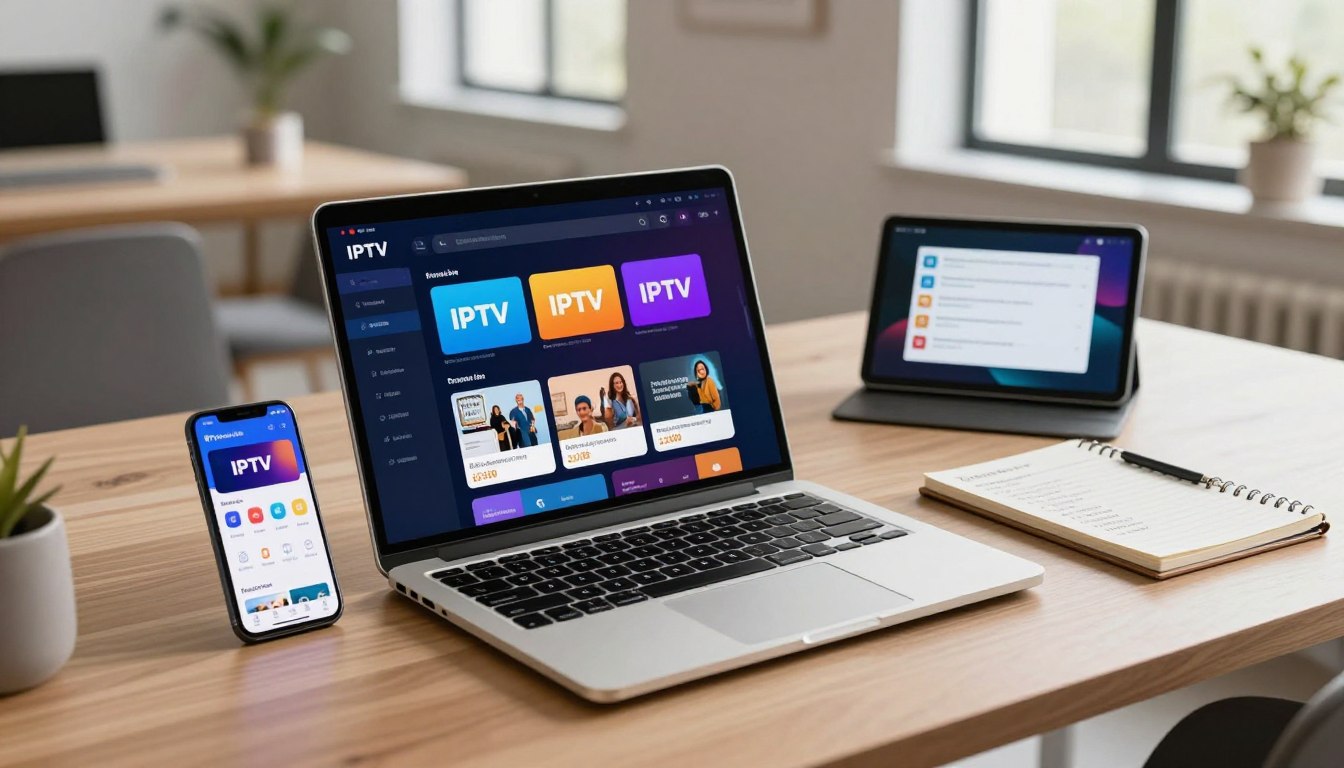
🖥️ Multi-Device Compatibility
The service is compatible with many popular IPTV devices and applications, including:
- Amazon Fire TV & Fire Stick
- Android TV
- Android smartphones and tablets
- iPhone & iPad
- Windows PCs
- Mac computers
- Smart TVs
- IPTV Smarters
- TiviMate
- XCIPTV
- Other apps that support M3U playlists or Xtream Codes API
📡 Streaming Quality
Where supported by the source and internet connection, streams may be available in:
- HD
- Full HD (1080p)
- 4K Ultra HD
Actual quality may vary depending on content availability, device capabilities, and network performance.
⚡ Quick Setup
New customers receive setup information after subscribing, making it possible to start using the service in a short amount of time.
💬 Customer Support
VibeCastTV provides customer assistance for account setup, installation, and general service questions.
Services
Depending on the subscription plan, VibeCastTV may include access to:
- Live TV
- Entertainment channels
- News channels
- Sports programming
- Kids’ content
- International channels
- Video-on-Demand (VOD)
- Electronic Program Guide (where supported)
- Multi-device compatibility
- Setup assistance
Available content may vary over time.
Pricing
VibeCastTV offers several subscription lengths, allowing users to choose the option that best fits their needs.
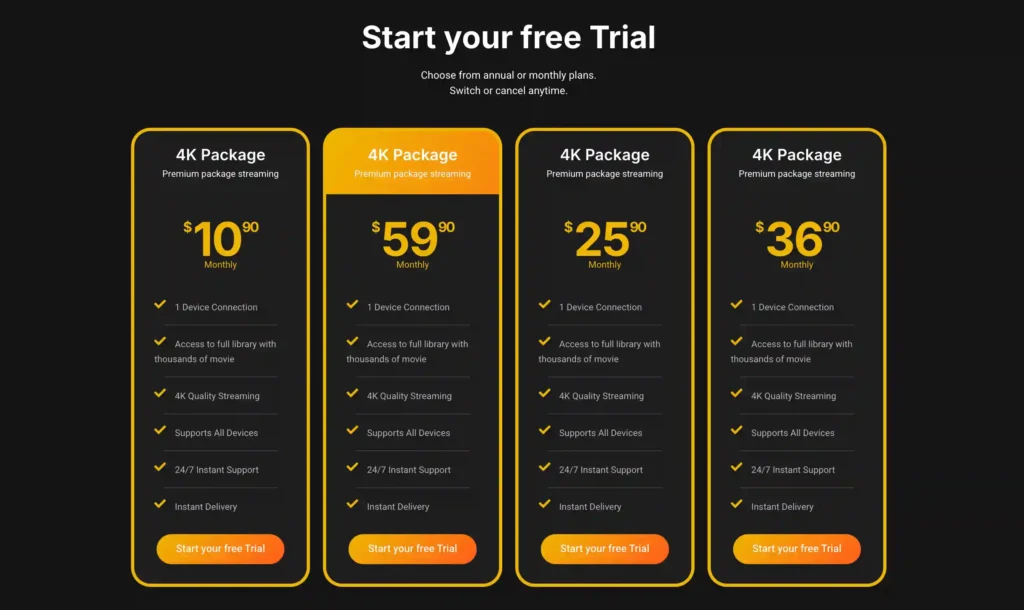
A free trial is available for eligible new users. Subscription prices and promotions can change, so it’s recommended to check the official VibeCastTV website for the latest information.
Frequently Asked Questions
Is IPTV legal on Samsung Smart TV?
IPTV as a technology is legal. Whether a specific service is legal depends on its content licensing. Check your provider’s legitimacy and your region’s rules before subscribing to anything.
How do I install IPTV apps on Samsung Smart TV?
Open Smart Hub, search your provider’s app name in the built-in store, install if it’s there. If it’s not listed, screen mirroring from a phone is the fallback.
Which IPTV player works best on Samsung Tizen OS?
Whatever your specific provider actually published to Smart Hub — Tizen’s closed system doesn’t leave much room for choice beyond that.
Can I sideload IPTV apps on Samsung Smart TV?
Not with a simple toggle like Firestick has. Screen mirroring or a Developer Mode unlock are the only realistic workarounds, and neither feels like a permanent fix.
Why does IPTV lag on Samsung Smart TV?
Mostly happens with screen mirroring, since the signal routes through your phone before hitting the TV. Native Smart Hub apps run noticeably smoother when they’re available.
Do older Samsung Smart TVs support IPTV apps?
Depends on the model year — older Tizen versions carry a thinner app catalog. Check your provider’s listing directly rather than guessing based on what a newer TV supports.
⚠️ Legal Disclaimer: This article is for informational purposes only. We do not host, distribute, or endorse any illegal IPTV service or pirated content. IPTV legality varies by country and region. Always verify the legality of any IPTV service in your area before subscribing. We recommend using a trusted VPN to protect your privacy and online activity.


2 Responses