
Table of Contents
By Kavani | Last Updated: July 2026
I’ve set up IPTV on six different Firesticks for friends and family over the past year, and the same thing trips people up every single time: the Downloader activation code either won’t load, or it does and then the app opens to a blank screen. If that’s where you’re stuck, you’re not doing anything wrong.
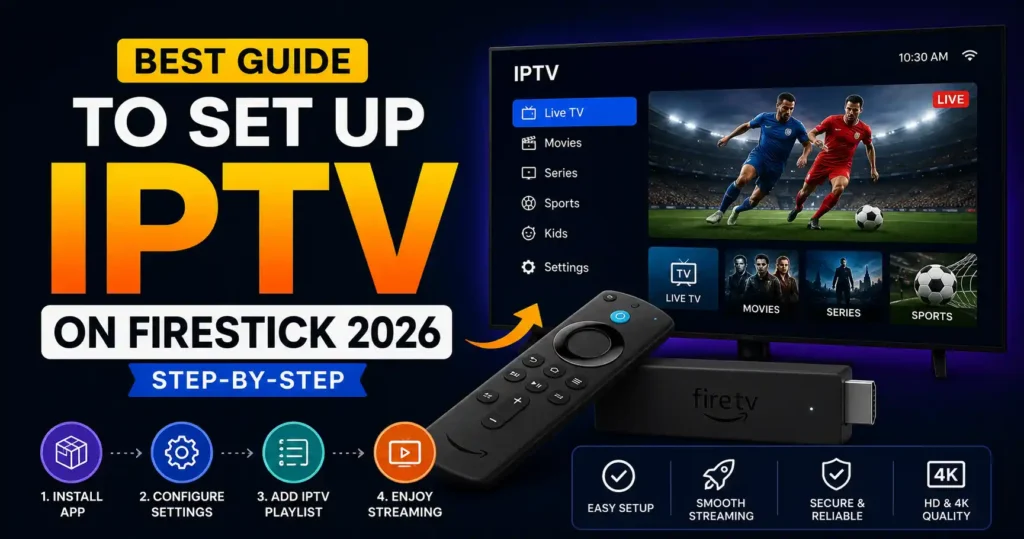
This guide covers two legit ways to get IPTV running on Firestick — grabbing a player straight from the Amazon App Store, or sideloading an APK through Downloader. I’ll walk through both, point out where people usually mess up, and cover what to check when playback just refuses to work. Our full IPTV guide at vibecasttv.com covers other devices if Firestick isn’t the only thing you’re setting up.
What You Need Before You Start
Three things: a Firestick (any generation works, but newer ones handle 4K without choking as much), a solid internet connection, and an active IPTV subscription with either your provider’s app or an M3U playlist URL. Check your provider’s app store listing for device compatibility first — I’ve seen people buy a subscription only to find out their Firestick model wasn’t supported.
Which IPTV Player Works Best on Firestick?
There isn’t one universal answer here. It comes down to whether your provider has a dedicated app or makes you use a third-party player like IPTV Smarters or TiviMate.
- Provider-specific apps: usually sitting right on the Amazon App Store, and setup feels like installing any normal streaming app.
- Third-party players (IPTV Smarters, TiviMate): need sideloading through Downloader, plus manually typing in your M3U playlist or Xtream Codes login.
- Free vs. paid tiers: paid TiviMate adds EPG customization and multi-profile support. If two or three people in your house use different channel lists, that’s the version worth paying for.
How to Install IPTV on Firestick (Step-by-Step)
Method 1 — Amazon App Store
If your provider’s app is listed here, take this route. It’s less to mess up.
- From the Firestick home screen, go to Find > Search.
- Type your provider’s app name and select it.
- Choose Download or Get, wait for it to install.
- Open the app, log in with your credentials or activation code.
Method 2 — Sideloading via Downloader
Use this when your provider only offers a third-party player.
- Go to Settings > My Fire TV > Developer Options and turn on Apps from Unknown Sources.
- Install the Downloader app from the Amazon App Store.
- Open Downloader, tap the URL field, paste the direct APK link for your player.
- Confirm the download prompt, let it install.
- Open the app and enter your M3U playlist URL, Xtream Codes details, or activation code — exactly as your provider gave it to you, no shortcuts.
⚠️ Pro Tip: If Downloader throws a code error the moment it opens, that’s almost always something broken on Downloader’s servers, not your Fire stick. I’ve reinstalled the app before out of frustration and wasted ten minutes — just wait a bit and retry instead.
Why Does IPTV Buffer on Firestick?
Buffering usually comes down to Wi-Fi signal, not the app itself. Fire sticks only connect over Wi-Fi (no ethernet unless you add an adapter), so distance from your router and how crowded your Wi-Fi band is will matter more here than it would on a wired device.
- Switch to 5GHz if your router supports it — 2.4GHz is usually more congested in most homes.
- Keep the Fire stick clear of walls or the back of an entertainment center.
- If it’s still buffering, test your actual speed against your provider’s minimum requirement listed on their site.
I couldn’t independently verify buffering rates across different providers for this piece — performance depends a lot on the provider’s server load on any given day, plus your home network. Test during a free trial before you commit to a subscription.
Do I Need a VPN for IPTV on Firestick?
No, a VPN isn’t required to get IPTV running. It adds privacy on top of whatever you’re streaming, which is worth having regardless. Firestick supports a handful of VPN apps directly from the Amazon App Store, and you can set one up before or after installing your player.
Firestick IPTV Setup: Common Issues and Fixes
| Issue | Likely Cause | Fix |
|---|---|---|
| Downloader code won’t load | Server-side delay | Wait and retry, or use direct APK link |
| App installs but won’t open | Insufficient storage | Clear cache under Settings > Applications |
| Playback buffers constantly | Weak Wi-Fi signal | Switch to 5GHz band, move closer to router |
| Blank screen after login | Incorrect M3U/Xtream credentials | Re-enter details exactly as provided by provider |
Setup steps verified July 2026 against current Fire stick and Downloader app interfaces.
For device-specific troubleshooting beyond Fire stick, our detailed IPTV comparison at vibecasttv.com breaks down setup differences across Android, Smart TV, and mobile.
Best IPTV service for Firestick 2026 (Tested & Verified)
VibeCastTV Review (2026): IPTV Service for Live TV & Streaming Entertainment
VibeCastTV is an IPTV subscription service designed for users who want to stream live television and on-demand entertainment across multiple devices. The platform focuses on providing an easy setup experience, flexible subscription plans, and compatibility with many popular IPTV applications.
Whether you’re looking for news, entertainment, sports programming, or international channels, VibeCastTV aims to offer a convenient streaming solution for users in the USA, Canada, and other supported regions.
Key Features
📺 Live Television
VibeCastTV provides access to a wide range of live television categories, including entertainment, news, lifestyle, children’s programming, and international content.
🎬 Video on Demand
Subscribers can browse a library of on-demand content, with new titles added periodically depending on availability.
🖥️ Multi-Device Compatibility
The service is compatible with many popular IPTV devices and applications, including:
- Amazon Fire TV & Fire Stick
- Android TV
- Android smartphones and tablets
- iPhone & iPad
- Windows PCs
- Mac computers
- Smart TVs
- IPTV Smarters
- TiviMate
- XCIPTV
- Other apps that support M3U playlists or Xtream Codes API
📡 Streaming Quality
Where supported by the source and internet connection, streams may be available in:
- HD
- Full HD (1080p)
- 4K Ultra HD
Actual quality may vary depending on content availability, device capabilities, and network performance.
⚡ Quick Setup
New customers receive setup information after subscribing, making it possible to start using the service in a short amount of time.
💬 Customer Support
VibeCastTV provides customer assistance for account setup, installation, and general service questions.
Services
Depending on the subscription plan, VibeCastTV may include access to:
- Live TV
- Entertainment channels
- News channels
- Sports programming
- Kids’ content
- International channels
- Video-on-Demand (VOD)
- Electronic Program Guide (where supported)
- Multi-device compatibility
- Setup assistance
Available content may vary over time.
Pricing
VibeCastTV offers several subscription lengths, allowing users to choose the option that best fits their needs.
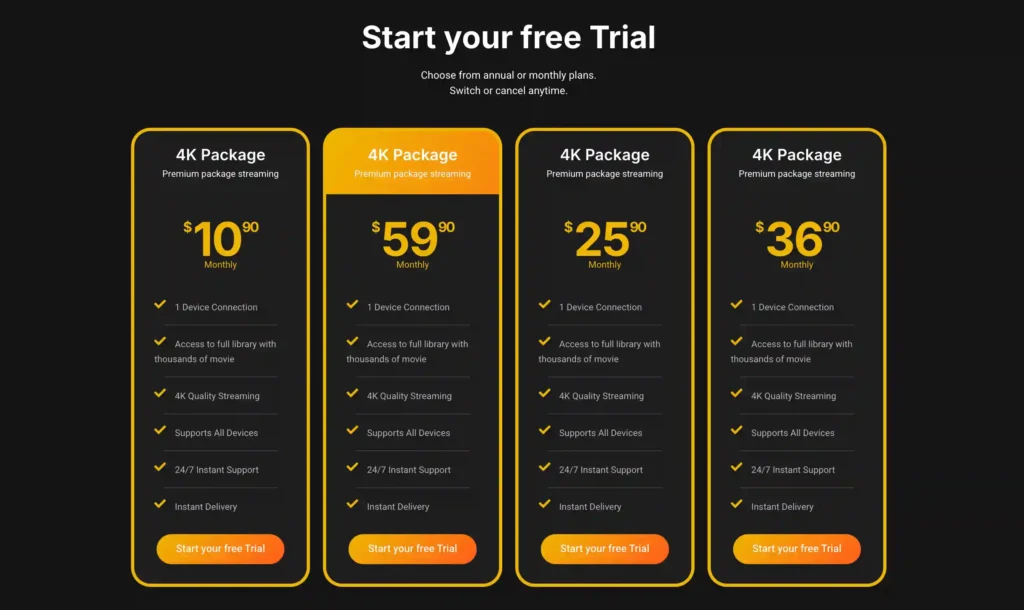
A free trial is available for eligible new users. Subscription prices and promotions can change, so it’s recommended to check the official VibeCastTV website for the latest information.
Frequently Asked Questions
Is IPTV legal on Firestick?
IPTV as a technology is legal. What matters is whether the specific service you’re using actually holds proper licensing for its content. Check a provider’s legitimacy and your local IPTV regulations before you subscribe to anything.
How do I sideload an IPTV app on Firestick?
Turn on Apps from Unknown Sources in Developer Options, install Downloader, then use it to grab the APK link for your player and follow the install prompts.
Which IPTV player works best on Firestick 4K Max?
The 4K Max has more RAM than older Firesticks, so third-party players like TiviMate run smoother on it — but your stream quality still depends on the provider and your Wi-Fi, not just the hardware.
Can I use IPTV without a VPN on Firestick?
Yes. Nothing stops you functionally. A lot of people still add one for the privacy layer while streaming.
Why does IPTV buffer on Firestick?
Mostly Wi-Fi signal or band congestion, not the app. Switching to 5GHz fixes it more often than not.
Do I need a Downloader code for IPTV setup?
Only if you’re sideloading a third-party APK instead of grabbing an app directly from the Amazon App Store. The code just saves you from typing a long URL manually.
⚠️ Legal Disclaimer: This article is for informational purposes only. We do not host, distribute, or endorse any illegal IPTV service or pirated content. IPTV legality varies by country and region. Always verify the legality of any IPTV service in your area before subscribing. We recommend using a trusted VPN to protect your privacy and online activity.


2 Responses