By KAVANI | Fact-checked: July 21, 2026
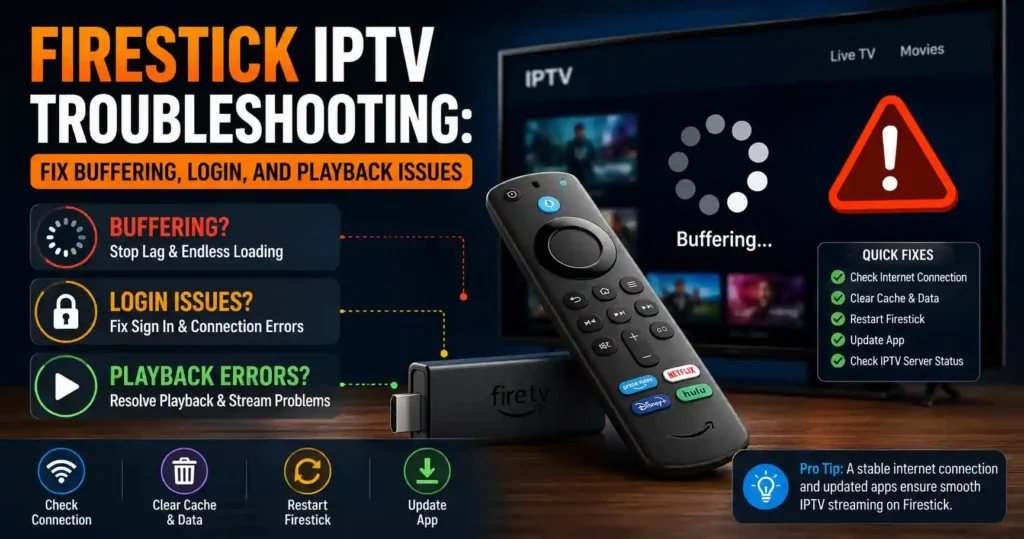
Most Firestick IPTV problems can be traced to one of five areas: the home network, Fire TV device, IPTV application, account, or authorized service provider. Before reinstalling anything, determine whether the problem affects one channel, the entire IPTV application, or every streaming application on the Firestick. That distinction usually reveals where to begin.
This guide covers lawful IPTV applications and television sources you are authorized to access. It does not provide playlists, portal addresses, server access, shared accounts, activation codes, or television credentials.
The troubleshooting process is based on current Fire TV guidance, application documentation, and independent editorial research rather than hands-on VibeCastTV testing.
Table of Contents
Diagnose the problem before changing settings
Do not begin by clearing all application data or resetting the Firestick. First, run four short tests.
Does the problem affect every Fire TV application?
Open a recognized streaming application already installed on the Firestick.
- If every application buffers or fails, investigate the home network or Fire TV device.
- If other applications work normally, focus on the IPTV player, account, or provider.
- If the Fire TV home screen is slow, freezes, or regularly restarts, storage, heat, software, or device performance may be involved.
This comparison is more useful than a speed test alone because it checks how the Firestick behaves under similar real-world conditions.
Does it affect every IPTV channel?
Try several authorized streams from different categories.
- One stream fails: The individual stream may be unavailable or incorrectly configured.
- A group of streams fails: The relevant source, package, or regional entitlement may be unavailable.
- Every stream fails: Check the account, playlist, application, and provider status.
- Live television fails but on-demand content works: The provider may be experiencing a live-source or authorization problem.
- The EPG works but playback does not: The guide source is loading, but the video source or account authorization may be failing.
Does the account work on another authorized device?
Where the provider permits it, test the same account on another compatible device.
- If it works elsewhere, the Firestick or its application is the likely problem.
- If it fails on every device, the account, billing, credentials, or provider is more likely responsible.
- Do not test simultaneous playback when the subscription permits only one active connection. Exceeding the connection limit can itself produce errors.
Did the problem begin after an update or installation?
Note whether the problem began after:
- A Fire TV software update.
- An IPTV player update.
- A router replacement.
- A password or playlist change.
- Installing an application from outside an official store.
- Changing decoder, player, VPN, DNS, or display settings.
Reversing the most recent change may be safer than applying several unrelated fixes.
Firestick IPTV troubleshooting quick-reference table
| Symptom | Most likely area | First action | Avoid doing first |
|---|---|---|---|
| Every application buffers | Network or Fire TV | Restart router and Fire TV; test another app | Re-entering IPTV credentials |
| Only the IPTV player buffers | App, account, or provider | Try several authorized streams | Factory reset |
| One channel fails | Individual source | Test other channels and report the exact stream | Reinstalling the whole app |
| App will not open | Application or storage | Force-stop it and clear cache | Clearing data immediately |
| Invalid login | Account or typing error | Re-enter credentials carefully | Downloading a replacement APK |
| Black screen with audio | Decoder or video compatibility | Test another stream and decoder option | Changing router settings |
| Picture with no audio | Audio format or stream | Test another stream and Fire TV audio output | Resetting the account |
| EPG is blank | Guide source, time zone, or cache | Refresh the guide and check time zone | Replacing the playlist |
| All channels disappear | Account, playlist, or provider | Check expiration and provider notice | Searching for a free playlist |
| Application repeatedly crashes | Cache, storage, version, or compatibility | Clear cache and check storage | Factory reset |
Fix IPTV buffering and freezing on Firestick
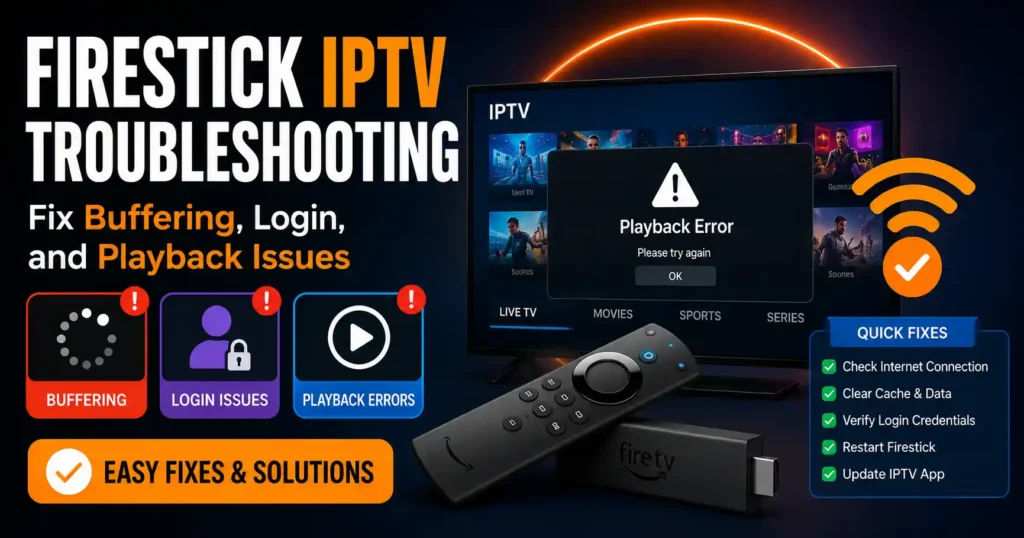
Buffering does not automatically mean the internet plan is too slow. Wi-Fi interference, network congestion, Firestick storage, application cache, a single overloaded source, or a provider-side issue can produce the same symptom.
Restart the player and Fire TV
Start with the least disruptive action:
- Close the IPTV player.
- Open Settings.
- Select Applications.
- Open Manage Installed Applications.
- Select the IPTV player.
- Choose Force Stop.
- Reopen the application.
If playback remains unstable, restart the Fire TV through Settings → My Fire TV or Device & Software → Restart. Menu names can vary by model and software version.
A restart can clear a temporary application or system fault, but it will not correct expired credentials or a provider outage.
Test the connection near the Firestick
Run a connection test from a phone or computer connected to the same Wi-Fi network and positioned close to the Firestick.
A test from a wired desktop in another room does not accurately represent the wireless conditions behind the television.
Check for:
- A weak Wi-Fi signal.
- Large speed changes between tests.
- High latency.
- Other household devices uploading or downloading heavily.
- A router positioned behind walls, cabinets, or large electronics.
- The Firestick being tightly enclosed behind the television.
Use the HDMI extension supplied with compatible Fire TV models when it helps move the device away from the back of the television.
Reduce competing network traffic
Temporarily pause:
- Large game or software downloads.
- Cloud backups.
- Security-camera uploads.
- Several simultaneous 4K streams.
- Large file transfers.
If IPTV becomes stable, household network congestion is contributing to the problem.
Do not assume that reducing traffic proves the provider is reliable. It only shows that local bandwidth or router capacity affects playback.
Compare Wi-Fi with Ethernet where supported
A compatible Ethernet adapter can help determine whether Wi-Fi instability is responsible.
- If Ethernet fixes the problem, improve the wireless signal or continue using the wired connection.
- If Ethernet and Wi-Fi behave the same way, focus on the application, account, source, or provider.
Buying an adapter should not be the first troubleshooting step. Perform the free tests first.
Determine whether the provider is overloaded
Provider-side congestion is more likely when:
- Playback fails during the same busy periods.
- Other Fire TV applications work normally.
- Several customers report the same problem through an official status or support channel.
- The same account fails on multiple authorized devices.
- Only a specific category of streams is affected.
VibeCastTV cannot determine a provider’s server load from the Firestick. Contact the provider with the exact time, application, device model, and affected streams.
Fix an IPTV application that crashes or will not open
Force-stop the application
Go to:
Settings → Applications → Manage Installed Applications → [Application name] → Force Stop
Reopen the application and test again.
Clear the application cache
From the same application menu, select Clear Cache.
Cache files are temporary. Clearing them is generally less disruptive than clearing application data. Current Fire TV guides place the control under the application-management menu, although wording can vary.
Do not select Clear Data at this stage. Clearing data may remove locally stored settings, profiles, playlists, and login information.
Check available storage
A Firestick with very little free storage may become slow or unstable.
Review installed applications and remove those you no longer use. Do not install “cleaner,” “booster,” or “optimizer” applications from unknown developers. Removing unused applications manually is safer and easier to understand.
Update Fire TV software and the application
Check for:
- A Fire TV system update.
- An application update in the Amazon Appstore.
- A compatibility notice from the application developer.
- A notice that an older Fire TV model is no longer supported.
Do not assume that an Android application will work on every Fire TV model. Application support can depend on the operating system, processor, account region, software version, and store availability.
Reinstall only from an official or verified source
Reinstallation is appropriate when:
- The application package appears corrupted.
- The developer recommends reinstallation.
- An update repeatedly fails.
- The application opens but critical components do not load.
Prefer the Amazon Appstore or the application developer’s verified website. Avoid unknown APK repositories, modified applications, shortened download links, social-media file shares, and “premium unlocked” versions.
Research involving sideloaded applications has identified weaker safeguards and privacy practices in some off-store software, supporting a cautious approach to unknown installation sources. The findings are not specific to every Fire TV application, so they should be treated as a general security warning rather than proof that every sideloaded application is malicious.
Fix IPTV login and authorization errors
Re-enter credentials carefully
Common typing problems include:
- Confusing the letter O with zero.
- Adding a space before or after the username.
- Entering an old password.
- Typing the server address incorrectly.
- Omitting
https://where the provider requires it. - Selecting the wrong login method.
- Using details intended for a different application.
Enter only credentials supplied by a service you are authorized to use. VibeCastTV does not provide login details, playlists, portals, or server accounts.
Check expiration, billing, and connection limits
Ask the authorized provider to confirm:
- Whether the subscription is active.
- Whether payment was received.
- Whether the account has expired.
- How many simultaneous connections are permitted.
- Whether the account is locked.
- Whether the provider changed its login endpoint.
- Whether the service is available in the current region.
Do not pay a “reactivation fee” through an unfamiliar message or unofficial payment account without confirming that the request came from the real provider.
Interpret common HTTP errors
Some players expose an HTTP status code.
401 or 403
These normally indicate that the request was not authorized or permitted.
Check:
- Username and password.
- Subscription status.
- Device or connection limit.
- Account region.
- Provider authorization.
404
The requested address was not found.
The playlist address, server endpoint, or specific resource may have changed or been entered incorrectly.
5xx server errors
Codes beginning with 5 usually indicate a server-side failure. Restarting or factory-resetting the Firestick will not repair a remote server.
Record the exact code and contact the authorized provider.
Fix a black screen, missing picture, or audio problem
Test more than one authorized stream
A single malformed or unavailable stream can produce a black screen even when the application works correctly.
Test:
- Another channel.
- A different category.
- On-demand content, where authorized.
- The same source on another permitted device.
Check decoder settings
Some IPTV players offer hardware and software decoding options.
If the option exists:
- Record the current selection.
- Change the decoder for the affected content.
- Restart playback.
- Revert to the original setting if performance becomes worse.
Do not change several video settings simultaneously because that makes the result difficult to interpret.
Check external-player configuration
If the IPTV application sends playback to an external player:
- Confirm that the external player is still installed.
- Update the player.
- Test the application’s internal player.
- Remove the external-player assignment temporarily.
Check Fire TV audio and display settings
For picture without audio, test another channel first. If every application has audio problems, inspect the Fire TV audio output and television or receiver settings.
For audio without picture, test another stream and decoder option. A single source may use a video format the selected player or decoder cannot handle correctly.
Fix missing channels or a playlist that will not load
Missing channels can result from:
- An expired account.
- A changed subscription package.
- A provider-side source problem.
- A changed playlist or server address.
- A regional availability restriction.
- A failed playlist refresh.
- An application parsing error.
- An unauthorized or copied playlist being disabled.
Refresh the playlist through the application’s normal controls. Do not download a replacement channel list from a public forum or messaging group.
If the provider changed the playlist or endpoint, obtain the updated information directly through its verified support process.
Fix an EPG that is blank, delayed, or incorrect
The EPG and video streams are often supplied separately. Channels may play even when the guide fails.
Refresh the guide
Use the player’s guide-refresh or update command. Allow the process to finish before closing the application.
Check time-zone settings
An incorrect Fire TV or application time zone can shift programs by several hours even when the guide itself loads correctly.
Check:
- Fire TV time zone.
- IPTV player time-shift setting.
- EPG offset.
- Daylight-saving behavior.
Avoid manually applying an offset until the Fire TV time zone is correct.
Verify the provider’s EPG source
Ask whether:
- An EPG is included.
- Its address changed.
- The guide is experiencing an outage.
- Every channel is expected to have guide data.
The absence of EPG information does not necessarily mean the channel itself is unavailable.
Clear only EPG data when supported
Some players let users delete or rebuild guide data without clearing the entire application.
Use that option before selecting Clear Data, which may remove account settings and playlists.
VibeCastTV does not supply scraped EPG files or copyrighted television schedules.
Determine whether the problem is provider-side
The provider is more likely responsible when:
- The application opens normally.
- Other Fire TV applications stream normally.
- The account fails on multiple authorized devices.
- Several unrelated channels stop simultaneously.
- A 5xx server error appears.
- The provider confirms maintenance.
- The same failure occurs on Wi-Fi and Ethernet.
- Restarting, cache clearing, and application updates make no difference.
Send support a concise report:
- Fire TV model.
- Fire TV software version.
- IPTV application and version.
- Time the problem occurred.
- Whether all or only some streams failed.
- Exact error message.
- Whether other streaming applications worked.
- Whether the account worked on another permitted device.
Never send account passwords through a public forum or social-media comment.
Should you use a VPN?
A VPN is not a universal IPTV repair tool.
It can introduce:
- A slower route.
- Additional latency.
- An overloaded VPN server.
- Sign-in alerts.
- Regional conflicts.
- Problems with services that restrict VPN use.
When troubleshooting, temporarily disconnect a VPN used for ordinary privacy and test again, provided doing so is safe in your circumstances.
A VPN does not make unauthorized streaming legal. Do not use one to avoid payment, defeat sports blackouts, conceal infringement, or violate a platform’s geographic rules.
When to clear data, reinstall, or factory-reset the Firestick
Clear application data
Use Clear Data only after you have:
- Recorded the application name.
- Confirmed how to reinstall it.
- Saved authorized account information securely.
- Confirmed that the provider can resend necessary setup details.
Clearing data may sign you out and remove locally stored settings.
Reinstall the player
Reinstall when the application remains damaged after cache clearing and updates.
Use only an official store listing or a verified developer distribution channel.
Factory reset
A factory reset should be the last device-level step because it removes applications and local configuration. Independent Fire TV guidance confirms that a reset returns the device to its factory state and requires applications to be installed again.
Consider a factory reset only when:
- Multiple applications fail.
- Fire TV menus remain unstable.
- Software corruption is suspected.
- Amazon support recommends it.
- Less disruptive troubleshooting has failed.
A factory reset will not repair an expired subscription, incorrect credentials, unavailable channel source, or provider outage.
Application and account security checklist
- Install applications from the Amazon Appstore where available.
- Otherwise, verify the application developer and official download source.
- Avoid cracked, modified, or “unlocked” applications.
- Never buy shared credentials from a stranger.
- Never post account details publicly.
- Do not install an application merely because a reseller supplies a short download code.
- Review application permissions.
- Use a unique account password where the provider supports it.
- Confirm refund and cancellation terms before paying.
- Be cautious when a provider hides its company identity.
- Do not assume that an application-store listing proves a television provider possesses content rights.
- Do not assume that accepting payment proves a service is authorized.
- Use only content and accounts you are legally permitted to access.
Frequently asked questions
Why does IPTV work on my phone but not my Firestick?
The account may be valid while the Firestick has an application, decoder, storage, Wi-Fi, or compatibility problem. Test the Firestick near the router, clear the player’s cache, update the application, and verify that the player supports the device.
Does clearing cache delete my IPTV login?
Clearing cache normally removes temporary files rather than account data. Clear Data is the more disruptive option and may remove login details, profiles, or playlists.
Why does one IPTV channel fail while the others work?
A single source may be offline, incorrectly encoded, restricted, or no longer included. Report the exact channel and time to the authorized provider rather than reinstalling the entire application.
Why does the IPTV application show invalid credentials?
The username, password, server address, account status, or login method may be wrong. Connection limits and expired billing can also cause authorization failures.
Can low Firestick storage cause IPTV problems?
Low storage can contribute to slow menus, failed updates, cache problems, and application instability. Remove unused applications before installing optimization tools from third parties.
Should I reinstall the application whenever IPTV stops working?
No. First determine whether the problem affects every application or only the IPTV player. Force-stop the player, restart the Firestick, clear cache, check storage, and verify the account before reinstalling.
Does changing DNS fix IPTV?
DNS changes help only when name resolution is genuinely failing. They do not repair an expired account, overloaded provider, missing channel, defective application, or insufficient connection. Record the original settings before making a change.
Conclusion
Effective Firestick IPTV troubleshooting begins with isolation, not random setting changes.
Determine whether the failure affects the whole Fire TV, one application, every IPTV stream, or a single channel. Then work through the least disruptive actions: restart, compare applications, test the network, clear cache, check storage, update software, and verify account status.
Clear application data, reinstall the player, or reset the Firestick only after simpler tests fail. Use official application sources, protect account information, and contact the authorized provider when evidence points to an account or server-side problem.
Copyright and lawful-use notice: This article is intended for general education and lawful troubleshooting. It does not provide playlists, portal URLs, television credentials, server access, authorization tokens, cracked applications, or methods for bypassing subscriptions, copyright controls, blackouts, or geographic restrictions. Readers should use only services and content they are authorized to access. Provider licensing, platform availability, and streaming rights vary by country and can change.