By KAVANI | Fact-checked: July 18, 2026
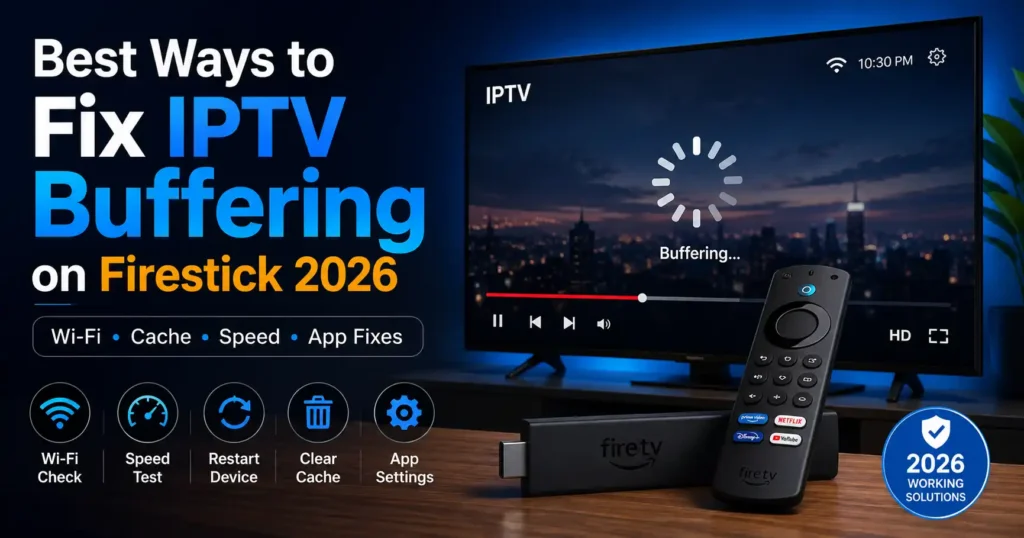
IPTV buffering on a Firestick usually means the application is not receiving or processing video data consistently enough to maintain playback. Common causes include unstable Wi-Fi, a congested home network, Fire TV or application problems, insufficient sustained bandwidth, and provider-side stream issues.
Start by identifying whether the problem affects every streaming application, one IPTV player, or only one channel. This helps you choose the correct fix without unnecessarily resetting the device or changing advanced network settings.
Lawful-use reminder: Use only applications, accounts, playlists, and content sources you are authorized to access. VibeCastTV does not supply IPTV subscriptions, playlists, portal addresses, usernames, passwords, or server access.
Table of Contents
Identify the Buffering Pattern First
Do not change several settings at once. Choose a stream that buffers repeatedly, note the approximate time, and use it as your test while changing one variable at a time.
| Buffering pattern | More likely category | First test |
|---|---|---|
| Every streaming app buffers | Home network, internet connection, or Fire TV | Run Fire TV’s network-status test |
| Only the IPTV app buffers | Application, account, player setting, or provider | Test another authorized streaming app |
| Only one channel buffers | Individual source or provider-side issue | Try another channel in the same app |
| Live events buffer but ordinary content works | Event capacity, bitrate, or network congestion | Test another authorized live stream |
| Playback works on a phone but not the Firestick | Fire TV, Wi-Fi position, or app configuration | Restart Fire TV and test its network |
| Playback works over Ethernet but not Wi-Fi | Wireless signal or interference | Improve Wi-Fi placement or use Ethernet |
| Video freezes while audio continues | Decoder, application, or stream-format issue | Test another quality level or player setting |
| Buffering begins after an update | Application or Fire OS compatibility | Check for updates and restart |
A pattern is useful evidence, but it is not absolute proof. Evening buffering, for example, may be caused by household network activity, neighborhood internet congestion, an overloaded streaming source, or an ISP problem. It does not automatically prove intentional throttling.
What Causes IPTV Buffering on a Firestick?
Weak or Unstable Wi-Fi
A speed test may show a high result during a brief measurement while the wireless connection still experiences intermittent drops.
The Firestick is often positioned behind a television, close to other electronics, or far from the router. Walls, cabinets, metal surfaces, and nearby devices can weaken the signal or create interference.
Fire TV includes a network-status tool that can check the device’s actual connection. On compatible models, it may also display a speed test and advanced network details.
Home-Network Congestion
Other devices may be using the connection at the same time. Common examples include:
- Game and application downloads
- Cloud backups
- Video calls
- Security cameras
- Multiple high-resolution streams
- Operating-system updates
- Large file transfers
Temporarily pause these activities and test the same stream again. If playback improves, the problem may be household network congestion rather than the IPTV application.
Insufficient Sustained Bandwidth
Streaming requires a stable flow of data, not only a high advertised internet-plan speed.
Netflix currently recommends at least:
- 3 Mbps for 720p HD
- 5 Mbps for 1080p Full HD
- 15 Mbps for 4K UHD
These figures are useful reference points, but they are not universal IPTV requirements. Live streams may use different bitrates, codecs, frame rates, and delivery systems. Other devices using the connection also reduce the bandwidth available to the Firestick.
Fire TV or Application Problems
A temporary application or Fire OS process may become unresponsive. Restarting the application and Firestick clears the current session and should be attempted before reinstalling applications or performing a factory reset.
Low Available Storage
Very limited storage can interfere with application updates, Fire OS updates, and normal device operation.
Amazon states that at least 500 MB of available storage is required to download a Fire TV software update. This should not be treated as a universal buffering threshold, but a nearly full Firestick may experience performance and update problems.
Outdated Software
An outdated Fire OS version or IPTV player may cause compatibility, stability, or playback problems.
Updates may include bug fixes, security improvements, and support for newer streaming formats. Check both the Firestick and the application for available updates.
Player or Stream-Format Incompatibility
Playback that freezes only on certain high-resolution streams may involve the player’s decoder or the format provided by the authorized service.
This can resemble an internet problem even when the connection is stable. Use the application’s default or automatic decoder first, and only change playback settings when the application developer documents them.
Account or Provider-Side Problems
A provider-side issue becomes more likely when:
- One channel buffers while other channels work.
- The same channel fails on several authorized devices.
- Other commercial streaming applications work normally.
- The problem occurs during a major live event.
- Playback fails over both Wi-Fi and Ethernet.
- The provider confirms a service incident.
No Firestick setting can repair an unavailable, overloaded, or incorrectly encoded upstream feed.
Best IPTV Service For Firestick 2026 (Tested & Verified)
VibeCastTV Review (2026): IPTV Service for Live TV & Streaming Entertainment
VibeCastTV is an IPTV subscription service designed for users who want to stream live television and on-demand entertainment across multiple devices. The platform focuses on providing an easy setup experience, flexible subscription plans, and compatibility with many popular IPTV applications.
Whether you’re looking for news, entertainment, sports programming, or international channels, VibeCastTV aims to offer a convenient streaming solution for users in the USA, Canada, and other supported regions.
Key Features
📺 Live Television
VibeCastTV provides access to a wide range of live television categories, including entertainment, news, lifestyle, children’s programming, and international content.
🎬 Video on Demand
Subscribers can browse a library of on-demand content, with new titles added periodically depending on availability.
🖥️ Multi-Device Compatibility
The service is compatible with many popular IPTV devices and applications, including:
- Amazon Fire TV & Fire Stick
- Android TV
- Android smartphones and tablets
- iPhone & iPad
- Windows PCs
- Mac computers
- Smart TVs
- IPTV Smarters
- TiviMate
- XCIPTV
- Other apps that support M3U playlists or Xtream Codes API
📡 Streaming Quality
Where supported by the source and internet connection, streams may be available in:
- HD
- Full HD (1080p)
- 4K Ultra HD
Actual quality may vary depending on content availability, device capabilities, and network performance.
⚡ Quick Setup
New customers receive setup information after subscribing, making it possible to start using the service in a short amount of time.
💬 Customer Support
VibeCastTV provides customer assistance for account setup, installation, and general service questions.
Services
Depending on the subscription plan, VibeCastTV may include access to:
- Live TV
- Entertainment channels
- News channels
- Sports programming
- Kids’ content
- International channels
- Video-on-Demand (VOD)
- Electronic Program Guide (where supported)
- Multi-device compatibility
- Setup assistance
Available content may vary over time.
Pricing
VibeCastTV offers several subscription lengths, allowing users to choose the option that best fits their needs.
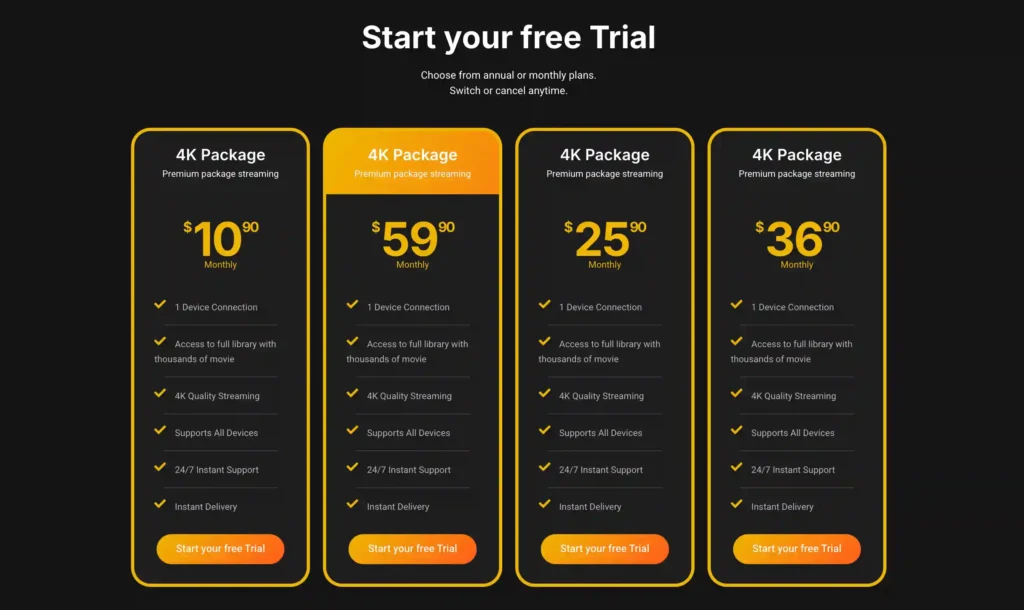
A free trial is available for eligible new users. Subscription prices and promotions can change, so it’s recommended to check the official VibeCastTV website for the latest information.
How to Fix IPTV Buffering on Firestick
1. Restart the IPTV Application and Firestick
Close the affected application and open it again. If buffering continues:
- Open Settings.
- Select My Fire TV.
- Select Restart.
- Wait for the Fire TV home screen to return.
- Open only the application you want to test.
Some Fire TV models may display Device & Software instead of My Fire TV.
Test the same authorized channel or program for several minutes. One successful minute is not enough to confirm that the problem has been fixed.
2. Run Fire TV’s Network-Status Test
Fire TV includes a built-in network diagnostic tool.
- Open Settings.
- Select Network.
- Highlight your connected network.
- Press the Play/Pause button on the remote.
- Review the connection results.
- Run the speed test or view advanced details if those options are available.
Run the test while buffering is occurring when possible. A test performed several hours later may not capture an intermittent network problem.
3. Test Another Authorized Streaming Application
Open an official streaming application on the same Firestick.
- If every application buffers, investigate the home network, internet connection, or Fire TV device.
- If only the IPTV player buffers, investigate that application, account, or provider.
- If the application works but only one channel fails, the individual stream or source is more likely to be responsible.
- If both the application menu and video playback are slow, the Firestick or application may be overloaded.
This comparison is more useful than immediately changing DNS settings, installing a VPN, or buying a new Firestick.
4. Improve the Firestick’s Network Connection
Move the Router or Firestick
Reduce the distance and number of obstacles between the Firestick and router where practical.
The Firestick may receive a weaker signal when it is:
- Hidden behind the television
- Inside a cabinet
- Close to metal surfaces
- Far from the router
- Separated by several walls
Use the HDMI extender supplied with some Fire TV models when it helps move the Firestick away from the back of the television.
Test Ethernet
A compatible Ethernet adapter can remove Wi-Fi variability from the test.
- If buffering stops over Ethernet, focus on Wi-Fi coverage, interference, or router placement.
- If buffering continues, the cause may involve the application, Firestick, internet service, account, or upstream stream source.
Use an adapter that is compatible with the exact Fire TV model. Ethernet cannot fix an unstable provider-side feed.
Reduce Competing Network Activity
Temporarily pause:
- Large downloads
- Cloud backups
- Multiple 4K streams
- Video calls
- Game updates
- Large file transfers
Retest the same stream. If playback improves, the household may need better traffic management, an upgraded router, or a faster internet plan.
5. Restart the Modem and Router
Restarting the home-network equipment can clear temporary connection problems.
- Disconnect the modem and router from power.
- Wait approximately one minute.
- Reconnect the modem first.
- Wait for it to establish an internet connection.
- Reconnect the router.
- Wait for Wi-Fi to return.
- Reconnect the Firestick and test the stream.
Do not press the router’s recessed factory-reset button. Restarting and factory-resetting a router are different operations.
6. Clear the IPTV Application’s Cache
Cache files are temporary. Clearing the cache is less disruptive than clearing all application data.
- Open Settings.
- Select Applications.
- Select Manage Installed Applications.
- Choose the affected IPTV player.
- Select Clear Cache.
- Restart the Firestick.
- Test playback again.
Do not assume that the cache must be cleared on a fixed weekly schedule. Use this step when the application behaves abnormally or its cache has become unusually large.
7. Clear App Data Only When Necessary
Clear Data is not the same as Clear Cache.
Clearing data can return the application to a fresh state and may remove:
- Login information
- Authorized account settings
- Player preferences
- Locally stored configuration
- Application history
Before clearing app data:
- Confirm that the account is authorized.
- Make sure you can recover the login or activation details.
- Record any important non-sensitive player settings.
- Never publish or share account credentials.
Use Clear Data only when restarting, updating, and clearing the cache have failed and there is evidence that the local application configuration may be damaged.
8. Check Available Storage
To view Fire TV storage:
- Open Settings.
- Select My Fire TV or Device & Software.
- Select About.
- Select Storage.
Remove applications you no longer use:
- Open Settings.
- Select Applications.
- Select Manage Installed Applications.
- Select the unwanted application.
- Select Uninstall.
Amazon requires at least 500 MB of free storage to download a Fire TV software update. Keep additional working space where practical, but do not rely on an unsupported storage number as a guaranteed buffering fix.
9. Update Fire TV and the IPTV Player
To check for a Fire TV update:
- Open Settings.
- Select My Fire TV or Device & Software.
- Select About.
- Select Check for System Update.
Then check the Amazon Appstore or the application’s verified official source for an update to the IPTV player.
Do not download a modified player, cracked premium application, or APK from an unknown repository.
10. Test a Lower Video Quality or Bitrate
When the application or authorized provider offers several quality levels, test a lower resolution or bitrate.
| Resolution | General Netflix reference speed |
|---|---|
| 720p HD | 3 Mbps or higher |
| 1080p Full HD | 5 Mbps or higher |
| 4K UHD | 15 Mbps or higher |
These figures are reference points rather than universal IPTV requirements. A live stream may use a different codec, bitrate, buffering system, or delivery network.
If a lower-quality stream works consistently, the problem may involve available bandwidth, Wi-Fi stability, stream bitrate, or the Firestick’s decoding capability.
11. Review Player Settings Carefully
Some lawful IPTV players provide settings such as:
- Automatic decoding
- Hardware decoding
- Software decoding
- Buffer size
- External player selection
- Audio passthrough
- Frame-rate matching
Use the default setting first. Change only one option at a time and record the original value.
Increasing the buffer may help absorb brief network variations, but it cannot repair a consistently slow connection or a defective source. A larger buffer may also increase the time required to change channels.
Player menus and available options vary between applications and versions. Follow documentation from the application’s verified developer.
12. Test Without an Existing VPN
When a VPN is already active, disconnect it temporarily and test the same authorized stream again.
A VPN adds another network route and may affect:
- Latency
- Available speed
- Routing stability
- Connection reliability
This comparison can show whether the VPN connection contributes to buffering.
Do not install a VPN as the first response to ordinary playback problems. A VPN must not be used to bypass subscriptions, sports blackouts, copyright controls, or a platform’s geographic restrictions.
A VPN does not make unauthorized streaming legal.
13. Reinstall the Application From an Official Source
Reinstallation may help when:
- The application repeatedly crashes.
- Application updates fail.
- Clearing cache and data does not help.
- The developer recommends reinstalling.
- Local application files may be corrupted.
Uninstall the application through Manage Installed Applications, restart the Firestick, and reinstall it from the official Amazon Appstore or another distribution source verified by the lawful application developer.
Make sure you can restore the authorized account before uninstalling the application.
14. Contact the Authorized Provider
Contact support when:
- One channel or group of channels fails repeatedly.
- Playback fails on several authorized devices.
- Other streaming applications work correctly.
- The problem occurs during a specific program or event.
- A login, subscription, or entitlement error appears.
- The application reports a server or source error.
Provide useful details rather than only saying that the service buffers.
Include:
- Date and time
- Time zone
- Affected channel or program
- Fire TV model
- Fire OS version
- Application name and version
- Wi-Fi or Ethernet connection
- Fire TV network-test result
- Whether other applications worked
- Whether the same authorized stream worked on another device
- Exact error message
- Troubleshooting already completed
Do not send passwords, payment-card information, portal addresses, playlist URLs, or authentication tokens in an unsecured support message.
15. Factory-Reset Fire TV Only as a Last Resort
A factory reset removes local settings, applications, and account configuration.
Use it only after:
- Restarting the Firestick
- Restarting the modem and router
- Running network diagnostics
- Testing another streaming application
- Clearing the application cache
- Checking available storage
- Updating Fire OS and the application
- Reinstalling the affected player
- Confirming that the upstream service is operating
Make sure you can restore your Amazon account and authorized application information before proceeding.
Buffering Symptoms and Likely Causes
| Symptom | Possible cause | Best next action |
|---|---|---|
| All applications buffer | Weak connection, router issue, congestion, or ISP problem | Run the Fire TV network test and restart the network |
| One application buffers | App cache, update, account, or provider problem | Clear cache and compare another app |
| One channel buffers | Individual source or provider-side feed | Test other channels and report the affected one |
| 4K buffers but HD works | Bandwidth, Wi-Fi stability, bitrate, or decoding limitation | Test a lower-quality stream |
| Playback worsens when other devices are active | Home-network congestion | Pause competing activity and retest |
| Playback works only over Ethernet | Wireless coverage or interference | Improve Wi-Fi or continue using Ethernet |
| Playback works on a phone but not the Firestick | Fire TV, application, or device placement | Restart, update, clear cache, and test the network |
| The app crashes before playback | Application or storage problem | Check storage, update, and reinstall if needed |
| Buffering occurs during one major event | Upstream capacity or high-bitrate source | Compare other streams and contact the provider |
| Problems begin after changing settings | Player configuration | Restore the previous settings |
How Much Internet Speed Does IPTV Need?
There is no single internet speed that guarantees every IPTV stream will work.
Requirements depend on:
- Video resolution
- Video codec
- Stream bitrate
- Frame rate
- Application design
- Network stability
- Other connected devices
- Provider infrastructure
Netflix currently recommends at least:
- 3 Mbps for 720p
- 5 Mbps for 1080p
- 15 Mbps for 4K
These recommendations apply specifically to Netflix and should be treated only as general streaming reference points.
Test the connection from the Firestick when possible. A phone positioned beside the router may report a much better result than a Firestick located behind a television in another room.
When the Provider May Be Responsible
A provider-side cause is more likely when:
- The same authorized stream fails on multiple devices.
- Other major streaming applications work normally.
- Only one channel, category, or event is affected.
- The problem continues over both Wi-Fi and Ethernet.
- Account authentication works but the source repeatedly disconnects.
- Support confirms a service incident.
Technical performance does not prove whether a provider has appropriate content rights. A stable stream is not evidence of lawful authorization, and buffering is not proof that a service is unauthorized.
Changes That Should Not Be Your First Fix
Installing a VPN
Test the ordinary internet connection first. Installing a VPN adds another variable and is not a universal buffering solution.
Changing DNS
DNS primarily helps devices locate internet services. It does not normally control the continuous delivery of an established video stream.
Change DNS only when there is evidence of a name-resolution problem or when a qualified network administrator recommends it.
Clearing All App Data
Clear the cache first. Clearing data can remove local settings and require another login.
Sideloading a Different Application
Prefer applications from official stores or verified developers. Never install a cracked player, modified premium application, or APK from an unknown download mirror.
Factory-Resetting the Firestick
A reset is disruptive and should follow ordinary network and application troubleshooting, not come before it.
Information to Send to Support
Copy and complete the following template:
Problem: Repeated buffering during authorized playback
Date and time:
Time zone:
Affected channel or program:
Fire TV model:
Fire OS version:
Application and version:
Connection: Wi-Fi or Ethernet
Fire TV network-test result:
Do other streaming applications work?
Does the same authorized stream work on another device?
Exact error message:
Troubleshooting completed:
Does the issue occur continuously or only at certain times?
Do not include a password, payment-card number, playlist URL, portal address, or authentication token in an unsecured message.
Frequently Asked Questions
Why Does IPTV Buffer When My Speed Test Is Fast?
A speed test measures performance during a limited test period. Playback can still buffer because of unstable Wi-Fi, brief connection drops, network congestion, high stream bitrate, application problems, decoding issues, or an upstream feed problem.
Run the test directly on the Firestick when possible and compare playback in another authorized streaming application.
Does Clearing the Cache Delete My IPTV Login?
Clearing the cache normally removes temporary files rather than the application’s full configuration.
Select Clear Cache, not Clear Data, when trying the less disruptive option.
What Does Clear Data Remove?
Clear Data can reset the application and require you to sign in again. Depending on the player, it may remove account settings, preferences, and locally stored configuration.
Make sure you can recover the authorized account information before using this option.
Why Does Only One Channel Buffer?
When other channels work on the same Firestick and internet connection, the individual stream or provider-side source becomes more likely to be responsible.
Test the channel again later, compare another authorized device, and report the exact channel and time to the provider.
Should I Use a VPN to Stop Buffering?
Do not install a VPN as a default fix.
When a VPN is already active, compare playback with it disconnected. This may show whether the VPN route is slowing or destabilizing the connection.
A VPN must not be used to obtain unauthorized access, defeat a blackout, bypass payment, or violate a streaming platform’s regional rules.
Is Ethernet Better Than Wi-Fi for IPTV?
Ethernet normally provides a more consistent connection and is a useful troubleshooting test.
It cannot fix an unstable provider feed or an application error, but it can reveal whether weak Wi-Fi or interference contributes to buffering.
When Should I Replace an Old Firestick?
Consider replacing the Firestick when it:
- No longer receives necessary software support
- Cannot run required official applications
- Repeatedly lacks usable storage
- Cannot decode the formats used by authorized services
- Remains slow after a factory reset and clean setup
Complete network and application troubleshooting first. A new Firestick will not fix a provider-side stream problem or an unstable home internet connection.
Conclusion
The fastest way to fix IPTV buffering on a Firestick is to identify the category of failure before changing advanced settings.
Determine whether every application, one application, or one channel is affected. Then restart the Firestick, run the network-status test, compare another authorized application, improve the connection, clear the application cache, check storage, and install available updates.
Use Clear Data, reinstallation, and factory reset only after less disruptive steps fail.
When the problem follows one channel across multiple devices and network connections, collect useful evidence and contact the authorized provider rather than repeatedly changing Fire TV settings.
Independent research disclosure: This article is based on official documentation, publicly available support information, and independent editorial research rather than hands-on product or provider testing.
Copyright and lawful-use notice: This article is intended for general education and lawful troubleshooting. VibeCastTV does not sell IPTV subscriptions, host television channels, provide streaming credentials, distribute playlists, or encourage copyright infringement. Readers should use only services and content they are authorized to access. Provider licensing, platform availability, and streaming rights vary by country and may change over time.