
By KAVANI | Fact-checked: July 17, 2026
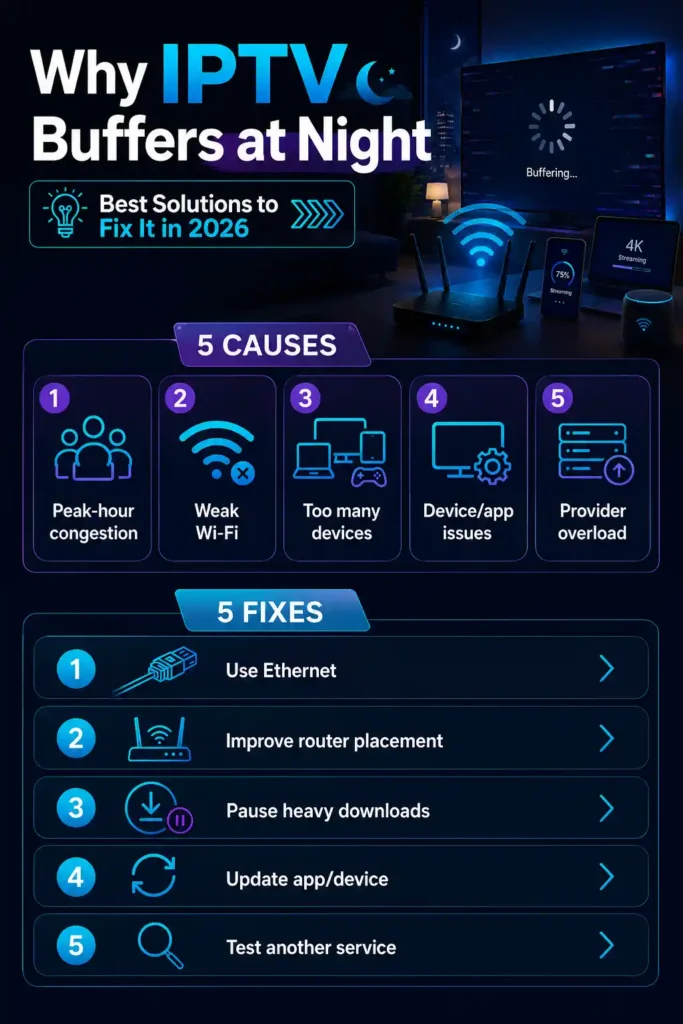
IPTV often buffers at night because evening traffic places more demand on your home network, Wi-Fi connection, internet provider, and the streaming service’s own infrastructure. Do not assume that your ISP is throttling the stream. Compare daytime and nighttime performance, test another authorized streaming service, pause competing traffic, and try Ethernet before changing advanced settings.
This guide applies to lawful IPTV applications and streaming services that you are authorized to access. It does not provide television credentials, playlists, portal addresses, server access, or methods for bypassing subscriptions, blackouts, or copyright controls.
This article is based on official technical documentation, publicly available policies, and independent editorial research rather than hands-on VibeCastTV testing.
Table of Contents
Why IPTV buffering gets worse at night
Nighttime buffering usually means that something changes when more people begin using the internet. The difficult part is identifying where the congestion occurs.
The FCC defines 7 p.m. to 11 p.m. local time as peak operating hours in its fixed-broadband measurement work. It explains that traffic increases during this period, creating a greater potential for congestion and performance degradation. However, most major ISP configurations tested in the FCC report still delivered close to or above their advertised download speeds during peak hours. Evening buffering therefore does not, by itself, prove that your ISP is deliberately slowing the service. ngestion
Your internet connection shares infrastructure with other customers at some point between your home and the wider internet. In a congested area, performance may become less consistent when many households begin streaming, gaming, downloading, and making video calls.
Possible signs include:
- Several streaming applications become less reliable at the same time.
- Speed, latency, or packet-loss results deteriorate consistently in the evening.
- The issue affects multiple devices, including one connected through Ethernet.
- Performance improves again late at night without changing the device or application.
These signs indicate a connection-level issue, but they do not prove deliberate throttling. Routing problems, local outages, overloaded neighborhood equipment, and problems farther upstream can produce similar symptoms.
Competition inside your home
The congested network may be your own.
Televisions, phones, computers, game consoles, security cameras, cloud backups, software updates, and video calls can all compete for the same connection. Apple’s streaming guidance specifically notes that connection speed may fall when multiple people are using the internet and recommends temporarily pausing other activity while diagnosing playback problems. activities such as:
- Cloud photo or computer backups
- Game and operating-system downloads
- Multiple 4K streams
- Video calls
- Security-camera uploads
- Large file transfers
- Automatic device updates
A speed test performed while those activities are paused may look very different from one performed while the network is busy.
Wi-Fi interference or a weak signal
The internet connection entering your home can be fast while the Wi-Fi connection to the television or streaming device is unstable.
Official Google troubleshooting guidance recommends using 5 GHz where supported, moving the streaming device away from interference, updating router firmware, restarting network equipment, checking the number of connected devices, and using Ethernet to remove Wi-Fi as a variable. hidden behind a television may also receive a weaker signal than a phone held in the open. That is why a phone speed test does not necessarily describe the connection available to the television.
Upload saturation and bufferbloat
Buffering is not always caused by low download speed.
When backups, cameras, file sharing, or video calls saturate the upload connection, queues can build inside the modem or router. This can increase latency and make the connection unstable even when a basic download-speed result appears respectable.
The IETF describes bufferbloat as excess network buffering that causes high latency and latency variation. Active Queue Management technologies such as PIE, CoDel, or FQ-CoDel are designed to control these queues, although router support and terminology differ. lude:
- Playback fails during cloud backups or large uploads.
- Websites and applications feel delayed while another device uploads.
- Latency rises sharply during a loaded connection test.
- Pausing upload-heavy activity immediately improves playback.
Application or device problems
A device or application problem is more likely when:
- Only one device is affected.
- Other streaming applications work on the same device.
- The issue began after an application or operating-system update.
- The device is low on storage.
- The application freezes even outside peak hours.
- Restarting only the application temporarily fixes the problem.
Official Apple and Netflix troubleshooting guidance recommends updating applications or system software, restarting the device, testing another device, and checking whether the platform itself is experiencing an interruption. ream-source congestion
The streaming provider may not have enough capacity for evening demand. A particular source, channel, event, or server route may also be overloaded.
Possible signs include:
- One authorized service buffers while Netflix, YouTube, or another legitimate platform works normally.
- Only certain channels or events fail.
- The problem affects several devices and internet connections.
- Lowering video quality does not help.
- The provider acknowledges an incident.
- The same stream fails on home internet and a separate mobile connection.
VibeCastTV cannot determine a provider’s capacity, licensing, or reliability without documented evidence. Ask the provider for a service-status update, but treat unsupported explanations as provider-supplied claims rather than verified facts.
Diagnose the cause before changing settings
Use one controlled test at a time. Changing the router, DNS service, video player, VPN, and application settings simultaneously makes the result difficult to interpret.
1. Determine the scope
Record the answers to these questions:
| Test | What the result suggests |
|---|---|
| Does every channel or video buffer? | A network, device, application, account, or provider-wide issue |
| Does only one channel buffer? | A specific source or provider-side issue |
| Does the problem affect every streaming application? | Home-network or ISP problem becomes more likely |
| Does it affect only one IPTV application? | Application or provider problem becomes more likely |
| Does it affect every device? | Router, ISP, account, or provider issue |
| Does it affect only one device? | Device, Wi-Fi, storage, or application issue |
| Does Ethernet fix it? | The home Wi-Fi link was probably contributing |
| Does a separate mobile connection fix it? | Home network or fixed ISP path becomes more likely |
No single test proves the cause, but the pattern helps eliminate unlikely explanations.
2. Compare daytime and nighttime performance
Run the same tests:
- Once when playback normally works
- Once during the evening problem
- From the affected streaming device where possible
- From a second device in the same room
- Through Ethernet if the equipment supports it
Record:
- Download speed (speedtest)
- Upload speed
- Loaded latency, when the test provides it
- Packet loss, when available
- Wi-Fi signal strength
- Application and channel affected
- Start and end time of the buffering
- Other network activity
A single speed-test number is not enough. Consistency matters more than an isolated high result.
3. Test another authorized streaming service
Play a known legitimate service on the same device at the same time.
- If both services buffer, investigate the device, home network, or ISP.
- If only the IPTV service buffers, investigate its application, account, source, or provider.
- If the service works on another device, investigate the original device or its Wi-Fi connection.
- If one channel fails but other channels work, report the affected source to the provider.
This comparison is more useful than immediately purchasing a faster plan.
4. Pause competing traffic
Temporarily stop:
- Cloud backups
- Game downloads
- Operating-system updates
- Large uploads
- Additional video streams
- Video calls
Retest the stream. A clear improvement indicates that household traffic or router queue management is contributing.
5. Test Ethernet or 5 GHz Wi-Fi
Connect the affected device directly to the router through Ethernet where practical. Google describes this as a way to obtain a direct hardwired connection and remove the home Wi-Fi network from the path. navailable:
- Use 5 GHz if the router and device support it and the device is reasonably close.
- Move the router into an open, elevated position.
- Reduce physical obstructions.
- Move the streaming device away from the television chassis, cables, and other electronics.
- Avoid placing the router inside a cabinet.
- Update the router’s firmware through its official administration process.
The 2.4 GHz band can provide greater range, while 5 GHz may provide better performance at shorter distances. Test both rather than assuming one is always superior.
How to fix IPTV buffering at night
Use Ethernet where practical
Ethernet is the most useful diagnostic change because it eliminates Wi-Fi interference, signal strength, and wireless competition as immediate variables.
A wired connection will not fix an overloaded provider or congested ISP route, but it can confirm whether Wi-Fi is part of the problem.
Improve the Wi-Fi connection
When a wired connection is impractical:
- Move the router and device closer.
- Place the router in an open location.
- Test 5 GHz and 2.4 GHz separately.
- Disconnect unused devices temporarily.
- Reposition mesh nodes according to the manufacturer’s guidance.
- Avoid stacking the router beside other electronics.
- Update router firmware only through the manufacturer’s official interface.
Netflix similarly recommends moving the router and streaming device closer, keeping the router in an open space, and moving it away from wireless devices and appliances. vice and network
Record your measurements first. Then:
- Shut down the streaming device.
- Unplug the modem and router.
- Wait approximately 30 seconds.
- Reconnect the modem.
- Wait for it to establish service.
- Reconnect the router if it is separate.
- Restart the streaming device.
- Test the same stream again.
Netflix includes device and home-network restarts in its official buffering procedure. r temporary faults, but a problem that returns every evening still requires further diagnosis.
Lower video quality temporarily
Select a lower authorized stream quality, when the service offers that option.
If 720p works while 4K repeatedly buffers, the connection or provider path may not be sustaining the higher bitrate. This is a diagnostic result—not proof that the ISP or provider is at fault.
Netflix currently recommends stable speeds of at least 3 Mbps for 720p, 5 Mbps for 1080p, and 15 Mbps for 4K. These figures are useful reference points, but another service may use different codecs, bitrates, or live-streaming technology. flix reference recommendation | How to use the figure |
|—|—:|—|
| 720p HD | 3 Mbps or higher | Minimum diagnostic reference |
| 1080p Full HD | 5 Mbps or higher | Minimum diagnostic reference |
| 4K UHD | 15 Mbps or higher | Minimum diagnostic reference |
Your connection should have enough additional capacity for other devices and normal variation. Meeting a minimum speed does not guarantee uninterrupted playback.
Update the application and device
Use the device’s official application store and update process.
Check:
- IPTV-player version
- Device operating-system version
- Available storage
- Router firmware
- Whether the application developer reports a known issue
Do not install a modified player or download an application from an unidentified APK repository to solve buffering.
Clear cache only when the issue is application-specific
Clearing an application’s temporary cache may help when one application is slow, frozen, or malfunctioning. Menu names vary by device.
Do not confuse Clear cache with Clear data. Clearing application data can remove saved settings and account information. Record the authorized provider’s setup information before taking any action that resets the application.
Do not repeatedly clear caches as a substitute for identifying a recurring evening-capacity problem.
Check the account and provider
Confirm through the provider’s official support channel:
- Whether the subscription is active
- Whether simultaneous-stream limits have been exceeded
- Whether the service reports an outage
- Whether only one source or channel is affected
- Whether the application being used is supported
- Whether any regional restriction applies
Enter only account information supplied by a provider you are authorized to use. VibeCastTV does not provide playlists, server access, portal URLs, or television credentials.
Contact the ISP with evidence
Contact the ISP when:
- Several legitimate streaming platforms fail.
- Multiple devices are affected.
- Ethernet does not improve performance.
- Evening tests are consistently worse than daytime tests.
- Packet loss or loaded latency rises during the problem.
- The issue persists after restarting the modem and router.
Provide:
- Dates and exact times
- Daytime and nighttime results
- Ethernet and Wi-Fi comparisons
- Devices affected
- Whether other streaming services fail
- Whether the problem affects download, upload, latency, or packet loss
This is stronger evidence than simply reporting that IPTV is buffering.
Troubleshooting matrix
| Symptom | Most likely area to investigate first | First controlled test |
|---|---|---|
| Every application buffers on every device | Home network or ISP | Test Ethernet and pause other traffic |
| One application buffers on every device | Application, account, or provider | Test another authorized service |
| One channel buffers but others work | Provider or source | Report the exact channel and time |
| Wi-Fi buffers but Ethernet works | Home Wi-Fi | Reposition equipment and test bands |
| Buffering begins during backups | Upload saturation or bufferbloat | Pause uploads and retest |
| Only one device buffers | Device, storage, application, or signal | Test another device in the same location |
| Buffering occurs all day | Not specifically an evening-load problem | Check baseline connection, app, and provider |
| Mobile connection works but home internet fails | Home network or fixed ISP path | Test Ethernet and contact the ISP |
| Lower quality works | Insufficient sustained capacity somewhere in the path | Compare loaded network performance |
| Restart helps briefly every night | Recurring load or capacity issue remains | Record when the issue returns |
Fixes that should not come first
Changing DNS
A DNS change may help when a hostname cannot be resolved or a provider’s DNS service is malfunctioning. It is not a reliable first fix for a video stream that connects successfully and then repeatedly runs out of data.
Changing several network settings at once can also hide the original cause.
Using a VPN
A VPN can protect traffic on untrusted networks, but it adds another server and route to the connection. Depending on the VPN location and capacity, it may improve, worsen, or have no effect on performance.
Do not use a VPN to access unauthorized content, avoid payment, defeat sports blackouts, or violate a platform’s geographic rules. A VPN does not make unauthorized streaming legal.
Clearing all application data
Clearing data is a reset, not routine maintenance. It can remove logins and settings. Try application restart, device restart, updates, cache clearing, and controlled network tests first.
Factory-resetting the device
A factory reset removes applications and configuration but will not increase ISP or provider capacity. Reserve it for a confirmed device-level fault after less destructive steps fail.
Buying a faster internet plan immediately
A higher advertised speed will not necessarily solve:
- Weak Wi-Fi
- Packet loss
- Upload saturation
- Provider congestion
- Application defects
- A single failing channel
- An outdated device
Measure the affected device and isolate the problem before paying for an upgrade.
How to tell who is responsible
You probably have a home-network problem when Ethernet fixes the issue or pausing household traffic produces an immediate improvement.
You may have an ISP problem when multiple legitimate services and devices deteriorate at the same evening times, including over Ethernet.
You may have a device or application problem when the failure is limited to one device or application.
You may have a provider-side problem when the affected IPTV service fails across devices and connections while unrelated authorized streaming services work normally.
These are diagnostic indicators, not legal or performance guarantees. A provider’s content-licensing arrangements, server capacity, and routing cannot be inferred from buffering alone.
Frequently asked questions
Why does IPTV buffer at night but not during the day?
Evening household traffic, Wi-Fi competition, ISP congestion, provider demand, scheduled uploads, or router queueing may increase at night. Compare the same device, stream, and network during daytime and evening periods to identify what changes.
Does nighttime buffering prove my ISP is throttling IPTV?
No. The FCC recognizes that congestion risk increases during peak hours, but its measurements also show that many tested major ISP configurations still delivered near or above advertised download speeds. Collect evidence before alleging deliberate throttling. ed test still hide a streaming problem?
Yes. A short test may not reveal intermittent packet loss, Wi-Fi instability, high loaded latency, upload saturation, or congestion affecting a specific provider route. Run repeated tests on the affected device and compare loaded and unloaded conditions.
Will Ethernet stop IPTV buffering?
Ethernet can fix buffering caused by weak or unstable Wi-Fi. It cannot fix an overloaded streaming provider, account problem, ISP outage, or congested route. Its main value is removing Wi-Fi as a variable.
Should I clear the IPTV application cache?
Clear the cache when one application is behaving abnormally. Do not clear all application data unless you understand that doing so may remove logins and settings.
Does changing DNS fix IPTV buffering?
Usually not when the stream starts successfully and then stalls. A DNS change is more relevant to name-resolution failures than sustained video delivery.
Should I use a VPN to stop buffering?
Not as a first troubleshooting step. A VPN changes the network route and may add latency or reduce throughput. It should not be used to bypass payment, copyright controls, blackouts, or geographic restrictions.
Conclusion
When IPTV buffers only at night, start by comparing conditions rather than guessing.
Test another authorized service, compare daytime and evening measurements, pause household traffic, try Ethernet, and determine whether the failure affects one channel, one application, one device, or the entire connection. This process separates local Wi-Fi problems from ISP, application, account, and provider-side issues.
Avoid destructive resets, unsupported throttling accusations, and automatic VPN or DNS recommendations. The most useful fix is the one supported by a controlled test.
Copyright and lawful-use notice: This article is intended for general education and lawful troubleshooting. VibeCastTV does not sell IPTV subscriptions, host television channels, provide streaming credentials, distribute playlists, or encourage copyright infringement. Readers should use only services and content they are authorized to access. Provider licensing, platform availability, and streaming rights vary by country and may change over time.