By KAVANI | Fact-checked: July 25, 2026
IPTV can work on Roku devices in the United States through a compatible player from the Roku Streaming Store, screen mirroring from Android or Windows, or AirPlay from an Apple device. Roku does not use the Android operating system, so Android APK files cannot be installed directly as they can on some Fire TV or Android TV devices.
Use only television services, playlists, accounts, and media sources that you are legally authorized to access.
Direct answer: To use IPTV on Roku in the USA, first search the Roku Streaming Store for a compatible IPTV player. When a suitable app is unavailable, mirror a lawful IPTV player from Android or Windows, or use AirPlay from an iPhone, iPad, or Mac. Roku does not natively support Android IPTV APK files.
Table of Contents
Can You Use IPTV on Roku in the USA?
Yes, but Roku handles IPTV differently from Android TV, Google TV, and Amazon Fire TV.
There are three practical ways to access authorized IPTV content on Roku:
- Install a compatible player from the Roku Streaming Store.
- Screen mirror an IPTV player from Android or Windows.
- Use Apple AirPlay from an iPhone, iPad, or Mac.
The right option depends on:
- Your Roku device model.
- Your Roku account region.
- The application you want to use.
- The account format supplied by your authorized provider.
- Whether your phone or computer supports screen mirroring.
- Whether the streaming application permits AirPlay.
Roku Store availability can change. An application that is available today may later be removed, renamed, restricted to another country, or discontinued by its developer.
What Is an IPTV Player on Roku?
An IPTV player is an application that organizes and plays compatible video streams. It does not normally supply television channels by itself.
Depending on the player, it may support:
- M3U or M3U8 playlists.
- Provider-supplied account credentials.
- Electronic Program Guide data.
- XMLTV guide files.
- Favorites and channel categories.
- Subtitles.
- Multiple audio tracks.
- Catch-up features provided by an authorized service.
- Personal or business-owned media servers.
IPTV player versus IPTV service
An IPTV player and an IPTV television service are not the same thing.
| Component | Purpose |
|---|---|
| IPTV player | Organizes and plays compatible streams |
| Television provider | Supplies authorized content and account access |
| Playlist | Contains stream locations and organizational information |
| EPG | Provides program titles, schedules, and descriptions |
| Roku device | Runs the player and displays the video |
Paying for a player may unlock player features. It does not automatically give the user access to premium television, sports, movies, or subscription channels.
Use only authorized account information
Enter only account or playlist information supplied by a source you are permitted to use.
VibeCastTV does not provide:
- M3U or M3U8 playlists.
- Xtream Codes credentials.
- Portal URLs.
- Server addresses.
- Usernames or passwords.
- Trial accounts.
- Shared television accounts.
- Authorization tokens.
- Premium channel access.
Do not download credentials from public forums, messaging groups, social-media posts, shared documents, or websites advertising free premium television access.
Best IPTV Service For Roku devices 2026 (Tested & Verified)
VibeCastTV Review (2026): IPTV Service for Roku devices& Streaming Entertainment
VibeCastTV is an IPTV subscription service designed for users who want to stream live television and on-demand entertainment across multiple devices. The platform focuses on providing an easy setup experience, flexible subscription plans, and compatibility with many popular IPTV applications.
Whether you’re looking for news, entertainment, sports programming, or international channels, VibeCastTV aims to offer a convenient streaming solution for users in the USA, Canada, and other supported regions.
Key Features
📺 Live Television
VibeCastTV provides access to a wide range of live television categories, including entertainment, news, lifestyle, children’s programming, and international content.
🎬 Video on Demand
Subscribers can browse a library of on-demand content, with new titles added periodically depending on availability.
🖥️ Multi-Device Compatibility
The service is compatible with many popular IPTV devices and applications, including:
- Amazon Fire TV & Fire Stick
- Android TV
- Android smartphones and tablets
- iPhone & iPad
- Windows PCs
- Mac computers
- Smart TVs
- IPTV Smarters
- TiviMate
- XCIPTV
- Other apps that support M3U playlists or Xtream Codes API
📡 Streaming Quality
Where supported by the source and internet connection, streams may be available in:
- HD
- Full HD (1080p)
- 4K Ultra HD
Actual quality may vary depending on content availability, device capabilities, and network performance.
⚡ Quick Setup
New customers receive setup information after subscribing, making it possible to start using the service in a short amount of time.
💬 Customer Support
VibeCastTV provides customer assistance for account setup, installation, and general service questions.
Services
Depending on the subscription plan, VibeCastTV may include access to:
- Live TV
- Entertainment channels
- News channels
- Sports programming
- Kids’ content
- International channels
- Video-on-Demand (VOD)
- Electronic Program Guide (where supported)
- Multi-device compatibility
- Setup assistance
Available content may vary over time.
Pricing
VibeCastTV offers several subscription lengths, allowing users to choose the option that best fits their needs.
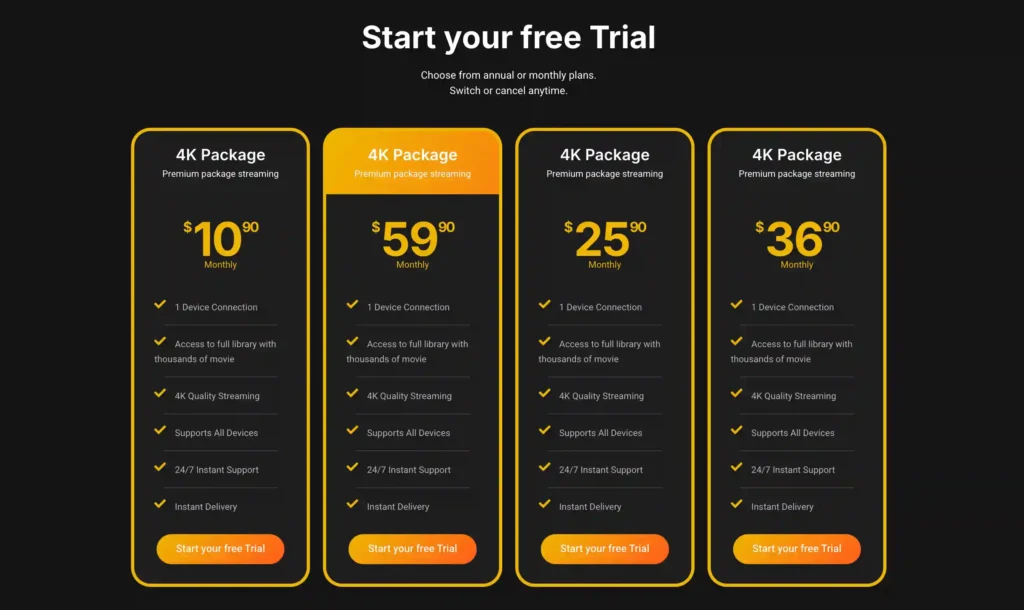
A free trial is available for eligible new users. Subscription prices and promotions can change, so it’s recommended to check the official VibeCastT
How to Set Up IPTV on Roku
Method 1: Install an IPTV Player from the Roku Store
Installing a player from the official Roku Streaming Store is usually the simplest option.
Step 1: Open the Roku Streaming Store
- Turn on your Roku device or Roku TV.
- Make sure it is connected to the internet.
- Open Streaming Store, Store, or Streaming Channels from the home screen.
- Select Search.
The exact menu name may differ depending on your Roku OS version and home-screen layout.
Step 2: Search for a compatible player
Search for:
- IPTV player.
- M3U player.
- Live TV player.
- The exact name of an application recommended by your authorized provider.
Do not install an application solely because its name contains words such as “premium,” “4K,” “smart,” “unlimited,” or “free live TV.”
Step 3: Review the application listing
Before installing the app, check:
- Developer name.
- Publisher website.
- Privacy-policy link.
- Supported account formats.
- Supported playlist formats.
- Whether the app contains advertising.
- Whether payment is one-time or recurring.
- Recent update information.
- Support contact details.
- User reviews, while remembering that reviews are not proof of licensing or reliability.
A Roku Store listing confirms that the application was available in Roku’s marketplace when checked. It does not prove that every television service, playlist, or reseller used with the app is authorized.
Step 4: Install the application
- Open the application listing.
- Select Add app.
- Wait for the installation to finish.
- Open the player from the Roku home screen.
Step 5: Add your authorized source
Depending on the player, you may be asked to enter:
- An M3U URL.
- An M3U8 URL.
- A provider username and password.
- A provider-supplied server address.
- An activation code.
- An EPG URL.
- Details through a companion website.
Use only information supplied by an authorized provider, broadcaster, employer, school, media server administrator, or other source you are permitted to access.
Never send your credentials to an unknown person offering to “convert” your account for Roku.
Method 2: Screen Mirror IPTV from Android to Roku
Screen mirroring displays the entire screen of a compatible phone or tablet on Roku.
This method may be helpful when:
- Your preferred lawful player is unavailable in the Roku Store.
- The player is installed on Android.
- You want to test whether a playback issue is specific to the Roku app.
- You do not want to enter provider credentials into an unfamiliar Roku application.
Enable screen mirroring on Roku
- Open Settings.
- Select System.
- Select Screen mirroring.
- Open Screen mirroring mode.
- Select Prompt.
The Prompt option is generally safer than automatically accepting every connection because it lets you approve each device.
Connect an Android phone or tablet
The mirroring option may have a different name depending on the manufacturer:
- Smart View.
- Screen Cast.
- Cast.
- Wireless Display.
- Screen Share.
- Mirroring.
General steps:
- Connect the Android device and Roku to the same home network.
- Open the authorized IPTV or media application on Android.
- Open the phone’s screen-mirroring setting.
- Select the Roku device.
- Approve the connection on the television.
- Start playback from the phone.
Not every Android device supports the same screen-mirroring technology. Some Google Pixel phones, for example, may not support the Miracast-based method used by many Roku devices.
Check the phone manufacturer’s documentation when Roku does not appear in the device list.
Method 3: Screen Mirror IPTV from Windows to Roku
A Windows computer can also mirror its screen to a compatible Roku device.
Windows mirroring steps
- Connect the Windows computer and Roku to the same network.
- Press Windows key + K.
- Wait for the available wireless displays to appear.
- Select the Roku device.
- Approve the connection on Roku.
- Open the lawful IPTV or media player on the computer.
- Begin playback.
The computer must normally remain powered on and connected while streaming.
Because the full desktop may appear on the television, close private windows and enable an appropriate focus or do-not-disturb mode before connecting.
Method 4: Use AirPlay from an iPhone, iPad, or Mac
Compatible Roku devices support Apple AirPlay.
AirPlay may let you send supported video directly to Roku or mirror the full screen of an Apple device.
Enable AirPlay on Roku
- Open Settings.
- Select Apple AirPlay and HomeKit.
- Confirm that AirPlay is turned on.
Stream from an iPhone or iPad
- Connect the Apple device and Roku to the same Wi-Fi network.
- Open the authorized media application.
- Select the AirPlay icon when available.
- Choose the Roku device.
- Enter the code shown on the television if requested.
Mirror the entire Apple device screen
- Open Control Center.
- Select Screen Mirroring.
- Choose the Roku device.
- Enter the displayed code if required.
Some streaming applications block AirPlay or screen recording because of content-protection or licensing requirements. An application may therefore play normally on an iPhone but refuse to display through AirPlay.
Can You Install an Android IPTV APK on Roku?
No. Roku does not natively run Android APK files.
Roku uses Roku OS, while Android TV, Google TV, and Fire TV use Android-based operating systems. Applications created for Android cannot simply be copied to Roku.
| Roku | Android TV or Fire TV |
|---|---|
| Runs Roku OS | Runs an Android-based system |
| Uses Roku applications | Uses Android applications |
| Installs apps mainly through Roku Store | Installs apps mainly through an Android app store |
| Uses Roku development frameworks | Uses Android development frameworks |
| Does not run APK files natively | Supports compatible APK files |
Renaming an APK file, extracting it, compressing it into a ZIP file, or changing its extension does not convert it into a Roku application.
Should You Use Roku Developer Mode for IPTV?
Roku Developer Mode exists so developers can create and test Roku applications.
It is not a normal consumer-installation method and does not make Android applications compatible with Roku.
Avoid guides that instruct you to:
- Enable Developer Mode only to install an unknown IPTV package.
- Download a Roku ZIP file from an unverified website.
- Install a package without an identifiable developer.
- Disable security protections.
- Enter television credentials into an unofficial application.
- Replace a removed Roku application with an unknown copy.
- Use Developer Mode to avoid paying for a legitimate application.
Developer Mode may be appropriate for a developer testing their own lawful Roku application. It should not be treated as a method for installing cracked players, pirated television services, or unidentified packages.
Roku IPTV Setup Methods Compared
| Method | Best for | Main advantage | Main limitation |
|---|---|---|---|
| Roku Store player | Regular Roku viewing | Controlled with Roku remote | Player availability and compatibility vary |
| Android screen mirroring | Users with a compatible Android device | Uses an existing mobile player | Phone must remain connected |
| Windows screen mirroring | Desktop players and troubleshooting | Useful for testing authorized sources | Computer must stay active |
| Apple AirPlay | iPhone, iPad, and Mac users | Convenient for Apple users | Some applications block AirPlay |
| Official provider Roku app | Customers of a supported provider | Usually offers the clearest account integration | Not every provider offers a Roku application |
How to Choose an IPTV Player for Roku
A trustworthy player should be evaluated separately from the television provider used with it.
Confirm United States availability
Applications may be restricted by country or Roku account region.
Search directly from the Roku device connected to your U.S. account. This is more reliable than following an old third-party guide or using an application name shown in an outdated screenshot.
Verify the developer
Look for:
- A recognizable developer name.
- A working publisher website.
- A functioning privacy policy.
- Support contact information.
- A clear description of the app’s purpose.
- Information about updates.
- Clear payment terms.
Be cautious when the app directs users to an unrelated website that requests payment, credentials, or personal information.
Check the supported input format
Your authorized provider may supply one of several account formats.
| Information supplied | Player support required |
|---|---|
| M3U playlist | M3U support |
| M3U8 stream | M3U8 or HLS support |
| EPG URL | EPG or XMLTV support |
| Provider username and password | Compatible login system |
| Personal media server | Support for the relevant server or protocol |
| Catch-up access | Catch-up support from both player and provider |
A working account may still fail when the player does not support the provider’s format.
Understand the payment
Before paying for an IPTV player, check:
- Whether payment is made through Roku.
- Whether payment occurs on an external website.
- Whether the fee is one-time or recurring.
- Whether a trial renews automatically.
- How to cancel.
- Whether the purchase applies to one or multiple Roku devices.
- Whether the payment covers only the player or also claims to include content.
A paid player does not automatically include licensed television content.
Do not assume licensing
A professional website, app-store listing, payment system, support contact, or positive review does not prove that a television provider owns the right to distribute its advertised channels.
Before purchasing a service, look for:
- Identifiable company ownership.
- Public contact details.
- Terms and conditions.
- Privacy policy.
- Refund policy.
- Cancellation process.
- Clear geographic availability.
- Official applications.
- Transparent payment practices.
- Public information about content authorization.
- Realistic programming claims.
When content-licensing arrangements cannot be independently confirmed, treat that as an important limitation.
IPTV on Roku Troubleshooting
Use the symptom to identify the likely cause before reinstalling applications, resetting the Roku, or changing network settings.
| Problem | Possible cause | What to check |
|---|---|---|
| IPTV app does not appear | Region, model, removal, or account restriction | Search from Roku and confirm the U.S. account region |
| Login is rejected | Incorrect credentials, expired account, or provider issue | Re-enter details and contact the official provider |
| Playlist does not load | Unsupported format or invalid source | Confirm player compatibility and playlist status |
| EPG is empty | Missing or outdated guide data | Refresh the guide and verify the EPG source |
| Every streaming app buffers | Home-network problem | Test the connection and restart the router |
| Only one IPTV app buffers | App or codec issue | Update the app and test another lawful player |
| Only one channel fails | Source or provider issue | Test other authorized channels |
| Roku does not appear for mirroring | Network or compatibility issue | Use the same network and confirm Miracast support |
| Roku does not appear in AirPlay | Network or AirPlay setting | Enable AirPlay and confirm the same Wi-Fi network |
| App disappeared from Roku | Developer or platform change | Search the store and check publisher information |
IPTV app is missing
Possible reasons include:
- The app is unavailable in the United States.
- The developer removed it.
- Roku removed it.
- The application no longer supports your model.
- Your Roku account uses another country.
- The app was renamed.
- The application is temporarily unavailable.
Do not download an unknown replacement package merely because the original app disappeared.
Login details are not accepted
Check:
- Capitalization.
- Spaces before or after the username.
- Subscription status.
- Server address.
- Account-device limits.
- Whether the credentials were changed.
- Whether the provider supports the Roku player.
Reinstalling the app will not fix an expired subscription or incorrect account details.
Playlist does not load
A playlist may fail because:
- The URL was entered incorrectly.
- The playlist has expired.
- The player does not support the format.
- The provider server is unavailable.
- The account is restricted.
- The playlist requires authentication.
- The source has been removed.
Do not upload the playlist to an unknown conversion website, as it may contain private account or access information.
EPG is blank
Program-guide data is separate from video playback.
The EPG may be empty because:
- The provider did not supply guide data.
- The EPG URL is incorrect.
- The guide needs to be refreshed.
- Channel names do not match the guide.
- The data is temporarily unavailable.
- The player does not support the supplied format.
Playback keeps buffering
Buffering can originate from:
- The home network.
- Wi-Fi interference.
- The Roku device.
- The application.
- The video codec.
- The provider server.
- The source stream.
- Account limits.
- Regional availability.
Try these steps in order:
- Test another lawful streaming application.
- Restart Roku.
- Restart the router.
- Check Roku’s network connection.
- Move the router closer if using Wi-Fi.
- Use Ethernet when supported.
- Update Roku OS.
- Update the player application.
- Test another authorized channel.
- Test the same authorized source in another legitimate player.
- Ask the provider whether it is experiencing an outage.
When all streaming applications buffer, investigate the home network first. When only one app or channel fails, the problem is more likely related to the player, provider, or source.
Privacy and Security Tips
Protect your account credentials
- Use a unique password.
- Do not reuse your email password.
- Do not post credentials publicly.
- Do not share playlist screenshots.
- Do not send passwords through social-media comments.
- Avoid remote-access software requested by unknown sellers.
- Sign out of devices you no longer use.
- Change your password after accidental exposure.
- Contact the official provider rather than an unknown reseller account.
Warning signs of a suspicious IPTV offer
Be cautious when a service promises:
- Every premium U.S. television channel.
- Every sports league and pay-per-view event.
- Thousands of premium channels for an unusually low price.
- Lifetime access.
- No need for payment authorization.
- Shared or public credentials.
- Free premium playlists.
- Untraceable viewing.
- Guaranteed immunity from shutdowns.
- A VPN that makes the service legal.
- Ways to defeat blackouts, DRM, or paywalls.
Other warning signs include:
- No identifiable company.
- No terms and conditions.
- No privacy policy.
- No cancellation process.
- No refund information.
- Payment only through cryptocurrency, gift cards, or messaging apps.
- Unknown APK or ZIP downloads.
- Requests to disable device security.
- Pressure to pay immediately.
Does an App-Store Listing Prove an IPTV Service Is Legal?
No.
A Roku Store listing may show that an application was distributed through Roku’s marketplace. It does not independently prove that every provider, playlist, channel, or media source used with the player is authorized.
An app-store listing does not verify:
- Broadcasting rights.
- Content ownership.
- Provider licensing.
- Channel availability.
- Customer-support quality.
- Refund behavior.
- Privacy compliance.
- Performance.
- Uptime.
- Video quality.
- Accuracy of marketing claims.
Evaluate the player and the television service separately.
Do You Need a VPN for IPTV on Roku?
An IPTV player does not inherently require a VPN.
A VPN may provide ordinary network privacy, particularly on a public or untrusted connection. However, it does not give the user legal permission to access copyrighted programming.
A VPN does not:
- Make unauthorized streaming lawful.
- Provide broadcasting rights.
- Make an unlicensed provider legitimate.
- Allow a viewer to defeat sports blackouts.
- Authorize account sharing.
- Bypass subscription requirements lawfully.
- Override a platform’s regional rules.
Using a VPN to evade geographic restrictions may also violate a streaming platform’s terms.
Lawful Alternatives for Live Television on Roku
Readers who do not already have an authorized television source can search the Roku Store for:
- Official network applications.
- Licensed live-TV streaming services.
- Local station applications.
- Public broadcasters.
- Official sports-league applications.
- Internet-provider television apps.
- Free ad-supported television services.
- The Roku Channel.
- Library-supported streaming services.
Always check the official broadcaster, league, or streaming-service website before assuming that a particular event, local channel, or television program is included.
Sports rights, local availability, blackout rules, and channel packages can change.
Frequently Asked Questions
Does Roku have IPTV apps?
Yes. IPTV player applications may be available in the U.S. Roku Streaming Store. These players generally require the user to supply an authorized playlist, television account, or media source.
Availability and features can change.
Can IPTV Smarters be installed on Roku?
An Android or Fire TV version of IPTV Smarters cannot be installed directly on Roku as an APK.
Search the Roku Store for an official Roku version from the verified developer. When no official version is available, use a compatible lawful player, Android or Windows screen mirroring, or Apple AirPlay.
Can I use an M3U playlist on Roku?
Some Roku players support M3U or M3U8 playlists.
Confirm the current app description before installing it, and use only a playlist you are authorized to access.
Is IPTV legal in the United States?
IPTV is a video-delivery technology and can be used legally.
The important question is whether the provider or broadcaster has permission to distribute the programming and whether the viewer is authorized to access it.
Installing an IPTV player does not prove that a third-party service owns the necessary rights.
Why was an IPTV app removed from Roku?
An application may disappear because:
- The developer removed it.
- The app was renamed.
- It became incompatible.
- It is no longer available in your region.
- Roku removed it from the store.
- The publisher stopped supporting Roku.
Avoid unofficial replacement packages from unknown websites.
Why is Roku not appearing for screen mirroring?
Make sure:
- Roku and the source device use the same network.
- Screen mirroring is enabled on Roku.
- The source device supports Miracast.
- Roku is set to prompt or allow connections.
- Network isolation is not enabled on the router.
Why does my IPTV stream work on my phone but not Roku?
The Roku player may not support the same format, codec, login method, or EPG system as the mobile app.
Test a different legitimate Roku player or use screen mirroring from the working phone application.
Do I need a VPN for Roku IPTV?
No. A VPN is not required simply because an IPTV player is being used.
It may provide ordinary privacy, but it does not make unauthorized streaming legal and should not be used to bypass subscriptions, blackouts, DRM, or platform restrictions.
Conclusion
Using IPTV on Roku in the USA is possible, but Roku requires a different setup approach from Fire TV or Android TV.
The safest process is:
- Search the U.S. Roku Streaming Store for a suitable player.
- Verify the developer, privacy policy, payment terms, and supported formats.
- Enter only authorized account or playlist information.
- Use Android or Windows screen mirroring when a direct Roku player is unavailable.
- Use AirPlay from a compatible Apple device.
- Avoid Android APKs, cracked players, unknown Roku packages, public playlists, and shared credentials.
- Evaluate the player and television provider separately.
A media player only provides the software interface. The user remains responsible for choosing an authorized content source and protecting their account details.
Research and Testing Disclosure
This guide is based on official documentation, publicly available application information, government consumer guidance, and independent editorial research rather than hands-on testing.
No Roku model, IPTV player, television provider, playlist, billing process, support service, or playback performance was tested specifically for this article.
Copyright and Lawful-Use Notice
This article is intended for general education and lawful troubleshooting. VibeCastTV does not sell IPTV subscriptions, host television channels, provide streaming credentials, distribute playlists, or encourage copyright infringement.
Readers should use only services and content they are authorized to access. Provider licensing, application availability, platform features, and streaming rights vary by country and may change over time.