By KAVANI | Fact-checked: July 25, 2026
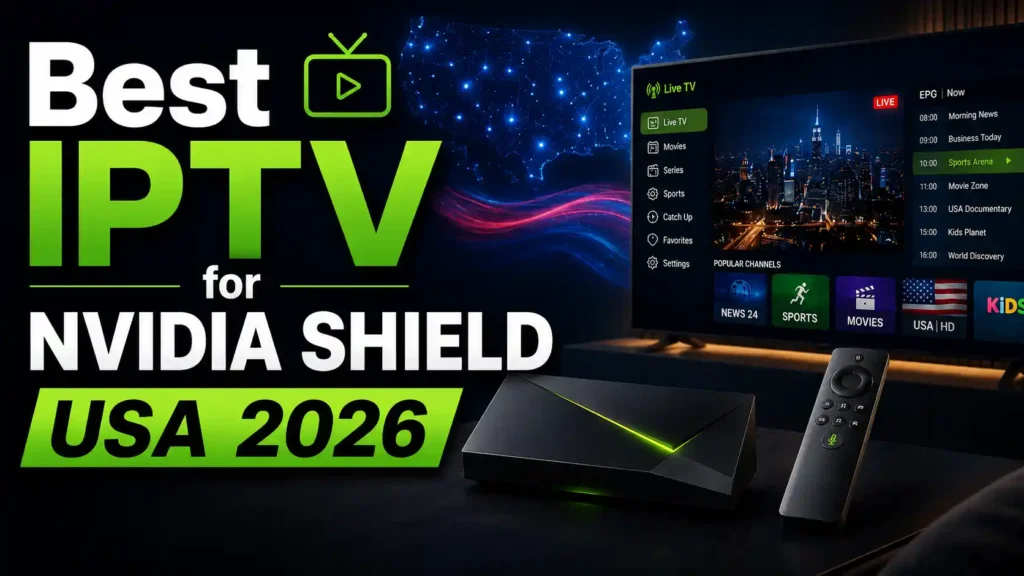
Quick answer: To use IPTV for NVIDIA Shield in the USA, install a remote-friendly player such as TiviMate, Sparkle TV, or Kodi from an official source. Then enter account or playlist details supplied by a service you are authorized to use. Shield TV is suitable for regular playback, while Shield TV Pro offers more storage, RAM, and USB connectivity for advanced setups.
NVIDIA Shield is an Android TV streaming device capable of running provider applications and compatible IPTV players from Google Play. The device itself does not include an IPTV subscription, television channels, an M3U playlist, or streaming credentials.
A safe setup starts with an official application, an authorized content source, and a clear understanding of the difference between an IPTV player and a content provider.
This guide explains how to select an IPTV player for NVIDIA Shield, configure authorized access, manage storage, and troubleshoot playback or electronic program guide problems.
This article is based on official manufacturer documentation, app-store information, and independent editorial research rather than hands-on VibeCastTV testing.
Lawful-use reminder: Enter only account information or playlist details supplied by a provider you are authorized to use. VibeCastTV does not provide playlists, server access, portal URLs, usernames, passwords, authentication tokens, or television credentials.
Table of Contents
Why NVIDIA Shield Works Well as an IPTV Player
NVIDIA Shield TV and Shield TV Pro use the NVIDIA Tegra X1+ processor, support 4K HDR playback, include Gigabit Ethernet, and run Android TV.
These features make Shield devices compatible with many television-focused Android applications. The remote-friendly interface also makes the Shield more convenient for living-room viewing than a phone or tablet.
However, the Shield cannot repair:
- An expired subscription
- An inactive stream
- Incorrect account credentials
- A provider outage
- An overloaded source server
- An improperly configured electronic program guide
- Content that is unavailable in the United States
The player, source format, network connection, and content provider all affect the viewing experience.
NVIDIA Shield TV vs. Shield TV Pro
Both models can run compatible IPTV players, but their hardware differences matter when recording or maintaining a larger media setup.
| Feature | Shield TV | Shield TV Pro | Practical relevance |
|---|---|---|---|
| RAM | 2 GB | 3 GB | The Pro offers more memory for demanding applications and multitasking |
| Internal storage | 8 GB | 16 GB | The Pro leaves more room for applications, guide data, and caches |
| Storage expansion | microSD | Two USB 3.0 ports | The Pro is more convenient for USB drives and recordings |
| Ethernet | Gigabit | Gigabit | Both support stable wired networking |
| Operating system | Android TV | Android TV | Both use the same main application ecosystem |
| AI upscaling | Supported | Enhanced support | Applies only to compatible lower-resolution video |
| Plex Media Server | No | Included | Useful for personal media but not required for IPTV |
Specifications were checked on NVIDIA’s US product pages on July 25, 2026.
Which Model Should You Choose?
Shield TV should be adequate when you:
- Mainly want live television playback
- Use one or two streaming applications
- Do not need USB storage
- Prefer a compact device
- Can use microSD for additional storage
- Do not plan to run a personal media server
Shield TV Pro may be more practical when you:
- Want to connect USB storage
- Plan to record authorized streams
- Use several media applications
- Need more internal storage
- Want Plex Media Server
- Maintain a large personal media collection
- Prefer additional RAM for more demanding workflows
The Pro model does not improve a provider’s licensing, server capacity, uptime, or stream reliability.
Current NVIDIA Shield Software
NVIDIA currently lists Shield Experience Upgrade 9.2.4 as the latest software version.
Its release notes include security patches through January 2026 and fixes related to playback, HDMI-CEC behavior, Bluetooth remotes, and third-party remote connections.
Before installing an IPTV player:
- Open Settings.
- Select Device Preferences.
- Open About.
- Select System upgrade.
- Install the update offered directly by NVIDIA.
- Restart the Shield.
Keeping the device updated can resolve compatibility and security issues before you begin troubleshooting an individual application.
What You Need Before Starting
Prepare the following:
- NVIDIA Shield TV or Shield TV Pro
- Google account for Google Play
- Stable internet connection
- Official provider application or compatible IPTV player
- Authorized account or playlist information
- Optional XMLTV program-guide source
- Sufficient storage if recording is required
- Provider support and cancellation information
An Authorized Content Source
An IPTV player normally does not include channels.
Authorized access may come through:
- A provider’s official application
- An authorized M3U or M3U8 playlist
- An Xtream-compatible account
- A Stalker Portal account
- A television tuner
- A personal media server
- A local network television source
Do not use login details copied from forums, public playlists, messaging groups, social-media posts, or “free IPTV account” websites.
A Supported Login Format
Check which login format your service officially supports before choosing an application.
| Login method | Information required | Main advantage | Important limitation |
|---|---|---|---|
| Official application | Email, password, or activation code | Simplest account management | Only works when the service supports Shield |
| M3U playlist | Personalized playlist URL | Broad player compatibility | The URL may expose account access if shared |
| Xtream-compatible login | Server address, username, and password | Easier to enter in some players | Does not prove that the provider is authorized |
| Stalker Portal | Portal and device information | Supported by some television systems | Player compatibility varies |
| XMLTV | Program-guide URL or file | Adds schedule information | Does not provide video streams |
A Stable Network Connection
Both Shield models include Gigabit Ethernet and dual-band Wi-Fi.
Use Ethernet when practical, particularly when:
- The Shield is near the router
- Several people share the Wi-Fi connection
- High-bitrate authorized video is used
- Recordings frequently fail
- Wi-Fi performance changes throughout the day
Ethernet cannot fix a provider outage, but it can eliminate wireless interference as a possible cause.
Available Storage
Check storage under:
Settings → Device Preferences → Storage
Shield TV includes 8 GB of internal storage and supports microSD expansion. Shield TV Pro includes 16 GB and two USB 3.0 ports.
Some internal capacity is reserved for the operating system.
Recordings, program-guide databases, application caches, channel logos, and downloaded artwork can consume storage over time.
Best IPTV Service For NVIDIA Shield 2026 (Tested & Verified)
VibeCastTV Review (2026): IPTV Service for NVIDIA Shield & Streaming Entertainment
VibeCastTV is an IPTV subscription service designed for users who want to stream live television and on-demand entertainment across multiple devices. The platform focuses on providing an easy setup experience, flexible subscription plans, and compatibility with many popular IPTV applications.
Whether you’re looking for news, entertainment, sports programming, or international channels, VibeCastTV aims to offer a convenient streaming solution for users in the USA, Canada, and other supported regions.
Key Features
📺 Live Television
VibeCastTV provides access to a wide range of live television categories, including entertainment, news, lifestyle, children’s programming, and international content.
🎬 Video on Demand
Subscribers can browse a library of on-demand content, with new titles added periodically depending on availability.
🖥️ Multi-Device Compatibility
The service is compatible with many popular IPTV devices and applications, including:
- Amazon Fire TV & Fire Stick
- Android TV
- Android smartphones and tablets
- iPhone & iPad
- Windows PCs
- Mac computers
- Smart TVs
- IPTV Smarters
- TiviMate
- XCIPTV
- Other apps that support M3U playlists or Xtream Codes API
📡 Streaming Quality
Where supported by the source and internet connection, streams may be available in:
- HD
- Full HD (1080p)
- 4K Ultra HD
Actual quality may vary depending on content availability, device capabilities, and network performance.
⚡ Quick Setup
New customers receive setup information after subscribing, making it possible to start using the service in a short amount of time.
💬 Customer Support
VibeCastTV provides customer assistance for account setup, installation, and general service questions.
Services
Depending on the subscription plan, VibeCastTV may include access to:
- Live TV
- Entertainment channels
- News channels
- Sports programming
- Kids’ content
- International channels
- Video-on-Demand (VOD)
- Electronic Program Guide (where supported)
- Multi-device compatibility
- Setup assistance
Available content may vary over time.
Pricing
VibeCastTV offers several subscription lengths, allowing users to choose the option that best fits their needs.
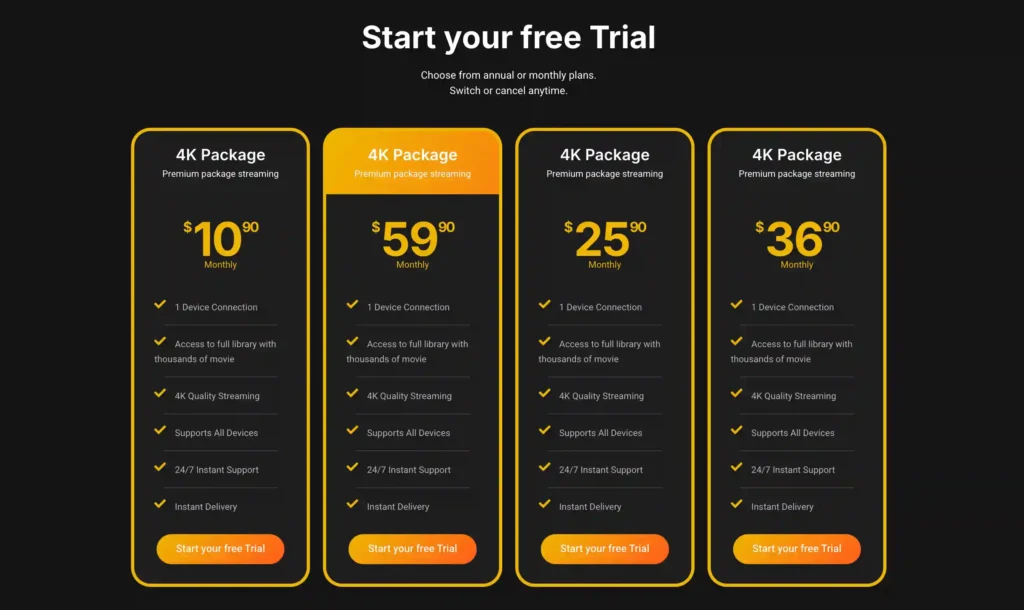
A free trial is available for eligible new users. Subscription prices and promotions can change, so it’s recommended to check the official VibeCastT
IPTV Players for NVIDIA Shield Compared
The following comparison is based on capabilities documented by the developers and official app-store listings. It does not rank IPTV providers or claim that VibeCastTV tested player performance.
| Player | Documented strengths | Best suited to | Important limitation |
|---|---|---|---|
| TiviMate | Remote-focused interface, EPG, multiple playlists, catch-up, recording, multiview, and parental controls | Viewers wanting a traditional television interface | Some features require a paid version |
| Sparkle TV | M3U, XMLTV, DVR, timeshift, multiview, tuners, and media-server integrations | Recording and advanced home-TV setups | Several advanced functions require Sparkle TV Plus |
| Kodi | Open source, local media support, PVR add-ons, M3U, and XMLTV | Advanced users wanting a complete media center | Requires more configuration |
TiviMate
TiviMate is designed for Android TV devices and remote-control navigation.
Its documented features include:
- Multiple playlists
- Electronic program guide
- Favorites
- Channel groups
- Catch-up support
- Recording
- Multiview
- Parental controls
- Search
- Customizable television guide
TiviMate may be suitable when:
- A traditional television-guide layout is the priority
- Remote navigation matters
- Several authorized playlists must be organized
- Favorites and channel groups are important
- You do not need a complete local-media center
TiviMate is a player. Purchasing its premium features does not purchase television channels or a streaming subscription.
Sparkle TV
Sparkle TV supports several television and media-server formats, including:
- M3U and M3U8
- XMLTV
- Xtream-compatible accounts
- Stalker Portal
- Jellyfin
- Plex
- Tvheadend
- HDHomeRun
- Other compatible PVR sources
It also documents features such as:
- DVR
- Timeshift
- Multiview
- Remote customization
- Home-screen integration
- Multiple source support
Sparkle TV may be suitable when:
- Recording is important
- The household uses a tuner or media server
- Multiple PVR sources must be combined
- Remote customization matters
- Android TV home-screen integration is useful
Several advanced features may require Sparkle TV Plus. Confirm current feature and purchase information through the official app-store listing.
Kodi
Kodi is a free, open-source media center available for Android TV.
Kodi can combine:
- Local films and television programs
- Music
- Photos
- Personal media servers
- Live television
- Radio
- PVR features
Kodi’s official PVR IPTV Simple Client supports:
- M3U playlists
- M3U8 playlists
- XMLTV guide data
- Live television
- Radio sources
- Kodi’s PVR interface
Kodi may be suitable when:
- Local media and live television should use one interface
- You are comfortable configuring add-ons
- Customization is more important than simple setup
- You want an open-source media center
Kodi does not include television channels, playlists, or subscriptions.
How to Set Up IPTV for NVIDIA Shield
Step 1: Update the Shield
- Open Settings.
- Select Device Preferences.
- Open About.
- Select System upgrade.
- Install the available NVIDIA update.
- Restart the device.
Use updates delivered directly through NVIDIA rather than downloading unofficial firmware.
Step 2: Connect to Ethernet or Wi-Fi
For Ethernet:
- Connect a network cable to the Shield.
- Open Settings → Network & Internet.
- Confirm that Ethernet is connected.
- Test another legitimate streaming application.
For Wi-Fi:
- Open Settings → Network & Internet.
- Select your network.
- Enter the Wi-Fi password.
- Confirm that the signal remains stable.
Do not change DNS settings, disable security features, or install a VPN before identifying the actual problem.
Step 3: Install a Player From Google Play
- Open Apps.
- Open Google Play Store.
- Search for the exact application name.
- Confirm the developer’s identity.
- Review its description and permissions.
- Check for in-app purchases.
- Select Install.
- Open the application.
Most Shield users do not need to enable unknown sources or sideload a player.
Avoid similarly named imitation applications.
Step 4: Add Authorized Account Details
The exact setup process depends on the format supplied by your authorized service.
Official Application Login
Use the provider’s official application when available.
Enter the email address, password, or activation code through the provider’s official login process.
An official application is generally preferable when the service uses:
- DRM-protected playback
- Device authorization
- Account profiles
- Managed downloads
- Subscription controls
- Region-specific content rules
M3U Playlist
Choose the application’s M3U or playlist option only when your authorized source supplied the URL.
A personalized playlist URL may contain:
- Username
- Password
- Account number
- Authentication token
- Server address
Treat the full URL like a password.
Never include it in:
- Public screenshots
- Social-media posts
- Comments
- Public support forums
- Shared documents
- Unsecured notes
Xtream-Compatible Login
Some applications request:
- Server address
- Username
- Password
Enter these details exactly as supplied by the authorized source.
Do not submit account credentials to unofficial conversion websites.
XMLTV Electronic Program Guide
When a separate XMLTV guide address is supplied:
- Open the player’s EPG settings.
- Add the XMLTV URL.
- Save the configuration.
- Allow the guide to synchronize.
- Check the Shield’s date and time zone.
- Confirm that guide listings match the correct channels.
A playlist may play normally even when its guide identifiers do not match the XMLTV data.
Step 5: Test Several Streams
Do not evaluate the setup using only one channel.
Test several authorized streams and check:
- Whether playback starts
- Whether audio and video remain synchronized
- Whether the correct channel opens
- Whether the guide matches the channel
- Whether the failure affects one stream or every stream
- Whether another legitimate streaming application works
- Whether Ethernet performs differently from Wi-Fi
This process helps determine whether the problem is related to the network, Shield, application, account, or provider.
Step 6: Organize the Player
After confirming basic playback:
- Add frequently used channels to favorites
- Hide unused groups
- Configure parental controls
- Set an EPG update schedule
- Enable automatic application updates
- Select a recording location if supported
- Store credentials in a secure password manager
- Save the provider’s official support and cancellation details
Recording and Storage on NVIDIA Shield
Recording support depends on:
- The IPTV player
- The content source
- Provider permissions
- Available storage
- Write permissions
- Stream format
- Simultaneous connection limits
- Whether recording is included in the player’s free or paid version
Recording on Shield TV
Shield TV has 8 GB of internal storage and a microSD slot.
Before attempting a recording:
- Check whether the player supports recording.
- Confirm available storage.
- Verify that the application can write to the selected location.
- Test a short recording.
- Avoid filling the internal storage.
Recording on Shield TV Pro
Shield TV Pro has 16 GB of internal storage and two USB 3.0 ports.
The USB ports make it more convenient to connect external storage, but successful recording still depends on:
- Player compatibility
- Source permissions
- File-system support
- Storage speed
- Free space
- Connection limits
Network Storage
NVIDIA Shield can connect to compatible network storage through its storage settings.
Network storage may be useful for personal media, but not every IPTV player can record directly to every network location.
Verify the recording location with the application developer’s current documentation.
Recommended NVIDIA Shield Settings
Keep System and Application Updates Enabled
Updates may address:
- Playback bugs
- Security vulnerabilities
- EPG problems
- Remote-control issues
- Application crashes
- Codec compatibility
Install Shield software through NVIDIA and update applications through Google Play.
Use Ethernet When Practical
A wired connection can reduce:
- Wireless interference
- Signal fluctuations
- Congestion from nearby networks
- Distance-related Wi-Fi problems
It does not fix:
- An expired account
- Provider outages
- Inactive streams
- Overloaded content servers
- Incorrect credentials
Protect Available Storage
Remove unused applications and review large caches.
Clearing an application’s full data may erase:
- Playlists
- Account details
- Favorites
- EPG settings
- Recording paths
- Parental-control settings
Back up the player configuration first when the application supports backups.
Avoid Random Optimization Changes
Do not automatically:
- Disable hardware acceleration
- Enable developer options
- Disable security protections
- Change DNS servers
- Install task killers
- Clear all application data
- Modify hidden codec settings
- Enable unknown sources
Make one documented change at a time and record whether it improved the problem.
NVIDIA Shield IPTV Troubleshooting
| Symptom | Most likely category | First action |
|---|---|---|
| No channels load | Account, playlist, or provider | Confirm the authorized login details and account status |
| EPG is empty | XMLTV, channel mapping, or time zone | Verify the EPG source and Shield time zone |
| Every app buffers | Network or device | Test Ethernet and another legitimate streaming app |
| Only one player buffers | Application or decoder configuration | Update the app and compare another authorized player |
| Only one channel fails | Individual source stream | Test other channels and contact the provider |
| Recording fails | Storage, permissions, or connection limit | Check free space and perform a short test recording |
| Player is missing | App-store availability or compatibility | Search the exact official developer listing |
| Application closes | Storage, update, or corrupted cache | Restart, update, and inspect available storage |
| Audio works without video | Codec, decoder, or source problem | Test another stream and update the player |
| Long URLs are difficult to enter | Remote input | Use the Google TV mobile remote keyboard |
No Channels Load
Check these items in order:
- Confirm that the account is active.
- Verify the server address.
- Check the username and password.
- Remove accidental spaces.
- Confirm that the selected login method is supported.
- Check whether the provider is experiencing an outage.
- Confirm that the account’s connection limit has not been reached.
- Restart the player.
Do not replace a failed account with credentials found online.
The EPG Is Empty
Possible causes include:
- Missing XMLTV source
- Expired guide URL
- Mismatched channel identifiers
- Incorrect device time zone
- Incomplete guide synchronization
- Provider-side guide failure
- Outdated EPG cache
Correct the guide source before clearing all application data.
Every Stream Buffers
Check the home network and device first:
- Test Ethernet instead of Wi-Fi
- Restart the Shield
- Restart the router once
- Pause large downloads
- Stop cloud backups
- Test another official streaming application
- Check free storage
- Confirm that the Shield has adequate ventilation
- Test another device on the same network
When every streaming application buffers, the home network is more likely to be involved.
Only One Player Buffers
When the same authorized stream works in another application, investigate:
- Application updates
- Hardware-decoding settings
- Stream format
- Audio-track selection
- Frame-rate options
- Player-specific cache settings
- Player compatibility
Changing a cache setting cannot make an overloaded provider server faster.
Only One Channel Fails
When most channels work but one does not, the likely cause is the individual source stream.
Possible reasons include:
- Temporary source outage
- Changed stream address
- Unsupported codec
- Regional restriction
- Account-level availability
- Provider maintenance
Contact the authorized provider rather than searching for an unauthorized replacement stream.
Recordings Fail
Check:
- Available storage
- Write permissions
- Recording-folder selection
- Whether the source permits recording
- Simultaneous connection limits
- Whether recording requires a paid player feature
- Whether the USB or network drive remains connected
Test a short recording before scheduling a long program.
The Application Is Missing From Google Play
Possible reasons include:
- The application is unavailable in the USA
- The developer removed Android TV support
- The application requires another Android version
- The app is designed only for phones
- Its name or listing changed
- Google temporarily removed the listing
Do not install a similarly named application from an unknown download site.
Audio Works but Video Does Not
Possible causes include:
- Unsupported video codec
- Hardware-decoding conflict
- Outdated player
- Outdated Shield software
- Corrupted source stream
- Limited stream compatibility
Update the Shield and player first. Test another authorized channel to determine whether the problem affects the application or a single stream.
Entering Long URLs Is Difficult
The Google TV mobile application can function as a remote for compatible Android TV devices and provides a phone keyboard for text entry.
Connect the phone and Shield to the same network, pair the remote, and use the phone keyboard to reduce typing errors.
The playlist URL remains sensitive account information and should not be stored in an unsecured location.
Is IPTV for NVIDIA Shield Legal in the USA?
NVIDIA Shield devices and IPTV player applications have lawful uses.
Whether a specific IPTV setup is lawful depends on:
- Who supplies the content
- Whether the supplier has distribution rights
- Whether the viewer has a valid subscription
- Whether the content is available in the United States
- Whether credentials are being shared
- Whether access controls are being bypassed
- Whether usage complies with the platform’s terms
An application being available through Google Play does not prove that every playlist entered into it is authorized.
Player vs. Provider
An IPTV player organizes and plays media.
The provider or media source supplies:
- Content access
- Channel availability
- Account details
- Billing
- Cancellation
- Customer support
- Geographic availability
- Streaming authorization
Do not treat the player developer as the content provider unless the developer explicitly operates an authorized television service.
Warning Signs of a Risky Provider
Use caution when a seller advertises:
- Thousands of premium channels at an unusually low price
- Every sports package worldwide
- Guaranteed zero buffering
- Near-perfect uptime without evidence
- No verifiable company identity
- No privacy policy
- No refund or cancellation information
- Cryptocurrency-only or irreversible payment
- Shared accounts
- Modified APK files
- Public playlists
- Instructions to hide the service
- Claims that a VPN makes the service legal
A professional website, application, payment page, or legal disclaimer does not independently prove that a provider has content rights.
Access Controls and the DMCA
The US Copyright Office explains that the Digital Millennium Copyright Act restricts certain methods of bypassing technological measures used to control access to copyrighted works.
Do not use Shield applications to bypass:
- Paid subscriptions
- DRM
- Password protection
- Account limits
- Sports blackouts
- Geographic restrictions in violation of platform terms
This article provides general consumer information and is not legal advice.
Do You Need a VPN?
NVIDIA Shield and compatible IPTV players do not inherently require a VPN.
A VPN may have legitimate privacy or security uses, especially on an untrusted network. However, it does not:
- Supply streaming rights
- Make an unauthorized provider legal
- Replace a subscription
- Authorize credential sharing
- Repair an expired account
- Fix an overloaded server
- Permit blackout circumvention
A VPN does not make unauthorized streaming legal and may violate a streaming platform’s terms when used to bypass geographic restrictions.
Limitations of This Guide
VibeCastTV did not independently test:
- TiviMate playback
- Sparkle TV playback
- Kodi playback
- Channel-switching speed
- EPG accuracy
- Recording reliability
- 4K stream performance
- Shield temperature
- Provider uptime
- Customer support
- Any third-party IPTV provider’s licensing
Player features described in this article are based on official documentation and current app-store information.
Applications, software versions, prices, features, and geographic availability may change.
Frequently Asked Questions
Does NVIDIA Shield include IPTV channels?
No. NVIDIA Shield is a streaming device. It provides access to compatible applications but does not include an IPTV playlist, television package, or streaming credentials.
Is TiviMate available on NVIDIA Shield?
TiviMate is designed for Android TV devices and is distributed through its official developer channels. Confirm the application name and developer before installing it.
Is Shield TV Pro necessary for IPTV?
No. Shield TV can run compatible Android TV IPTV players.
Shield TV Pro is more convenient when you need USB storage, recording, more internal storage, or Plex Media Server.
Can Kodi play IPTV for NVIDIA Shield?
Yes. Kodi is available for Android TV, and its official PVR IPTV Simple Client supports M3U playlists and XMLTV guide data.
Kodi does not provide television channels.
Do I need to sideload an IPTV player?
Usually not. Several compatible players are available through official distribution channels.
Sideloading should be considered only when the lawful developer and original application file can be verified. Never use cracked or modified versions.
Why is my EPG blank?
Common causes include:
- Missing XMLTV data
- Expired guide URL
- Mismatched channel IDs
- Incorrect time-zone settings
- Incomplete guide synchronization
- Provider-side guide problems
Will Ethernet stop all buffering?
No. Ethernet can reduce Wi-Fi instability, but it cannot fix a provider outage, inactive stream, expired account, or overloaded server.
Can I record IPTV on Shield TV Pro?
Some compatible players support recording to internal, USB, or network storage.
Successful recording depends on the player, source permissions, free space, write access, storage compatibility, and connection limits.
Conclusion
A safe IPTV setup on NVIDIA Shield begins with updated device software, an application installed through an official source, and account information issued by a service you are authorized to use.
TiviMate offers a remote-friendly television interface. Sparkle TV provides broader DVR and PVR integrations. Kodi provides extensive media-center customization but requires more setup.
Shield TV is suitable for normal playback. Shield TV Pro is more practical when USB storage, recording, Plex Media Server, or advanced personal-media features are required.
Neither device provides television rights, channels, playlists, server accounts, portal URLs, or streaming credentials. The quality and legality of the setup depend on the source and how it is used.
Independent Research Disclosure
This article was prepared using NVIDIA product documentation, NVIDIA software-release notes, official application listings, Kodi documentation, Google TV help resources, and US Copyright Office information.
Testing Disclosure
This article is based on official documentation and independent editorial research rather than VibeCastTV hands-on testing. No player, provider, recording workflow, stream, EPG, or NVIDIA Shield model was performance-tested for this article.
Copyright and Lawful-Use Notice
This article is intended for general education and lawful troubleshooting. VibeCastTV does not sell IPTV subscriptions, host television channels, provide streaming credentials, distribute playlists, or encourage copyright infringement.
Readers should use only services and content they are authorized to access. Provider licensing, application availability, and streaming rights vary by country and may change over time.