By KAVANI | Fact-checked: September 6, 2026
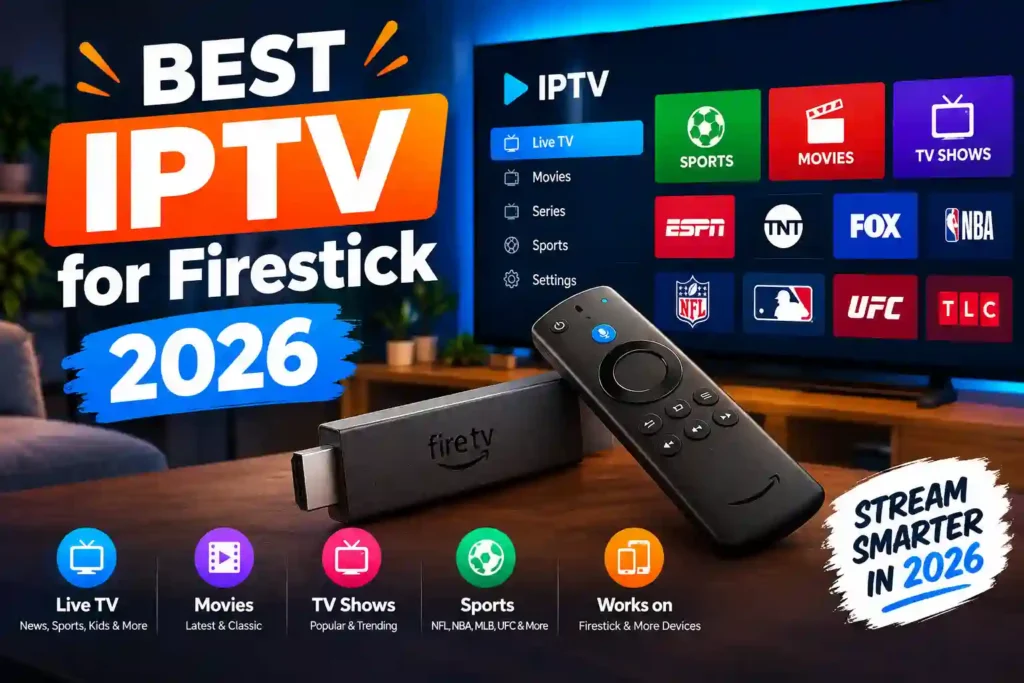
Setting up IPTV on a Fire TV Stick means installing a player app capable of reading a playlist or Xtream Codes connection, then entering the details supplied by whichever provider you’re already subscribed to or authorized to use. Most Fire TV Stick owners can do this entirely through the Amazon Appstore, without sideloading anything — this guide covers that path first, then explains sideloading honestly for the cases where it’s genuinely needed.
Table of Contents
What “Setting Up IPTV on Firestick” Actually Involves
IPTV (Internet Protocol Television) is a delivery method, not a content source. A player app like Smarters Player Pro doesn’t come with channels built in — it’s a shell that displays whatever playlist (an M3U URL) or Xtream Codes login you provide, typically supplied by an IPTV service you’ve subscribed to, a legitimate streaming provider, or your own personal media setup. Setting it up on Firestick involves three parts: getting the app installed, getting your playlist or login details entered, and keeping playback stable afterward.
VibeCastTV does not provide playlists, server access, portal URLs, or television credentials. Enter only account information or playlist details supplied by a provider you are authorized to use.
Step 1: Check Which Fire TV Stick Model You Have
This matters more than most guides mention. Since 2025-2026, Amazon has shipped some Fire TV Stick models with Vega OS, a Linux-based system that only allows installing apps from the Amazon Appstore, with no sideloading option for regular users. Other models still run Fire OS (Android-based), which supports sideloading as before.
To check which one you have, go to Settings → My Fire TV → About and look at the listed operating system.
| Model | Operating system | Sideloading supported |
|---|---|---|
| Fire TV Stick 4K Max | Fire OS | Yes |
| Fire TV Stick 4K Plus | Fire OS | Yes |
| Fire TV Stick 4K (older/current standard) | Fire OS | Yes |
| Fire TV Stick HD (Wi-Fi 5, earlier version) | Fire OS | Yes |
| Fire TV Stick HD (Wi-Fi 6, 2026 version) | Vega OS | No |
| Fire TV Stick 4K Select | Vega OS | No |
If your device runs Vega OS, skip straight to Step 2 — sideloading won’t be an option, but the Amazon Appstore path works the same either way.
Step 2: Install an IPTV Player App from the Amazon Appstore
Recommended: Installing Without Sideloading
For most people, this is the only step needed to get a player app onto the device, regardless of which Fire Stick model you own:
- From the Fire TV home screen, select the Find or search icon.
- Type the name of the player app you want — for example, “Smarters Player Pro” or “Smarters Player Lite,” which are available directly in the Amazon Appstore.
- Select the app from the search results and choose Get or Download.
- Once installed, select Open.
This method works identically whether your device runs Fire OS or Vega OS, and it avoids the security trade-offs of sideloading entirely.
Step 3: Add Your Playlist or Xtream Codes
Once the app is open, you’ll typically be asked to choose a login method — usually either an M3U playlist URL or Xtream Codes login (server URL, username, and password). These details come from your IPTV provider, not from VibeCastTV or the player app itself.
- Open the player app and select Add User or Add Playlist.
- Choose the connection type your provider specified (M3U URL or Xtream Codes).
- Enter the exact URL, username, and password provided to you.
- Save, and the app should populate with your provider’s channel list and EPG (electronic program guide), if supported.
Only enter credentials or playlist URLs supplied by a service you have a legitimate account with. If a source offers you a playlist for free with no account or subscription behind it, that’s a sign to verify what you’re actually connecting to before entering anything.
Sideloading an IPTV App: When It’s Necessary and What to Know
Some IPTV player apps aren’t listed in the Amazon Appstore, which leads some users to sideload — installing an app from outside the official store. This is only possible on Fire OS devices, not Vega OS ones.
Which Fire Stick Models Support Sideloading
As shown in the table above, the Fire TV Stick 4K Max, 4K Plus, standard 4K, and the earlier Wi-Fi 5 Fire TV Stick HD retain sideloading. The Fire TV Stick 4K Select and the newer Wi-Fi 6 Fire TV Stick HD (2026) do not, since they run Vega OS.
If you’re sideloading a specific app you already know and trust the developer of, the general process is:
- Go to Settings → My Fire TV → Developer Options.
- Turn on Apps from Unknown Sources and confirm the warning.
- Install the Downloader app from the Amazon Appstore.
- Open Downloader and enter the direct download URL for the app you intend to install, from a source you’ve verified is the legitimate developer.
- Confirm the installation when prompted.
VibeCastTV : Best IPTV on Firestick 2026
VibeCastTV is an IPTV subscription service designed for users who want to stream live television and on-demand entertainment across multiple devices. The platform focuses on providing an easy setup experience, flexible subscription plans, and compatibility with many popular IPTV applications.
Whether you’re looking for news, entertainment, sports programming, or international channels, VibeCastTV aims to offer a convenient streaming solution for users in the USA, Canada, and other supported regions.
Key Features
📺 Live Television
VibeCastTV provides access to a wide range of live television categories, including entertainment, news, lifestyle, children’s programming, and international content.
🎬 Video on Demand
Subscribers can browse a library of on-demand content, with new titles added periodically depending on availability.
🖥️ Multi-Device Compatibility
The service is compatible with many popular IPTV devices and applications, including:
- Amazon Fire TV & Fire Stick
- Android TV
- Android smartphones and tablets
- iPhone & iPad
- Windows PCs
- Mac computers
- Smart TVs
- IPTV Smarters
- TiviMate
- XCIPTV
- Other apps that support M3U playlists or Xtream Codes API
📡 Streaming Quality
Where supported by the source and internet connection, streams may be available in:
- HD
- Full HD (1080p)
- 4K Ultra HD
Actual quality may vary depending on content availability, device capabilities, and network performance.
⚡ Quick Setup
New customers receive setup information after subscribing, making it possible to start using the service in a short amount of time.
💬 Customer Support
VibeCastTV provides customer assistance for account setup, installation, and general service questions.
Services
Depending on the subscription plan, VibeCastTV may include access to:
- Live TV
- Entertainment channels
- News channels
- Sports programming
- Kids’ content
- International channels
- Video-on-Demand (VOD)
- Electronic Program Guide (where supported)
- Multi-device compatibility
- Setup assistance
Available content may vary over time.
Pricing
VibeCastTV offers several subscription lengths, allowing users to choose the option that best fits their needs.
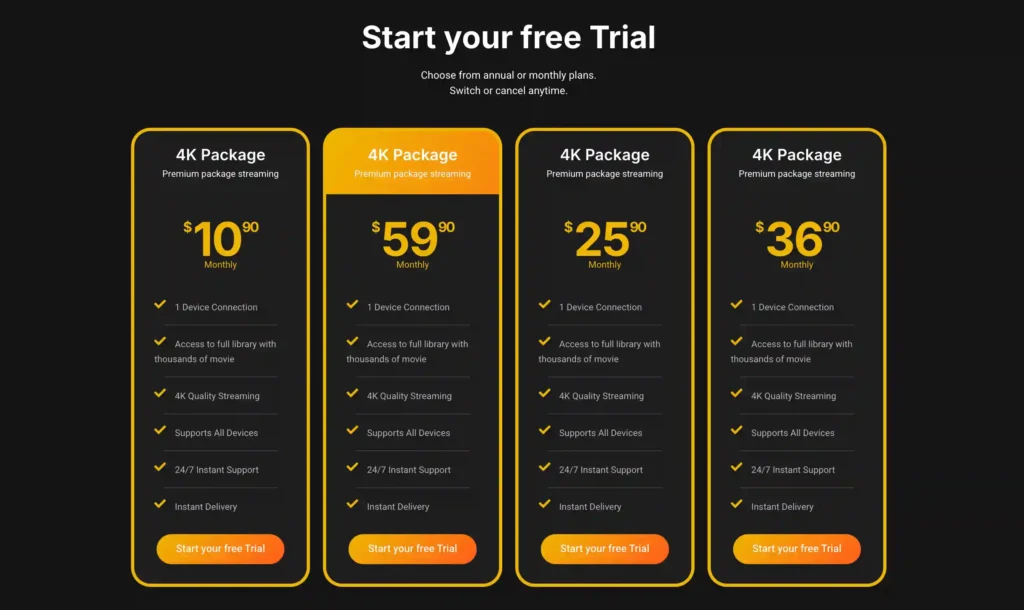
A free trial is available for eligible new users. Subscription prices and promotions can change, so it’s recommended to check the officiel website vibecast tv
Security Risks to Understand
Sideloading bypasses the screening Amazon applies to Appstore listings. This means a sideloaded app could contain malware, could be a modified or fake version of a legitimate app, or could be designed to harvest account credentials. Sideloading itself isn’t illegal, but it does shift responsibility for verifying safety entirely onto you. Only sideload apps whose developer you can independently verify, and never sideload an app specifically designed to unlock paid content you haven’t subscribed to.
Fixing Common IPTV Buffering and Playback Issues on Firestick
Buffering is usually a network or device issue rather than something wrong with the IPTV app itself. Work through these in order:
| Issue | Likely cause | What to try |
|---|---|---|
| Frequent buffering during playback | Slow or unstable internet | Run a speed test at Settings → Network → select your Wi-Fi → press Play/Pause; aim for at least 10 Mbps for HD, 25 Mbps for 4K |
| Buffering only during peak hours | Network congestion | Disconnect other devices using bandwidth, or connect via Ethernet adapter instead of Wi-Fi |
| App freezes or crashes | Device storage or cache issue | Go to Settings → Applications → Manage Installed Applications, select the app, and clear cache |
| Playback won’t start at all | Outdated app or Fire OS | Check Settings → My Fire TV → About for pending updates, and confirm the app itself is updated |
| Persistent issues after trying the above | Provider-side or account issue | Contact your IPTV provider directly to confirm their service is active and check for outages |
A VPN is sometimes suggested as a fix for buffering caused by ISP throttling, but this isn’t guaranteed to help, and in some cases a VPN can slow your connection further depending on server load and distance. If you use a VPN for general privacy, that’s a reasonable choice, but don’t treat it as an automatic buffering fix — start with the network and device checks above first. A VPN does not make unauthorized streaming legal and shouldn’t be used to bypass a service’s regional restrictions.
Limitations of This Guide
Fire TV Stick hardware and software change over time, and Amazon’s rollout of Vega OS may expand to additional models. Always check your specific device’s current settings menu for the most accurate picture of what it supports. This article is based on official documentation, publicly available policies, and independent editorial research rather than hands-on testing on a specific Fire Stick model.
FAQs
Do I need to sideload anything to use IPTV on Firestick?
No, in most cases. Player apps like Smarters Player Pro/Lite are available directly through the Amazon Appstore, so sideloading isn’t necessary unless you need a specific app that isn’t listed there.
Can I sideload apps on any Fire TV Stick?
No. Fire OS-based models (4K Max, 4K Plus, standard 4K, and the earlier Fire TV Stick HD) support sideloading. The Fire TV Stick 4K Select and the newer Wi-Fi 6 Fire TV Stick HD run Vega OS and don’t.
Where do I get an IPTV playlist or Xtream Codes login?
From your IPTV provider directly, after subscribing to their service. VibeCastTV does not provide playlists, credentials, or server access.
Is sideloading an IPTV app illegal?
Sideloading itself isn’t illegal — it’s a standard Android capability. What matters is what you sideload and what content you access with it; using an app to access content you’re not authorized to view can carry legal risk separate from the act of sideloading.
Why does my IPTV app keep buffering?
Most buffering comes from internet speed, Wi-Fi signal strength, network congestion, or outdated apps rather than the IPTV player itself. Work through a speed test, restart, and cache-clearing before assuming it’s a bigger problem.
Will a VPN stop my Firestick from buffering?
Not necessarily. A VPN might help in specific cases involving ISP throttling, but it can also slow your connection down. It’s not a guaranteed or default fix, and it doesn’t make unauthorized content legal to access.
Conclusion
Setting up IPTV on a Fire TV Stick is straightforward for most people: install a player app directly from the Amazon Appstore, enter the playlist or login details from your own provider, and troubleshoot buffering through your network and device settings before assuming anything more complicated is wrong. Sideloading is only necessary for specific apps not listed in the official store, and it comes with real security trade-offs worth understanding before you rely on it.
Copyright and lawful-use notice: This article is intended for general education and lawful setup guidance. VibeCastTV does not sell IPTV subscriptions, host television channels, provide streaming credentials, distribute playlists, or encourage copyright infringement. Readers should use only services and content they are authorized to access.