
By KAVANI | Fact-checked: July 15, 2026
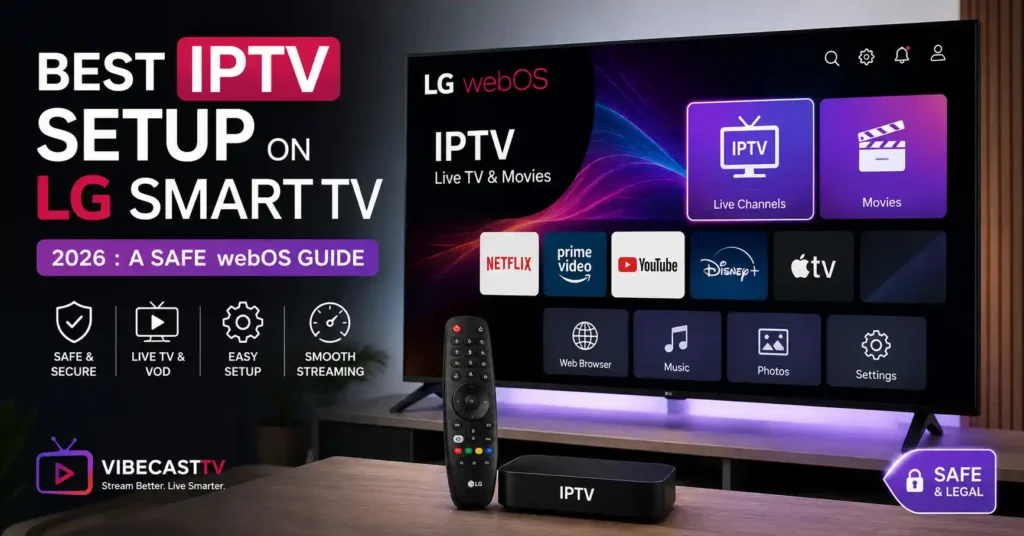
To set up IPTV on an LG Smart TV, open LG Apps or the LG Content Store, install a compatible player available for your television, and enter only the account or playlist information supplied by a provider you are authorized to use. The player does not provide channels by itself, and app availability varies by television model and country.
LG Smart TVs use webOS rather than Android TV. That distinction matters: instructions involving Google Play, Android APK files, or Fire TV’s “unknown sources” setting do not apply to a normal LG TV installation.
The recommended approach is to use an application distributed through LG’s official app catalog. Depending on the webOS version and interface, the catalog may be labeled LG Apps, Apps, or LG Content Store. LG’s U.S. portal announced the LG Apps name in 2026, while some support documentation continues to use LG Content Store.
This guide is based on official LG documentation and independent editorial research rather than hands-on testing of a particular player or television model.
Table of Contents
What you need before starting
Prepare the following:
- An LG Smart TV connected to the internet
- An LG account, when required by the television
- A compatible application listed in the TV’s official app catalog
- Authorized account information from your television or streaming provider
- The provider’s setup instructions
- A phone or computer if the player uses a web-based device-linking page
Your provider may supply one of several login methods:
| Login method | Information normally supplied | What it means |
|---|---|---|
| Provider account | Email or username and password | You sign into the provider’s own application |
| Activation code | Short temporary code | You connect the television to an existing account |
| M3U playlist | A private playlist address | A general player loads the channels authorized for the account |
| Xtream-compatible login | Server address, username and password | A compatible player retrieves account content and guide information |
| Device linking | Code or device identifier | You add the TV through the player’s official website |
Do not obtain playlists, passwords, portal addresses, or activation details from public forums, social-media posts, messaging groups, or “free IPTV” websites.
How to set up IPTV on an LG Smart TV
Step 1: Open LG Apps or the LG Content Store
Press the Home button on the LG remote.
Open the application catalog. Its label may be:
- LG Apps
- Apps
- LG Content Store
LG’s current installation guidance says the television should be connected to the internet and signed into an LG account. From the store, use Search, open the desired listing, and select Install.
Menu names and screen layout can differ between television models and webOS releases.
Step 2: Find a compatible IPTV player
Search for the exact application recommended by your authorized provider. When no exact application is specified, search for IPTV player and evaluate the available results.
Do not assume an app mentioned in an overseas or older guide will appear on your television. LG states that application availability can vary by country, product, region, and model.
If an application does not appear in the TV’s search results, it may not support your model or the U.S. app catalog.
Step 3: Review the application before installing it
An app-store listing is not proof that the app supplies licensed television content. A player normally provides an interface; the reader must still have an authorized content source.
Before installation, check:
- Developer or seller name
- Date of the most recent update
- Supported TV models
- Published privacy policy
- Account-deletion options
- Whether the player stores playlists on its own servers
- Whether activation requires payment
- Whether the app is connected to the provider you use
Avoid applications that ask for unrelated information, promise free premium channels, direct you to an unofficial APK website, or conceal the developer’s identity.
Step 4: Install and open the player
Select Install on the official listing. Wait for installation to finish, then launch the app from the LG home screen.
Accept only the agreements needed to use the application. LG notes that some premium applications may not work until the relevant user agreements have been accepted.
Step 5: Choose the correct login method
The fields displayed by the player determine which information to use.
Provider account or activation code
Use this method when the application shows the provider’s name and requests an ordinary account sign-in or activation code.
Enter the information exactly as provided. Watch for:
- Extra spaces
- Confusion between uppercase and lowercase letters
- An expired activation code
- A password changed on another device
- A subscription that has ended
Authorized M3U playlist
Choose the playlist option only when your authorized provider supplied a private M3U address.
Give the playlist a neutral name such as “Home TV.” Paste or carefully type the address and save it.
Enter only account information or playlist details supplied by a provider you are authorized to use. VibeCastTV does not provide playlists, server access, portal URLs, or television credentials.
Treat the playlist address like a password. Someone who obtains it may be able to access the account or cause the provider to suspend it for excessive connections.
Xtream-compatible account details
Some general players request:
- A profile name
- Server or host address
- Username
- Password
Use the exact values supplied by the authorized provider. Do not convert an M3U address into server credentials using a third-party website.
Device-link activation
Some players show a short code or device identifier. Their official instructions may direct you to the developer’s website to link the television.
Confirm that the domain belongs to the application developer before entering the code or uploading a playlist. A copied page can be used to steal credentials.
Step 6: Load the playlist and test playback
After saving the account:
- Allow the initial channel and guide data to load.
- Open one channel you are authorized to watch.
- Test a second channel from a different category.
- Check whether live video and audio work.
- Open the program guide if the provider supplies EPG data.
Testing more than one stream helps distinguish an isolated channel problem from a broader network, app, or account failure.
Step 7: Configure the EPG and favorites
If the player supports an Electronic Program Guide, use the EPG information supplied through the authorized account. Avoid downloading scraped guide files from unknown sources.
The guide may take longer to populate than the channel list. Incorrect program times can result from:
- A wrong television time zone
- Provider guide errors
- An incorrect EPG offset
- Outdated cached guide data
Save frequently used channels as favorites rather than loading a large category every time.
Best IPTV Service For LG Smart TV 2026 (Tested & Verified)
VibeCastTV Review (2026): IPTV Service for Live TV & Streaming Entertainment
VibeCastTV is an IPTV subscription service designed for users who want to stream live television and on-demand entertainment across multiple devices. The platform focuses on providing an easy setup experience, flexible subscription plans, and compatibility with many popular IPTV applications.
Whether you’re looking for news, entertainment, sports programming, or international channels, VibeCastTV aims to offer a convenient streaming solution for users in the USA, Canada, and other supported regions.
Key Features
📺 Live Television
VibeCastTV provides access to a wide range of live television categories, including entertainment, news, lifestyle, children’s programming, and international content.
🎬 Video on Demand
Subscribers can browse a library of on-demand content, with new titles added periodically depending on availability.
🖥️ Multi-Device Compatibility
The service is compatible with many popular IPTV devices and applications, including:
- Amazon Fire TV & Fire Stick
- Android TV
- Android smartphones and tablets
- iPhone & iPad
- Windows PCs
- Mac computers
- Smart TVs
- IPTV Smarters
- TiviMate
- XCIPTV
- Other apps that support M3U playlists or Xtream Codes API
📡 Streaming Quality
Where supported by the source and internet connection, streams may be available in:
- HD
- Full HD (1080p)
- 4K Ultra HD
Actual quality may vary depending on content availability, device capabilities, and network performance.
⚡ Quick Setup
New customers receive setup information after subscribing, making it possible to start using the service in a short amount of time.
💬 Customer Support
VibeCastTV provides customer assistance for account setup, installation, and general service questions.
Services
Depending on the subscription plan, VibeCastTV may include access to:
- Live TV
- Entertainment channels
- News channels
- Sports programming
- Kids’ content
- International channels
- Video-on-Demand (VOD)
- Electronic Program Guide (where supported)
- Multi-device compatibility
- Setup assistance
Available content may vary over time.
Pricing
VibeCastTV offers several subscription lengths, allowing users to choose the option that best fits their needs.
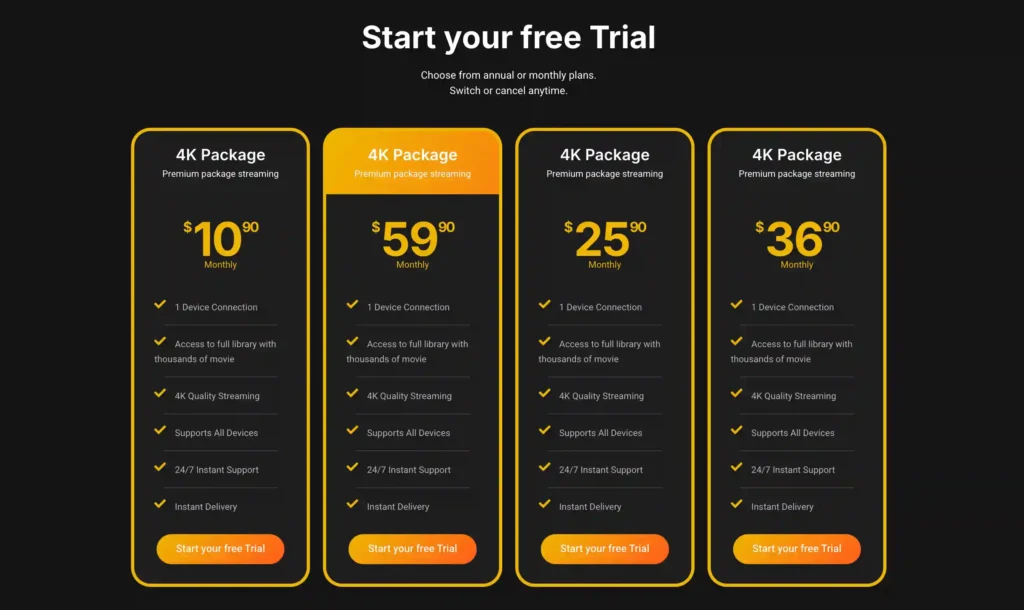
A free trial is available for eligible new users. Subscription prices and promotions can change, so it’s recommended to check the official VibeCastTV website for the latest information.
Which setup method should you use?
| Situation | Recommended approach |
|---|---|
| Provider has an official LG application | Install that application from LG’s catalog |
| Provider supports a player listed on the TV | Install the player and use the provider’s authorized login method |
| App exists but requires device linking | Use the developer’s official linking page |
| App is unavailable in the United States | Ask the provider for another supported LG player |
| Provider supplies only an Android APK | Use a compatible external Android TV or Fire TV device instead of forcing the APK onto webOS |
| Provider will not identify a compatible app | Do not purchase until compatibility and cancellation terms are clear |
Can you install an Android IPTV APK on an LG TV?
Not through the normal LG consumer installation process.
LG webOS is a web-centric platform, while its developer workflow uses webOS development tools and packaged webOS applications. Android APK files are not the standard application format for LG webOS televisions.
LG does offer a Developer Mode process for testing webOS applications. However, it requires an LG developer account, a computer on the same network, webOS development tools, and a compatible webOS package. Developer Mode sessions can expire, and test applications may be removed when the mode is disabled. It is not the recommended method for an ordinary IPTV setup.
Do not download a renamed APK, unknown IPK package, cracked player, or modified premium application.
IPTV setup problems on LG Smart TV
| Problem | Likely category | What to check |
|---|---|---|
| Application is missing | Regional or model availability | Search directly on the TV and check the official LG listing |
| Application will not install | Account, agreement, storage or network issue | Sign into the LG account, accept required agreements and check free storage |
| Application freezes or closes | App, firmware, memory or network issue | Restart the TV, update the app and test another network |
| Login is rejected | Account issue | Re-enter credentials and ask the provider to confirm account status |
| Playlist loads but video fails | Provider, format, codec or authorization issue | Test another authorized stream and contact the provider |
| Frequent buffering | Home network or provider-side issue | Compare Ethernet and Wi-Fi, test another app and check for provider outages |
| EPG is blank | Provider data or player configuration | Refresh the guide and verify time-zone settings |
| Only one channel fails | Source-specific issue | Report that channel to the authorized provider |
The application does not appear in search
Confirm that:
- The television’s region is set correctly.
- The exact app name is spelled correctly.
- The app supports the television’s model and webOS version.
- The provider has not confused an Android app with an LG application.
LG advises that an app absent from search cannot normally be installed through the television and that supported apps differ by region.
The application installs but will not open
First determine whether the problem affects one application or every streaming app.
Check the TV’s network status and try opening an established application already installed on the television. LG recommends testing another network, such as a phone hotspot, when isolating TV and router problems. If only one app fails, update or reinstall that app and contact its developer.
Do not factory-reset the television as the first troubleshooting step.
Login details are rejected
Re-enter each field manually. Confirm:
- Whether the username is an email address
- Whether the password is case-sensitive
- Whether the server address includes the correct protocol
- Whether the subscription is active
- Whether the account allows another concurrent connection
- Whether the provider changed its login system
Do not send full credentials in a public support post.
The playlist loads but channels do not play
A visible channel list proves only that playlist data was parsed. It does not prove the media stream is active or compatible.
Test:
- Another authorized channel
- Another content category
- The account on another officially supported device
- The television on another network
If the same streams fail on multiple devices and networks, the provider is the more likely cause.
Playback buffers or freezes
Buffering can originate from:
- Weak or congested Wi-Fi
- Router problems
- Another device consuming bandwidth
- The television application
- Incompatible media encoding
- Provider congestion
- A failing channel source
Use Ethernet when practical. When using Wi-Fi, test closer to the router and pause large downloads. Compare the IPTV player with another legitimate streaming application before changing DNS settings or disabling security features.
The television reports insufficient memory
Close unused applications, restart the television and remove applications you no longer use. LG recommends a power cycle and removal of unnecessary apps for certain memory-shortage errors.
A factory reset erases settings and should be reserved for persistent television-wide problems after less disruptive steps fail.
Privacy and lawful-use checks
Before entering credentials:
- Confirm the app came from LG’s official catalog.
- Confirm the developer’s website and privacy policy.
- Use a unique provider password.
- Do not reuse an email password.
- Do not share playlist addresses.
- Review recurring charges and cancellation terms.
- Avoid gift-card, cryptocurrency-only or anonymous payment demands when the seller’s identity is unclear.
- Verify that the provider is authorized to distribute the content offered.
The Federal Trade Commission has warned that applications offering illegal pirated video can expose devices and networks to malware.
A VPN may provide ordinary network privacy, but it does not make unauthorized streaming legal. It should not be used to evade payment, copyright controls, geographic restrictions, or sports blackouts. The U.S. Copyright Office notes that bypassing technological access controls, including password systems protecting streaming services, can violate anti-circumvention law.
Frequently asked questions
Does an IPTV player include channels?
Usually not. A general IPTV player is playback software. It requires content information from an authorized provider or another source the user has the legal right to access.
Why can’t I find the same player shown in another guide?
The application may not support your model, webOS version, country or regional app catalog. Search on the television itself rather than relying solely on a third-party article.
Can I install an Android APK on an LG Smart TV?
Not through the ordinary LG Apps installation process. LG webOS uses a different platform and application format. Use an official webOS application or connect a compatible external streaming device.
Should I choose M3U or Xtream-compatible login?
Use the format supplied and supported by your authorized provider. Do not convert credentials through an unknown website.
Why is the EPG empty when the channels work?
The provider may not supply guide data, the guide may still be loading, or the television’s time-zone or EPG offset may be incorrect.
Should I clear all application data?
Only after checking the network, account status and app updates. Clearing data may remove playlists, favorites and login information.
Does a VPN fix buffering?
Not reliably. A VPN can add routing overhead and may make playback slower. Diagnose Wi-Fi, Ethernet, application and provider performance separately.
Conclusion
A safe IPTV setup on an LG Smart TV begins with the official LG application catalog, not an APK download website. Install a player available for your exact model and region, review its developer and privacy practices, and enter only credentials supplied by a provider you are authorized to use.
When setup fails, identify whether the cause is the television, application, home network, account or provider before reinstalling apps, changing DNS settings or resetting the TV.
Copyright and lawful-use notice: This article is intended for general education and lawful troubleshooting. VibeCastTV does not sell IPTV subscriptions, host television channels, provide streaming credentials, distribute playlists, or encourage copyright infringement. Readers should use only services and content they are authorized to access. Provider licensing, platform availability, and streaming rights vary by country and may change over time.


One Response