By KAVANI | Fact-checked: July 21, 2026
Setting up IPTV Android TV normally involves installing a compatible player from Google Play and entering account or playlist information supplied by a service you are authorized to use. The player itself usually does not include television channels. Avoid applications, playlists, credentials, or APK files from unknown sources.
This guide covers Android TV and Google TV devices. Manufacturer menus may use slightly different labels, but the main process is similar.
Lawful-use reminder: Enter only account information or playlist details supplied by a provider you are authorized to use. VibeCastTV does not provide playlists, server access, portal addresses, television credentials, or IPTV subscriptions.
Table of Contents
What You Need Before Starting
Prepare these items before opening the television settings:
- An Android TV or Google TV television, streaming device, or certified set-top box
- A Google Account for accessing Google Play
- A stable Wi-Fi or Ethernet connection
- A legitimate IPTV player or the provider’s official application
- Valid account details supplied directly by your authorized provider
- Access to your email or provider account in case you need to verify the login
Android TV applications can normally be found under Apps in the Google Play Store. Google TV devices also allow users to search for an application from the home screen and select Install when the application is available. bility can vary by country, television model, operating-system version, and developer support.
Understand the Player and Provider Difference
An IPTV player is a playback application. It can organize live streams, on-demand items, favorites, and program-guide information, but it does not automatically give you access to channels.
The service provider supplies the content access and account information. Depending on the service, that information may be delivered through:
- An official application and account login
- An M3U playlist URL
- An Xtream-compatible server address, username, and password
- A provider-controlled activation process
A professional-looking website, application, payment page, or support channel does not prove that a provider has permission to distribute every channel it advertises. Confirm the company identity, terms, privacy policy, cancellation process, and content authorization before paying.
How to Set Up IPTV on Android TV
Step 1: Confirm the Device and Internet Connection
Open:
Settings → Network & Internet
Confirm that:
- Wi-Fi is enabled
- The television is connected to the correct network
- The signal is stable
- The device date and time are correct
- Other streaming applications can play video
When possible, use Ethernet for a stationary television. If Ethernet is unavailable, move the router closer to the television or reduce physical interference.
Google’s troubleshooting guidance recommends confirming the correct Wi-Fi network, restarting the router, moving it closer, or using a wired connection when playback is unreliable. t the Correct Account Information
Open the welcome email or account page from your authorized provider.
You may need:
- Username
- Password
- Playlist URL
- Server address
- EPG URL
- Activation code
- Registered email address
Do not copy credentials from public forums, social-media posts, messaging groups, or “free account” websites.
Check every character carefully. Television keyboards make it easy to confuse:
0andO1,I, andl- Hyphens and underscores
- Uppercase and lowercase letters
- Spaces added before or after a URL
Step 3: Install a Player from Google Play
On Android TV:
- Open Apps.
- Select Google Play Store.
- Search for the provider’s official application or a compatible IPTV player.
- Open the application listing.
- Review the developer name, permissions, recent update information, and privacy details.
- Select Install.
- Open the application after installation.
Google confirms that Android TV applications can be searched, installed, updated, and removed through Google Play. application solely because its name or icon resembles a popular player. Confirm the developer identity on the store listing.
Step 4: Select the Correct Login Method
The available options depend on the player.
Official application sign-in
Choose this when your provider has an official application in Google Play.
Enter the email address, username, password, or activation code supplied through the official account process.
M3U playlist URL
Choose this only when your provider has supplied an M3U URL for your account.
Paste or carefully enter the complete URL. Do not shorten it, remove characters, or publish it. A personalized playlist URL may contain information that allows access to your account.
Xtream-compatible login
Some players request:
- Server URL
- Username
- Password
Enter the details exactly as supplied. VibeCastTV does not provide or generate these details.
Step 5: Load the Playlist and Program Guide
After entering the information:
- Give the playlist a recognizable name.
- Select Add, Connect, or the equivalent command.
- Allow the initial channel and EPG synchronization to finish.
- Keep the application open during the first load.
- Confirm that channel groups appear.
- Open the guide and check whether current program information is displayed.
A missing guide does not necessarily mean the stream is unavailable. The provider may use a separate EPG source, or the guide may still be synchronizing.
Step 6: Test Playback
Test several authorized streams rather than relying on one channel.
Check:
- Whether playback starts
- Whether sound and video remain synchronized
- Whether the correct program opens
- Whether channel changes work
- Whether the problem affects one stream or every stream
This distinction helps identify the likely cause:
- One stream fails: possible provider or source problem
- Every stream fails: possible account, network, or application problem
- Other applications also buffer: likely home-network or device problem
- Only one player fails: likely application compatibility or configuration problem
Step 7: Organize the Application
After confirming that playback works:
- Add frequently watched authorized channels to favorites
- Hide unused groups if the player permits it
- Enable parental controls where appropriate
- Turn on automatic application updates
- Record the provider’s official support and cancellation details
- Store credentials in a password manager rather than a television note
IPTV Login Methods Compared
| Login method | Information required | Main advantage | Important limitation |
| Official provider application | Email, password, or activation code | Simplest account management | Available only when the provider supports the device |
| M3U playlist | Personalized playlist URL | Broad player compatibility | The URL may expose account access if shared |
| Xtream-compatible login | Server address, username, and password | Easier data entry in some players | Licensing and service legitimacy must still be verified |
| Activation process | Device code or registered account | Less typing with a remote | Activation may be tied to one device or account |
Best IPTV Service For Android TV 2026 (Tested & Verified)
VibeCastTV Review (2026): IPTV Service for Android TV & Streaming Entertainment
VibeCastTV is an IPTV subscription service designed for users who want to stream live television and on-demand entertainment across multiple devices. The platform focuses on providing an easy setup experience, flexible subscription plans, and compatibility with many popular IPTV applications.
Whether you’re looking for news, entertainment, sports programming, or international channels, VibeCastTV aims to offer a convenient streaming solution for users in the USA, Canada, and other supported regions.
Key Features
📺 Live Television
VibeCastTV provides access to a wide range of live television categories, including entertainment, news, lifestyle, children’s programming, and international content.
🎬 Video on Demand
Subscribers can browse a library of on-demand content, with new titles added periodically depending on availability.
🖥️ Multi-Device Compatibility
The service is compatible with many popular IPTV devices and applications, including:
- Amazon Fire TV & Fire Stick
- Android TV
- Android smartphones and tablets
- iPhone & iPad
- Windows PCs
- Mac computers
- Smart TVs
- IPTV Smarters
- TiviMate
- XCIPTV
- Other apps that support M3U playlists or Xtream Codes API
📡 Streaming Quality
Where supported by the source and internet connection, streams may be available in:
- HD
- Full HD (1080p)
- 4K Ultra HD
Actual quality may vary depending on content availability, device capabilities, and network performance.
⚡ Quick Setup
New customers receive setup information after subscribing, making it possible to start using the service in a short amount of time.
💬 Customer Support
VibeCastTV provides customer assistance for account setup, installation, and general service questions.
Services
Depending on the subscription plan, VibeCastTV may include access to:
- Live TV
- Entertainment channels
- News channels
- Sports programming
- Kids’ content
- International channels
- Video-on-Demand (VOD)
- Electronic Program Guide (where supported)
- Multi-device compatibility
- Setup assistance
Available content may vary over time.
Pricing
VibeCastTV offers several subscription lengths, allowing users to choose the option that best fits their needs.
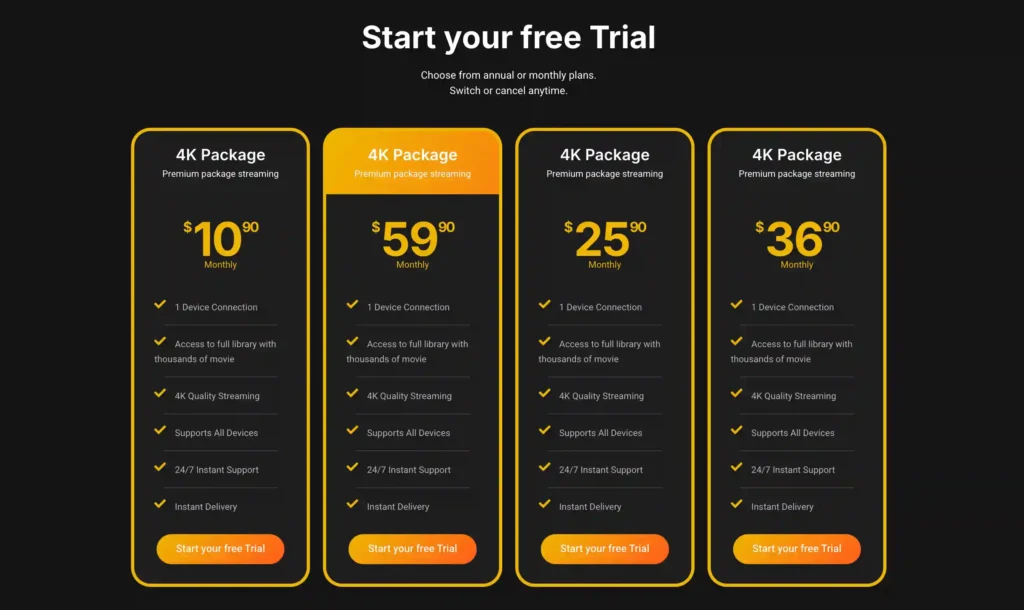
A free trial is available for eligible new users. Subscription prices and promotions can change, so it’s recommended to check the official VibeCastTV website for the latest information.
Android TV IPTV Security Checklist
Before entering account information:
- Prefer Google Play over third-party download websites.
- Confirm the application developer’s identity.
- Keep Google Play Protect enabled.
- Avoid applications requesting unnecessary accessibility, contact, microphone, or file permissions.
- Never disable security protections merely to make a suspicious application install.
- Do not share playlist URLs, screenshots containing credentials, or activation codes.
- Use a unique password where the provider supports one.
- Avoid paying through irreversible or unusual payment methods unless you understand the risk.
- Read the cancellation and refund terms before subscribing.
Google Play Protect checks applications for potentially harmful behavior and can warn about, disable, block, or remove harmful applications. Google recommends keeping the protection enabled. load an IPTV Application?
Most readers should use an application available through Google Play.
Consider sideloading only when all of the following are true:
- The application is lawful.
- The developer’s identity can be verified.
- The file comes directly from the developer.
- The application is genuinely unavailable through the official store.
- The file has not been modified.
- The installation does not bypass payment or copyright controls.
- You understand the requested permissions and security risks.
Do not install IPTV APK files from unknown repositories, social-media links, shortened URLs, messaging groups, or file-sharing pages.
IPTV and Lawful Use
IPTV describes a method of delivering television or video through internet networks. Installing a player does not establish that a particular provider has permission to distribute the content it offers.
Use only:
- Your own content
- Public-domain streams
- Free channels supplied by their authorized publisher
- Services with appropriate distribution rights
- Account information issued to you by a provider you are authorized to use
A VPN can provide ordinary network privacy, but it does not make unauthorized streaming legal. It should not be used to defeat subscriptions, sports blackouts, copyright controls, or platform geographic restrictions.
Frequently Asked Questions
Does an IPTV player include television channels?
Usually not. A player is an interface for organizing and playing streams. Access information must come from an authorized service or content source.
Is IPTV legal on Android TV?
The technology itself has lawful uses. Legality depends on the content, the provider’s authorization, your location, and how the service is used. Do not assume that a service is authorized because it accepts payment or has an application.
Why does my IPTV login fail on Android TV?
Common causes include incorrect capitalization, accidental spaces, an expired account, the wrong server address, device limits, or a provider-side outage. Confirm the information through the provider’s official account page.
Can I install an IPTV application without Google Play?
Technically, some devices permit sideloading, but it increases security risk. Prefer Google Play. Sideload only a lawful application obtained directly from a verified developer.
Do I need a VPN to complete the setup?
No. A VPN is not normally required to install a player or enter authorized account details. It should not be used to bypass service restrictions or access content without authorization.
Will uninstalling the player cancel my subscription?
Not necessarily. Google states that uninstalling an Android TV application does not automatically cancel its subscription. Manage cancellation through Google Play or the service’s official account system. buffer when other applications work?
The problem may involve the specific stream, provider capacity, routing, player compatibility, or account rather than your total internet speed. Test multiple authorized streams and record whether the failure is limited to one category or time period.
Final Setup Checklist
Before considering the setup complete, confirm that:
- The application came from an official or developer-verified source.
- Google Play Protect remains enabled.
- The service details were issued directly to you.
- Login information has not been shared.
- Several authorized streams have been tested.
- The EPG time zone is correct.
- Automatic updates are enabled.
- Provider support and cancellation information have been saved.
- You understand that the player and content provider are separate services.
Conclusion
A safe IPTV Android TV setup begins with a trustworthy application, authorized account details, and a stable network. Install the player through Google Play where possible, select the correct login method, test several streams, and diagnose problems by separating network, device, application, account, and provider causes.
Do not solve a failed login or missing application by downloading random APK files or using credentials found online. Those shortcuts can expose your television, account, and personal information while creating copyright and subscription risks.
Copyright and lawful-use notice: This article is intended for general education and lawful troubleshooting. VibeCastTV does not sell IPTV subscriptions, host television channels, provide streaming credentials, distribute playlists, or encourage copyright infringement. Readers should use only services and content they are authorized to access. Provider licensing, platform availability, and streaming rights vary by country and may change over time.