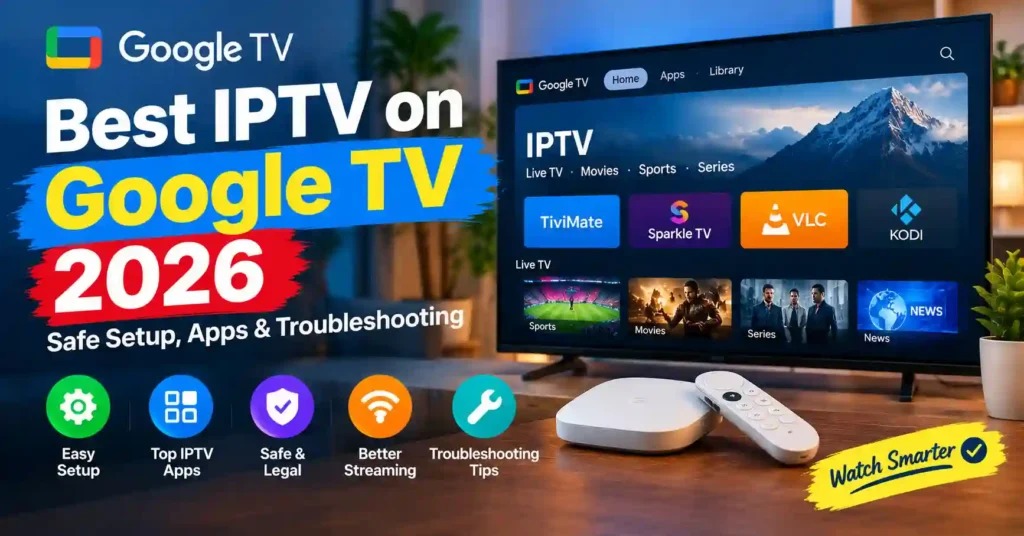
Yes, you can use IPTV on Google TV in 2026 when you have a compatible IPTV player and an authorized source of television or video content.
The easiest setup is usually straightforward: connect your Google TV device to the internet, open the Google Play Store or the Apps section, install a compatible player, and then use the account or playlist information supplied by a service you are authorized to use. Google confirms that compatible apps can be searched for and installed directly on Google TV.
The important distinction is that Google TV is the platform/interface on your television or streaming device, while an IPTV player is the application used to organize and play compatible streams. The player itself does not automatically provide television channels or streaming rights.
This guide explains how to set up IPTV on Google TV safely, which players are worth considering, how Google TV differs from older Chromecast devices, and what to do if playback, buffering, or installation problems occur.
Table of Contents
Can You Use IPTV on Google TV?
Yes.
Google TV supports compatible streaming applications through its application ecosystem. From the Google TV home screen, you can search for an application or browse the Apps section and install an available app.
For IPTV, the basic setup normally involves:
- A compatible Google TV device or television.
- A Google Account for app installation.
- A stable Wi-Fi or Ethernet connection.
- A compatible IPTV player or official service application.
- An authorized account, playlist, or content source.
The IPTV player and content provider are separate.
For example, TiviMate’s current Google Play listing explicitly states that it is a media player and does not provide channels, streams, or media content.
Sparkle TV similarly states that it does not provide channels, sources, or media.
Google TV vs Android TV vs Chromecast
One of the biggest sources of confusion is the terminology.
“Google TV,” “Android TV,” and “Chromecast” are often used as though they mean the same device. They do not always refer to the same hardware.
Chromecast
Older Chromecast devices primarily receive content cast from another device. They do not work like a conventional television operating system with a full application interface.
Chromecast with Google TV
Chromecast with Google TV introduced a television interface, remote control, and direct application installation.
Your IPTV player can therefore be installed directly when a compatible version is available.
Google TV Streamer
Google TV Streamer is Google’s newer streaming-device generation and provides direct application installation, Google Cast and network connectivity.
Google TV televisions
Some televisions use Google TV as their smart-TV interface. Available applications and settings can vary by manufacturer and model.
Your exact device matters because menu names, hardware, networking and application compatibility can differ.
VibeCastTV’s Chromecast guide also distinguishes classic Chromecast, Chromecast with Google TV and Google TV Streamer rather than treating them as one product.
What You Need Before Setting Up IPTV
Before installing anything, prepare:
- Your Google TV device or compatible television
- A Google Account
- Wi-Fi or Ethernet
- A compatible IPTV player or official provider application
- Authorized account or playlist information
- A remote control
- Enough available device storage
You do not need to download a random APK simply because a website says it is an “IPTV app.”
The safest starting point is the official application store.
Google’s setup documentation confirms that Google TV devices require a Google Account and either Wi-Fi or Ethernet connectivity.
VibeCastTV : Best IPTV service for Google TV 2026
VibeCastTV is an IPTV subscription service designed for users who want to stream live television and on-demand entertainment across multiple devices. The platform focuses on providing an easy setup experience, flexible subscription plans, and compatibility with many popular IPTV applications.
Whether you’re looking for news, entertainment, sports programming, or international channels, VibeCastTV aims to offer a convenient streaming solution for users in the USA, Canada, and other supported regions.
Key Features
📺 Live Television
VibeCastTV provides access to a wide range of live television categories, including entertainment, news, lifestyle, children’s programming, and international content.
🎬 Video on Demand
Subscribers can browse a library of on-demand content, with new titles added periodically depending on availability.
🖥️ Multi-Device Compatibility
The service is compatible with many popular IPTV devices and applications, including:
- Amazon Fire TV & Fire Stick
- Android TV
- Android smartphones and tablets
- iPhone & iPad
- Windows PCs
- Mac computers
- Smart TVs
- IPTV Smarters
- TiviMate
- XCIPTV
- Other apps that support M3U playlists or Xtream Codes API
📡 Streaming Quality
Where supported by the source and internet connection, streams may be available in:
- HD
- Full HD (1080p)
- 4K Ultra HD
Actual quality may vary depending on content availability, device capabilities, and network performance.
⚡ Quick Setup
New customers receive setup information after subscribing, making it possible to start using the service in a short amount of time.
💬 Customer Support
VibeCastTV provides customer assistance for account setup, installation, and general service questions.
Services
Depending on the subscription plan, VibeCastTV may include access to:
- Live TV
- Entertainment channels
- News channels
- Sports programming
- Kids’ content
- International channels
- Video-on-Demand (VOD)
- Electronic Program Guide (where supported)
- Multi-device compatibility
- Setup assistance
Available content may vary over time.
Pricing
VibeCastTV offers several subscription lengths, allowing users to choose the option that best fits their needs.
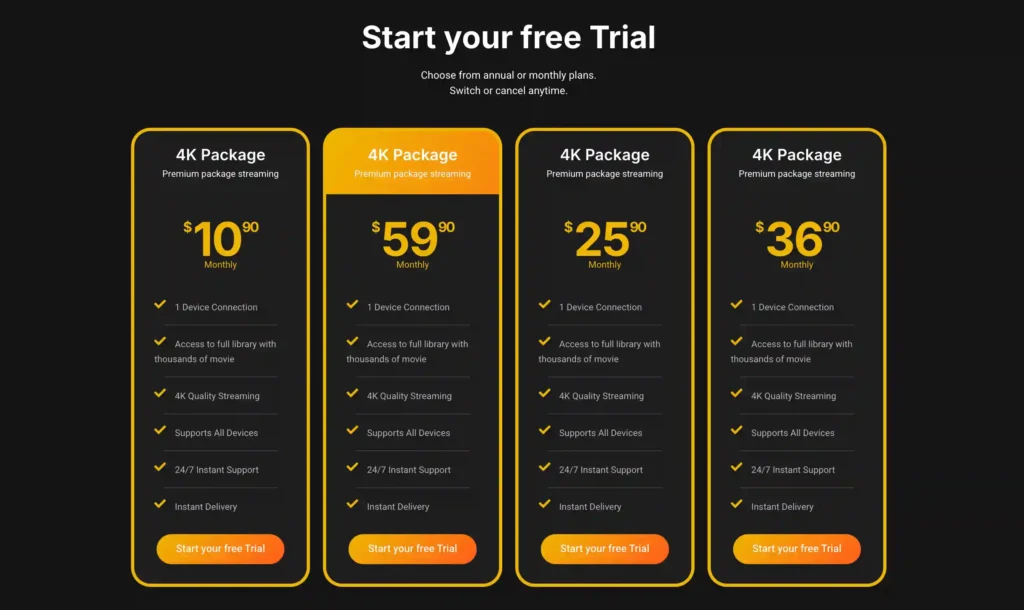
A free trial is available for eligible new users. Subscription prices and promotions can change, so it’s recommended to check the officiel website vibecast tv
Best IPTV Apps for Google TV
There isn’t one universally best IPTV application for every Google TV user.
The right choice depends on the features you need and whether the application is compatible with your device.
| Player | Google TV relevance | Best for | Important note |
|---|---|---|---|
| TiviMate | Strong | TV-style interface and customization | Player only; content is not included |
| Sparkle TV | Strong | DVR, EPG and advanced TV features | Several features require Plus |
| VLC | Useful | Basic playback and diagnostics | Not a full IPTV management interface |
| Kodi | Useful | Advanced media-center users | Requires more configuration |
1. TiviMate
TiviMate is designed for Android TV-style television navigation and its current Google Play listing documents features including:
- EPG
- Multiple playlists
- Favorites
- Catch-up
- Recording
- Search
- Parental controls
- Multiview
It also supports several playlist formats and explicitly states that it does not provide television content.
Best suited for: users who want a traditional TV-style IPTV interface with extensive customization.
2. Sparkle TV
Sparkle TV is designed for Android TV, Google TV and Fire TV environments.
Its current listing documents:
- EPG
- Timeshift
- DVR
- Multiview
- Multiple sources
- M3U/M3U8
- XMLTV
- Xtream-compatible sources
- Home-media integrations
Several advanced features require the Plus version.
Best suited for: users who want DVR, timeshift or broader TV-source integration.
3. VLC
VLC is useful when you want a general-purpose media player or need to determine whether a permitted stream can play outside your normal IPTV application.
It is less suited to users who want a complete television-style EPG, favorites and DVR workflow.
Best suited for: basic playback and troubleshooting.
4. Kodi
Kodi is an open-source media center that can be useful for advanced home-media setups.
It offers much more customization than a simple IPTV player, but that flexibility also means more configuration.
Best suited for: advanced users who want a broader media-center environment.
How to Install an IPTV Player on Google TV
The safest method is to use Google TV’s official application installation process.
Step 1: Connect Google TV to the Internet
Open your network settings and confirm that the device is connected.
Google recommends checking the Wi-Fi connection first when videos fail to play or the device experiences network problems.
If your router supports multiple Wi-Fi bands, check that the Google TV device is connected to the appropriate network.
Ethernet can also be useful for compatible devices.
Step 2: Open the Apps Section
From the Google TV home screen:
- Open the Apps section.
- Search for the player you want.
- Select the correct application.
- Check the developer name.
- Review the listing.
- Select Install.
Google’s official instructions confirm that apps can be found through Search or the Apps tab and installed directly when available.
Step 3: Verify the Developer
This step is important because IPTV-related applications can have similar names.
Before installing:
- Check the developer name.
- Check the application’s description.
- Review recent updates.
- Review privacy information.
- Check subscription terms.
- Avoid lookalike applications.
Do not assume that an application with “IPTV” in its name is automatically legitimate or trustworthy.
How to Add an Authorized IPTV Account or Playlist
The exact process depends on the player and the service you are authorized to use.
A legitimate provider may supply:
- An official application login
- A playlist
- An activation code
- Another supported account method
Only enter information that was supplied directly through your authorized service.
Do not copy credentials from:
- Public forums
- Social-media comments
- “Free IPTV account” websites
- Random Telegram or messaging groups
- Unknown download pages
A personalized playlist URL can contain account identifiers or access information, so it should never be publicly posted.
VibeCastTV does not provide unauthorized playlists, credentials, portal addresses or streaming accounts.
IPTV on Google TV Streamer
Google TV Streamer is designed as a dedicated Google TV streaming device.
For IPTV use, the general workflow is:
- Connect Google TV Streamer to the television.
- Complete the Google TV setup.
- Connect it to Wi-Fi or Ethernet.
- Open the Apps section.
- Search for a compatible player.
- Install the application from its official listing.
- Add your authorized account or content source.
- Test playback.
Google’s current setup documentation identifies Wi-Fi or Ethernet as supported connection methods for Google TV devices.
For troubleshooting, Google recommends checking network connectivity, updates and restarting the device before moving toward more disruptive solutions.
IPTV on Chromecast With Google TV
Chromecast with Google TV is different from the original Chromecast.
With Chromecast with Google TV, compatible applications can be installed directly on the device rather than requiring every stream to be initiated from a phone.
The basic process is:
Home → Apps/Search → Find compatible player → Install → Configure authorized source
By contrast, older Chromecast models rely much more heavily on casting from another device.
This distinction is important when searching for “IPTV on Chromecast.”
How to Fix IPTV Problems on Google TV
If IPTV does not work correctly, don’t immediately reinstall everything.
Use a systematic troubleshooting process.
1. Check Wi-Fi
Go to your Google TV network settings and confirm that you are connected to the correct network.
Google recommends checking the Wi-Fi connection first when videos will not play.
2. Restart the Router
If the connection appears slow or unstable, restart the router.
Google specifically recommends rebooting the router when troubleshooting Google TV connection problems.
3. Try Ethernet
If your Google TV hardware supports Ethernet, test a wired connection.
If playback becomes stable over Ethernet, the wireless network becomes an important suspect.
4. Restart Google TV
Google provides a direct restart option under the system settings.
A restart is preferable to immediately performing a factory reset.
5. Update the Device
Check:
Settings → System → About → System update
Google recommends checking for system updates when troubleshooting Google TV playback problems.
6. Update the Application
Open Google Play and check whether the IPTV player has an available update.
Google’s app-crash guidance recommends checking application updates and force-stopping problematic apps when necessary.
7. Clear the Application Cache
If a specific application is malfunctioning, clearing its cache can help.
Google’s current troubleshooting documentation provides a cache-clearing procedure through:
Settings → Apps → Select the application → Clear cache
Do not automatically clear application data.
Clearing data can remove stored settings and account information.
8. Test Another Authorized Stream
If one stream fails while other authorized streams work, the problem may be specific to that source.
If every stream fails, investigate:
- Network
- Application
- Device
- Account
- Service availability
9. Test Another Compatible Player
If one player fails while another compatible player works correctly, the issue may be application-specific.
Changing players will not fix an overloaded or unavailable source.
IPTV Buffering on Google TV
Buffering can have several causes.
Possible factors include:
- Weak Wi-Fi
- Network congestion
- Router problems
- Device limitations
- Application problems
- Stream bitrate
- Source-side problems
- Service outages
Start with:
- Test another stream.
- Test another application.
- Restart Google TV.
- Restart the router.
- Test Ethernet.
- Reduce other network activity.
- Update the player.
- Clear the app cache.
- Contact the authorized service if the problem is source-specific.
Google’s official Google TV troubleshooting process begins with the network connection and then moves through updates, restarting, app data and other troubleshooting steps.
For a more detailed buffering diagnosis, use VibeCastTV’s dedicated IPTV buffering troubleshooting guide.
IPTV App Not Showing in Google TV
If you search for an IPTV application and cannot find it, don’t immediately download an APK from a random website.
Possible explanations include:
- The app isn’t available for your device.
- The developer doesn’t support Google TV.
- The application isn’t available in your country.
- The developer removed the listing.
- Your device’s software differs from another Google TV model.
- You searched for an incorrect application name.
Google’s official installation workflow only displays applications available for the device/account context.
If an application isn’t available, check the developer’s official documentation before considering any alternative installation method.
Should You Sideload IPTV Apps on Google TV?
Sideloading is not automatically unsafe, but it increases the importance of verifying the application source.
Use sideloading only when:
- The application is legitimate.
- The developer can be verified.
- The APK comes directly from the developer.
- The application isn’t available through the normal store.
- The file has not been modified.
- You understand the permissions requested.
Avoid:
- Cracked APKs
- “Premium unlocked” applications
- Modified IPTV players
- Unknown APK repositories
- Social-media download links
- Apps promising free access to premium channels
You should never disable security protections simply to install an unknown application.
Is IPTV Legal on Google TV?
IPTV is a technology for delivering television or video over an internet connection.
The technology itself does not determine whether a particular service is authorized.
A legitimate setup can involve:
- Your own media
- Public-domain content
- Official free channels
- Authorized streaming services
- Licensed television services
- Other content you have permission to access
An IPTV player does not automatically make a source legal.
For example, TiviMate explicitly says that it is a media player and does not provide content or endorse illegal sources.
Always consider the source of the content, the provider’s authorization, and the laws applicable to your location.
Google TV IPTV Security Checklist
Before entering account information:
- Install applications through Google Play when possible.
- Verify the developer.
- Check application permissions.
- Review privacy information.
- Keep Google Play Protect enabled.
- Avoid modified APKs.
- Don’t share playlist URLs publicly.
- Don’t reuse important passwords.
- Review subscription terms.
- Keep Google TV updated.
- Remove old accounts when selling the device.
A legitimate-looking application isn’t automatically trustworthy, so review the developer identity and privacy information before entering sensitive account details.
Frequently Asked Questions
Can you use IPTV on Google TV?
Yes. Google TV supports compatible applications that can be installed through its application ecosystem. The player must support your device and your content source must be authorized.
What is the best IPTV app for Google TV?
There isn’t one universal choice. TiviMate is well suited to users who want a customizable TV-style interface, while Sparkle TV emphasizes DVR, timeshift and broader TV-source features.
Can I install TiviMate on Google TV?
TiviMate’s current Google Play listing is designed for Android TV and remote-based television navigation and documents features such as EPG, multiple playlists, recording and multiview.
Can I use Sparkle TV on Google TV?
Yes. Sparkle TV’s current listing explicitly identifies Android TV and Google TV among its supported television platforms.
Does Google TV include IPTV channels?
No. Google TV is a platform/interface. IPTV players also generally do not provide television channels themselves. A compatible authorized content source is required.
Is Google TV the same as Android TV?
They are closely related, but the user experience and product naming are different. Do not assume that every Android TV or Google TV device has identical hardware, menus or application availability.
Why is IPTV buffering on Google TV?
Possible causes include Wi-Fi instability, network congestion, device issues, application problems or source-side problems. Start with network diagnostics, restarting the device/router and testing another authorized stream. Google recommends checking Wi-Fi, updates and restarting the device for playback problems.
Why won’t my IPTV app install on Google TV?
The application may not support your specific device, may not be available in your region, or may no longer be distributed through Google Play. Check the developer’s official compatibility information before installing software from another source.
Do I need a VPN to use IPTV on Google TV?
A VPN is not normally required simply to install a player or use an authorized service. It should not be used to circumvent subscriptions, copyright controls or geographic restrictions.
Can older Chromecast devices install IPTV apps?
Older Chromecast devices work differently from Chromecast with Google TV. Traditional Chromecast devices generally rely on casting from another compatible device, while Chromecast with Google TV provides a television interface and direct application installation.
Conclusion
IPTV on Google TV in 2026 is straightforward when you use a compatible player and an authorized content source.
The safest approach is:
Identify your Google TV device → connect to Wi-Fi/Ethernet → install a compatible player from Google Play → verify the application developer → add your authorized account/source → test playback → troubleshoot network and app issues if necessary.
TiviMate and Sparkle TV are two documented options worth comparing for Google TV, while VLC and Kodi can serve different technical use cases.
The most important distinction is that the Google TV platform, the IPTV player, and the content provider are three separate things. Installing an IPTV application does not automatically provide television channels or establish that a particular source has distribution rights.
For the safest experience, use official applications, authorized content sources, current software and secure account practices.
Last reviewed: September 2026. Google TV menus, device models, application availability and software versions can change, so verify the current information for your specific device before installation.
Copyright and lawful-use notice: VibeCastTV is an independent educational resource. It does not provide unauthorized playlists, credentials, portal URLs, copyrighted television streams or instructions for bypassing subscriptions or copyright controls.