
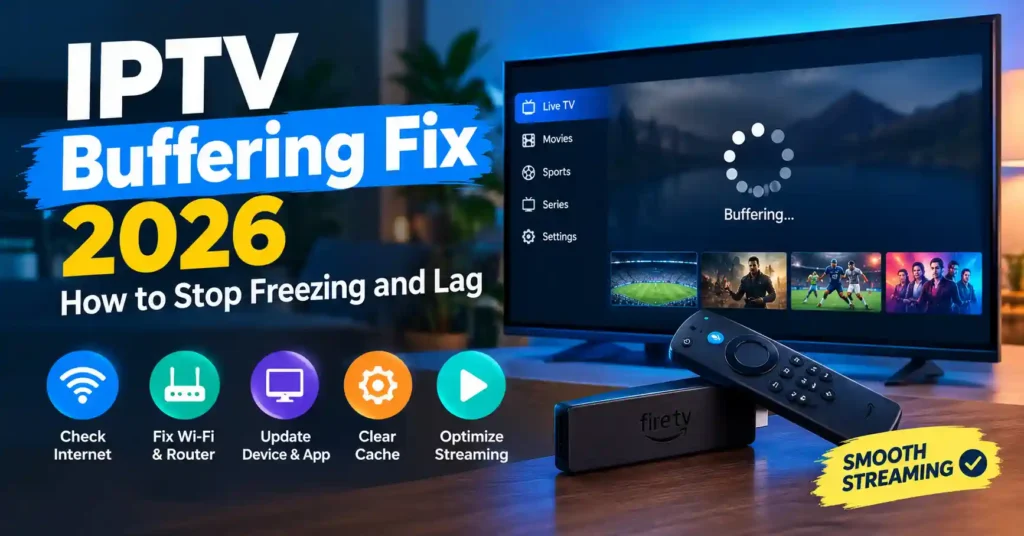
IPTV buffering usually isn’t caused by one single problem. A stream can pause because of an unstable Wi-Fi connection, network congestion, an overloaded streaming device, an application problem, an incompatible stream, or an issue on the source or provider side.
The fastest way to find an IPTV buffering fix in 2026 is to diagnose the problem before changing settings.
Start with this simple rule:
- Every streaming app buffers: investigate your network or device.
- Only one IPTV app buffers: investigate the app.
- Only one channel or stream buffers: investigate the individual source.
- Everything buffers at certain times: check for network congestion and possible service-side problems.
- Buffering disappears on Ethernet: your Wi-Fi connection is an important suspect.
This guide explains how to work through those possibilities without making unnecessary changes.
Table of Contents
Why Does IPTV Keep Buffering?
Buffering happens when the player cannot continuously receive or process enough video data to maintain playback.
That can happen at several different layers:
- Internet connection
- Wi-Fi connection
- Router or network congestion
- Streaming device
- IPTV player application
- Video format or decoder
- Individual stream
- Service or source-side infrastructure
This distinction matters because changing the wrong setting will not solve the underlying problem.
For example, replacing an IPTV player will not fix a congested Wi-Fi network. Likewise, changing Wi-Fi settings will not repair an unavailable source stream.
Quick IPTV Buffering Diagnosis
Before trying every fix in this article, identify the pattern.
| What you see | What to investigate first |
|---|---|
| Every streaming app buffers | Internet, Wi-Fi, router or device |
| Only one IPTV app buffers | Application or player settings |
| Only one channel buffers | Individual source stream |
| Several channels buffer simultaneously | Network, service or source |
| Buffering starts during heavy household usage | Network congestion |
| Buffering occurs on Wi-Fi but not Ethernet | Wireless connection |
| App freezes or crashes as well | App, storage or device |
| Playback improves after lowering quality | Available bandwidth or stream bitrate |
| Buffering occurs on multiple devices | Network or service-side problem |
This diagnostic approach is more useful than assuming that every buffering problem has the same cause.
1. Test Your Internet Connection
Start with the simplest question:
Is the connection actually stable at the streaming device?
A speed test performed beside your router does not necessarily represent the connection received by a TV or Fire TV Stick several rooms away.
Amazon’s Fire TV support includes a network-status tool and recommends checking the device’s network connection when videos buffer.
If your device provides a network diagnostic or speed-test option, use it while the buffering problem is happening.
Don’t focus only on download speed
Streaming stability can also be affected by:
- Wi-Fi signal strength
- Packet loss
- Network congestion
- Latency
- Interference
- Router performance
- Simultaneous network usage
There is no universal internet-speed number that guarantees smooth IPTV playback because streams differ in bitrate, resolution and encoding.
As a reference rather than an IPTV requirement, YouTube currently lists approximately 5 Mbps for 1080p and 20 Mbps for 4K playback.
Your actual IPTV requirement may be different.
2. Restart the IPTV Player
If only one application is buffering, close it completely and reopen it.
Temporary application problems can sometimes disappear after a clean restart.
On Fire TV, Amazon’s troubleshooting guidance also recommends restarting applications and the device when playback problems occur.
Before changing advanced settings, try:
- Exit the stream.
- Close the player if your device allows it.
- Reopen the application.
- Play the same authorized stream again.
If the problem disappears, you may have been dealing with a temporary application or connection problem.
3. Restart Your Streaming Device
A device restart is one of the least disruptive troubleshooting steps.
Restart the:
- Fire TV Stick
- Android TV device
- Google TV device
- Smart TV
- Apple TV
- Roku
- Other streaming hardware
For Fire TV, Amazon recommends restarting the device when troubleshooting streaming and Wi-Fi problems.
If the device has been running for a long period, a restart can also help determine whether the problem is temporary rather than configuration-related.
4. Restart Your Router and Modem
If multiple devices are experiencing streaming problems, restart the home network.
A simple sequence is:
- Stop playback.
- Unplug the modem and router.
- Wait approximately one minute.
- Reconnect the modem.
- Allow the internet connection to return.
- Reconnect or restart the router if separate.
- Test the streaming device again.
Amazon specifically recommends restarting the modem and router when Fire TV experiences network and streaming problems.
Do not repeatedly reboot your network every few minutes. If restarting temporarily fixes the issue but the problem repeatedly returns, investigate the underlying connection instead.
5. Improve Your Wi-Fi Connection
Wi-Fi is convenient, but the connection quality at the TV matters more than the advertised speed of your internet plan.
Try:
- Moving the router closer to the streaming device.
- Moving the Fire TV Stick away from obstructions where practical.
- Reducing physical obstacles between the router and TV.
- Connecting to an appropriate 5 GHz network when the device and router support it.
- Reducing unnecessary network traffic.
- Checking whether other devices are downloading large files.
Amazon recommends moving Fire TV and the router closer when possible and provides guidance for optimizing supported Wi-Fi networks.
Google similarly recommends checking Wi-Fi, restarting the router, moving the router closer, using a wired connection where available, and considering 5 GHz when supported for Google TV troubleshooting.
6. Try Ethernet Instead of Wi-Fi
If your streaming device supports Ethernet, a wired connection is a useful diagnostic test.
Ethernet can remove Wi-Fi interference and signal-strength problems from the equation.
If buffering disappears after switching from Wi-Fi to Ethernet, the problem is more likely related to your wireless environment.
However, Ethernet does not guarantee that IPTV will never buffer.
It cannot repair:
- An unavailable stream
- An overloaded source
- An expired account
- An application problem
- An incompatible video format
- A provider-side outage
Think of Ethernet as a diagnostic tool as well as a connection option.
7. Reduce Network Congestion
A fast internet plan can still experience problems when many devices compete for the same connection.
Temporarily pause:
- Large downloads
- Cloud backups
- Game updates
- Multiple high-resolution streams
- Large file transfers
- Other bandwidth-heavy activities
Then test the IPTV stream again.
If the stream becomes stable after reducing network activity, congestion is an important factor.
You don’t necessarily need a faster internet plan immediately. First determine whether the existing connection is being heavily shared.
8. Clear the IPTV App Cache
A corrupted or overloaded application cache can sometimes contribute to application problems.
On Fire TV, Amazon provides a dedicated Clear App Data and Cache function under application management.
The exact menu can vary by device, but the general process is:
Settings → Applications/Apps → Manage Applications → Select the app → Clear Cache
Start with Clear Cache rather than Clear Data.
Clearing application data can remove stored settings, playlists, favorites or login information depending on the application.
Only clear application data when you understand what will be removed and you have the authorized information needed to configure the app again.
9. Check Available Device Storage
Low storage can contribute to application instability on some streaming devices.
Review installed applications and remove software you no longer use.
Pay particular attention if you notice:
- Apps crashing
- Slow menus
- Installation failures
- Frequent application restarts
- Buffering combined with general device sluggishness
Storage problems are not automatically the cause of buffering, but they are worth checking when playback problems occur alongside broader device performance issues.
10. Update the Streaming App and Device
Outdated software can cause compatibility and playback problems.
Check for:
- Player application updates
- Fire TV software updates
- Android TV/Google TV updates
- Smart TV firmware updates
- Relevant system updates
Amazon publishes current Fire TV software information and currently lists different operating systems across Fire TV models, including Fire OS and Vega OS.
This is another reason not to assume that every Fire TV Stick behaves identically.
Keep your device and legitimate applications updated through their normal official update mechanisms.
11. Lower the Video Quality Temporarily
If your player or service allows quality selection, temporarily reduce the resolution.
For example, if a stream is available in multiple qualities, compare:
4K → 1080p → 720p
If lower quality plays consistently while higher quality repeatedly buffers, the available bandwidth, stream bitrate, device processing capability or source delivery may be involved.
YouTube also recommends manually adjusting video quality when troubleshooting buffering.
Do not treat a particular resolution as guaranteed to work at a particular internet speed. Streaming requirements vary.
12. Test Another Authorized Stream
This is one of the most useful diagnostic steps.
If your authorized service contains multiple streams or channels, compare them.
If one stream buffers but others work
The problem may be specific to that source.
If every stream buffers
Investigate:
- Network
- Device
- Application
- Service availability
If playback works on another device
The first device or its connection becomes more suspicious.
Testing another authorized stream is often more informative than immediately changing DNS or installing another application.
IPTV Buffering on Firestick
Fire TV is one of the most common devices used for streaming, but the troubleshooting principles remain the same.
Start with:
- Check network status.
- Restart Fire TV.
- Restart the router.
- Check Wi-Fi signal quality.
- Try Ethernet if available.
- Clear the affected app’s cache.
- Check available storage.
- Update Fire TV and the application.
- Test another authorized stream.
- Compare another legitimate streaming application.
Amazon specifically documents network diagnostics, Fire TV restart procedures and router troubleshooting for cases where videos buffer.
Important 2026 Fire TV difference
Amazon’s current software list includes both Fire OS and Vega OS devices. For example, the Fire TV Stick 4K Select and Fire TV Stick HD 2nd Generation are listed with Vega OS, while several other Fire TV Stick models remain on Fire OS.
Therefore, menu names and application behavior can differ between models.
Always check your specific Fire TV model and current software before following an older guide.
IPTV Buffering on Android TV and Google TV
For Android TV or Google TV:
- Check Wi-Fi.
- Test another application.
- Restart the device.
- Restart the router.
- Check for system updates.
- Update the player.
- Clear the application’s cache where appropriate.
- Test Ethernet when available.
- Check device storage.
- Test another authorized stream.
Google’s current Google TV troubleshooting documentation recommends checking the Wi-Fi connection, restarting the router, using Ethernet where available, checking system updates and restarting the device.
IPTV Buffering on Smart TVs
Samsung, LG and other Smart TV platforms use different operating systems and application ecosystems.
If buffering occurs:
- Check the TV’s network connection.
- Restart the television.
- Restart the router.
- Update the TV software.
- Update the streaming application.
- Try Ethernet where available.
- Test another streaming application.
- Test another authorized stream.
If only one application buffers while other legitimate streaming apps play normally, focus your troubleshooting on that application rather than immediately replacing your internet connection.
Should You Change DNS to Fix IPTV Buffering?
DNS is frequently promoted online as a universal IPTV buffering solution.
It isn’t.
Changing DNS can affect how domain names are resolved, but it cannot magically increase your internet bandwidth or repair an overloaded streaming source.
Before changing DNS, troubleshoot:
- Wi-Fi
- Router
- Device
- Application
- Stream/source
If DNS troubleshooting is necessary for a legitimate service or network problem, use documented settings from a reputable DNS provider and understand how to revert the change.
Do not change DNS simply because a random IPTV website claims it will eliminate buffering.
Will a VPN Fix IPTV Buffering?
Not necessarily.
A VPN may have legitimate privacy or security uses, but it is not a universal buffering fix.
A VPN can potentially:
- Add network overhead
- Increase latency
- Change the network route
- Improve or worsen performance depending on the circumstances
Therefore, don’t begin troubleshooting by purchasing a VPN.
First determine whether the problem is:
- Wi-Fi
- Internet connection
- Device
- Application
- Stream
- Service-side
A VPN also does not make unauthorized access to copyrighted content lawful and should not be used to circumvent subscriptions, DRM or regional restrictions.
When the IPTV Provider or Source May Be the Problem
Sometimes the problem is not your home network.
Consider a source-side problem when:
- Your other streaming applications work normally.
- Your internet connection is stable.
- Multiple devices show the same stream problem.
- Only one or a small group of streams fail.
- The problem occurs independently of your device.
- Restarting your network and applications makes no difference.
At that point, contact the authorized service provider and ask whether there is an outage or known playback problem.
Do not immediately assume that your router, DNS or VPN is responsible.
Likewise, don’t assume that every provider-side problem can be fixed from your device.
VibeCastTV : Best IPTV Service Provider 2026
VibeCastTV is an IPTV subscription service designed for users who want to stream live television and on-demand entertainment across multiple devices. The platform focuses on providing an easy setup experience, flexible subscription plans, and compatibility with many popular IPTV applications.
Whether you’re looking for news, entertainment, sports programming, or international channels, VibeCastTV aims to offer a convenient streaming solution for users in the USA, Canada, and other supported regions.
Key Features
📺 Live Television
VibeCastTV provides access to a wide range of live television categories, including entertainment, news, lifestyle, children’s programming, and international content.
🎬 Video on Demand
Subscribers can browse a library of on-demand content, with new titles added periodically depending on availability.
🖥️ Multi-Device Compatibility
The service is compatible with many popular IPTV devices and applications, including:
- Amazon Fire TV & Fire Stick
- Android TV
- Android smartphones and tablets
- iPhone & iPad
- Windows PCs
- Mac computers
- Smart TVs
- IPTV Smarters
- TiviMate
- XCIPTV
- Other apps that support M3U playlists or Xtream Codes API
📡 Streaming Quality
Where supported by the source and internet connection, streams may be available in:
- HD
- Full HD (1080p)
- 4K Ultra HD
Actual quality may vary depending on content availability, device capabilities, and network performance.
⚡ Quick Setup
New customers receive setup information after subscribing, making it possible to start using the service in a short amount of time.
💬 Customer Support
VibeCastTV provides customer assistance for account setup, installation, and general service questions.
Services
Depending on the subscription plan, VibeCastTV may include access to:
- Live TV
- Entertainment channels
- News channels
- Sports programming
- Kids’ content
- International channels
- Video-on-Demand (VOD)
- Electronic Program Guide (where supported)
- Multi-device compatibility
- Setup assistance
Available content may vary over time.
Pricing
VibeCastTV offers several subscription lengths, allowing users to choose the option that best fits their needs.
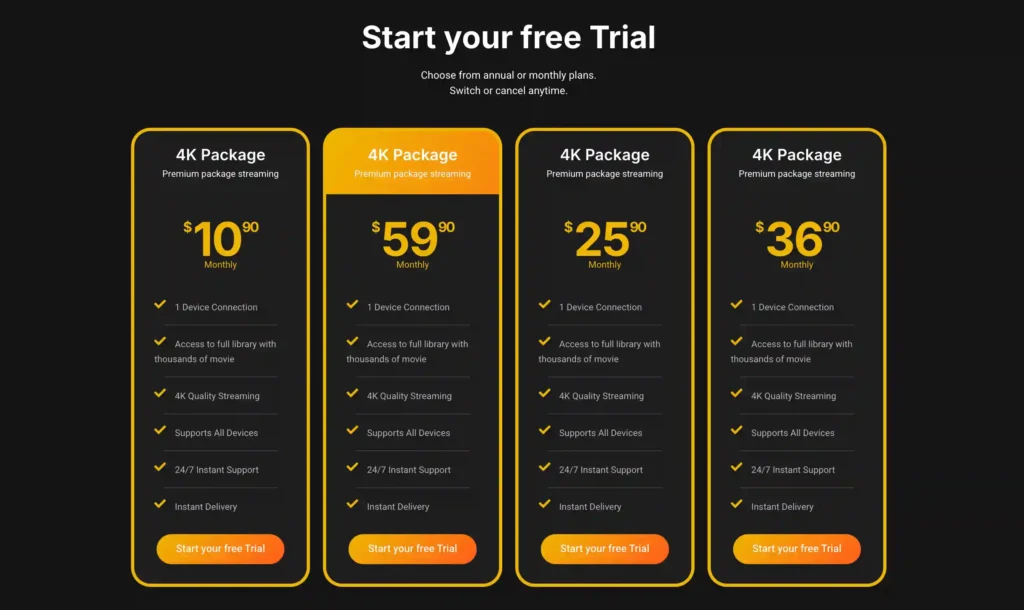
A free trial is available for eligible new users. Subscription prices and promotions can change, so it’s recommended to check the officiel website vibecast tv
What Not to Do When IPTV Buffers
Avoid making several major changes at once.
Don’t immediately:
- Factory-reset your device.
- Replace your router.
- Change DNS.
- Install a VPN.
- Delete application data.
- Install an unknown APK.
- Disable security settings.
- Change hidden developer settings.
- Download modified streaming applications.
Make one change at a time and test the same authorized stream again.
This creates a simple troubleshooting record:
Change → test → result → next step
That is much more useful than changing five settings and not knowing which one mattered.
Is It Safe to Download Random IPTV Apps?
Be careful with unofficial applications.
The FTC has warned that illegal streaming applications and add-ons can be used to distribute malware.
For safer installation:
- Prefer official app stores.
- Verify the application developer.
- Avoid modified APK files.
- Avoid applications promising free access to paid content.
- Don’t enter passwords into suspicious applications.
- Keep your streaming device updated.
- Review application permissions when available.
An application being labeled “IPTV player” does not automatically establish that the application or the content source is trustworthy.
IPTV Buffering Fix: The Short Version
If you need the fastest troubleshooting sequence, use this order:
- Test another stream.
- Test another streaming application.
- Restart the IPTV player.
- Restart the streaming device.
- Restart your router/modem.
- Check the device’s network status.
- Improve Wi-Fi or try Ethernet.
- Reduce other network activity.
- Clear the application’s cache.
- Check storage and updates.
- Try lower video quality.
- Contact the authorized service if the problem remains source-specific.
The important point is not to perform all 12 steps automatically. Stop once you’ve identified the likely cause.
Frequently Asked Questions
Why does IPTV keep buffering?
IPTV can buffer because of unstable Wi-Fi, network congestion, insufficient available bandwidth, device limitations, application problems, incompatible playback settings, or an issue with the individual stream or service.
Why does IPTV buffer while Netflix works?
Different streaming services use different delivery systems, servers, codecs, bitrates and buffering strategies. Netflix working proves that your internet connection is functioning generally, but it doesn’t prove that a specific IPTV source or player is functioning correctly.
Why does IPTV buffer on Firestick?
Common areas to investigate include Wi-Fi quality, network congestion, Fire TV software, application cache, storage, player compatibility and the individual stream. Amazon specifically recommends network diagnostics, restarting Fire TV and checking the home network when Fire TV videos buffer.
Does Ethernet stop IPTV buffering?
No. Ethernet can eliminate many Wi-Fi-related problems, but it cannot fix an unavailable stream, application problem or source-side outage.
Should I clear the IPTV app cache?
It can be a reasonable troubleshooting step when an application is behaving incorrectly. Start with clearing the cache rather than application data because clearing data can remove stored application information.
Does changing DNS fix IPTV buffering?
Not necessarily. DNS changes can affect name resolution, but they do not automatically increase bandwidth or repair an overloaded source.
Will a VPN stop IPTV buffering?
Not always. A VPN can sometimes change routing, but it can also add overhead or latency. It should not be treated as the default buffering solution.
Why does only one IPTV channel buffer?
If other authorized streams work normally, the problem may be specific to that source. Test another stream and contact the authorized service if the same channel continues to fail.
Why does IPTV buffer only at night?
Possible explanations include increased household network usage, local network congestion, ISP congestion, or service-side demand. Compare the same stream at different times and check whether other streaming services are affected.
Is IPTV buffering always caused by slow internet?
No. A fast connection can still experience buffering because of Wi-Fi instability, packet loss, network congestion, device limitations, application problems or source-side issues.
Conclusion
The best IPTV buffering fix in 2026 is not a single setting, VPN or application.
The most effective approach is to identify where the problem occurs first:
Network → Wi-Fi → device → app → stream → service
Start with simple, reversible checks such as restarting the application and device, checking the network, improving Wi-Fi or testing Ethernet. Then move toward application cache, storage, updates and playback quality.
If other streaming applications work normally and only one authorized IPTV source continues to buffer, local device changes may not solve the problem. At that point, the appropriate next step is to contact the authorized service or application provider.
VibeCastTV is an independent educational resource. It does not provide unauthorized playlists, credentials, server access or copyrighted television, movie or sports streams. Use only services and content you are authorized to access.
Last reviewed: September 2026. Streaming-device menus, software versions and application availability can change, so verify current settings on your specific device.


4 Responses