By KAVANI | Fact-checked: July 29, 2026
Research basis: This guide is based on official streaming-platform recommendations, device-manufacturer support documentation, technical standards, government consumer guidance, and independent editorial research. It does not include hands-on testing of individual IPTV providers.
Direct answer
No IPTV or internet-based streaming service can responsibly guarantee that buffering will never happen. Smooth playback depends on your available internet speed, Wi-Fi stability, device performance, app condition, account limits, and the provider’s delivery infrastructure. The best approach is to diagnose each layer, then choose a transparent service with realistic claims and clear support policies.
Introduction
Searching for “IPTV USA no buffering 2026” usually means one of two things. You are trying to fix a stream that keeps freezing, or you are considering a new service and want to avoid the same problem.
The phrase “no buffering” sounds attractive, but it is not a measurable permanent feature. A stream that works perfectly tonight may struggle tomorrow because of Wi-Fi interference, network congestion, a provider outage, overloaded hardware, or an application problem.
The practical goal is not to find a magical zero-buffer provider. It is to build a stable streaming setup, understand the warning signs of a poor service, and know where to look when playback fails.
Table of Contents
Key takeaways
- Treat “zero buffering” as marketing language, not a guarantee.
- Test the connection on the actual TV or streaming device.
- A fast speed-test result does not rule out packet loss, Wi-Fi interference, or provider problems.
- Ethernet is generally more consistent than Wi-Fi when a wired connection is practical.
- Update and restart the app before deleting data or reinstalling it.
- Buffering on one channel usually suggests a different cause than buffering across every app.
- Verify the provider’s identity, policies, official apps, and licensing information before paying.
- Use only content and services you are authorized to access.
Can IPTV Really Offer Zero Buffering?
What buffering means
A streaming player normally downloads a small amount of video before displaying it. This stored portion is the buffer. If the player consumes video faster than new data arrives, playback pauses while the buffer refills.
Modern streaming systems often use adaptive bitrate technology. The player can switch to a lower-quality stream when the available connection becomes weaker, helping playback continue with fewer interruptions. Apple’s HLS documentation explains that compatible players can dynamically select a suitable bitrate as network conditions change.
This is why a picture may briefly become softer instead of stopping completely.
Why a guarantee is unrealistic
Playback depends on systems controlled by several different parties:
- Your internet service provider
- Your modem and router
- Your home Wi-Fi environment
- Your streaming device
- The IPTV or streaming application
- The account and subscription rules
- The provider’s servers and delivery network
- The original broadcaster or content source
A provider controls only part of that chain. Permanent “zero buffering” cannot be guaranteed across every location, device, connection, channel, and time of day.
A more credible provider should explain:
- Recommended connection speeds
- Supported devices
- Simultaneous stream limits
- Available support methods
- Service-status procedures
- Refund and cancellation terms
- Whether performance claims come from internal testing, customer reports, or marketing estimates
How Much Internet Speed Do You Need?
There is no universal IPTV speed requirement because video bitrate varies by resolution, compression, frame rate, and platform. Official streaming services nevertheless provide useful planning benchmarks.
| Streaming use | Official reference point | Practical interpretation |
| 720p HD | Netflix recommends 3 Mbps or more | Suitable for one lower-resolution stream on a stable connection |
| 1080p Full HD | Netflix recommends 5 Mbps or more | More capacity may be needed for live video or busy households |
| Live streaming | Hulu and Disney+ recommend around 8 Mbps | Treat this as a minimum reference, not a guarantee |
| 4K UHD | Netflix recommends 15 Mbps; Disney+ recommends 25 Mbps | A stable connection with extra capacity is preferable |
Netflix lists 3 Mbps for 720p, 5 Mbps for 1080p, and 15 Mbps for 4K UHD. Disney+ lists 8 Mbps for live content and 25 Mbps for 4K. Hulu recommends at least 8 Mbps for live streams.
These numbers apply to the services publishing them. They are useful reference points, but they do not prove that an unrelated IPTV provider will work at the same speeds.
Plan for the whole household
Your internet connection is shared by every active device. A 25 Mbps plan may appear sufficient for one 4K stream, but performance can fall when someone else starts:
- A second television stream
- A large game or software download
- Cloud backup
- A video meeting
- Online gaming
- Security-camera uploading
- High-resolution social video
Apple advises pausing other internet activity when multiple users are reducing available streaming speed. Hulu similarly recommends turning off competing devices or programs and connecting the streaming device directly through Ethernet where possible.
Why speed tests do not tell the whole story
A speed test usually shows download speed over a brief period. Streaming quality can also be affected by:
- Packet loss
- Jitter
- Rapid speed fluctuations
- Wi-Fi interference
- Poor router placement
- Congestion between the provider and viewer
- Server capacity
- Device decoding performance
The IETF’s Media Delivery Index identifies timing variation and data loss as relevant indicators for networks carrying streaming media.
This explains why someone can see a high download number and still experience freezing.
Identify Where the Buffering Starts
Before changing subscriptions, identify the pattern.
Home-network problem
Likely signs:
- Several streaming apps buffer
- Other devices also feel slow
- Playback improves when you move closer to the router
- Ethernet works better than Wi-Fi
- Problems are worse when the household is busy
Device problem
Likely signs:
- The same account works on another device
- Menus feel slow or freeze
- The device is hot
- Storage is nearly full
- Apps crash or take a long time to open
- Restarting temporarily improves performance
Google recommends restarting a slow Google TV device and closing unnecessary background apps. Apple also recommends restarting the television, streaming device, computer, or mobile device when video quality is poor or playback stops.
Application problem
Likely signs:
- Only one application is affected
- Other streaming apps play normally
- The issue began after an app update
- Login, EPG, or playback errors appear
- Clearing the app’s temporary cache helps
Use the official application store whenever possible. Avoid cracked players, modified applications, and unknown APK download websites.
Account or subscription problem
Likely signs:
- A message reports too many devices
- Playback stops when another household member connects
- The account is expired
- Login credentials repeatedly fail
- Only premium or specific content fails
- The service requests another payment unexpectedly
Provider-side problem
Likely signs:
- One channel buffers while others work
- Several users report the same outage through official support
- The problem occurs only during major live events
- Performance is poor across different devices and connections
- A second legitimate streaming service works normally on the same device
A home-network upgrade cannot fix an overloaded or unavailable provider server.
How to Stop IPTV Buffering Step by Step
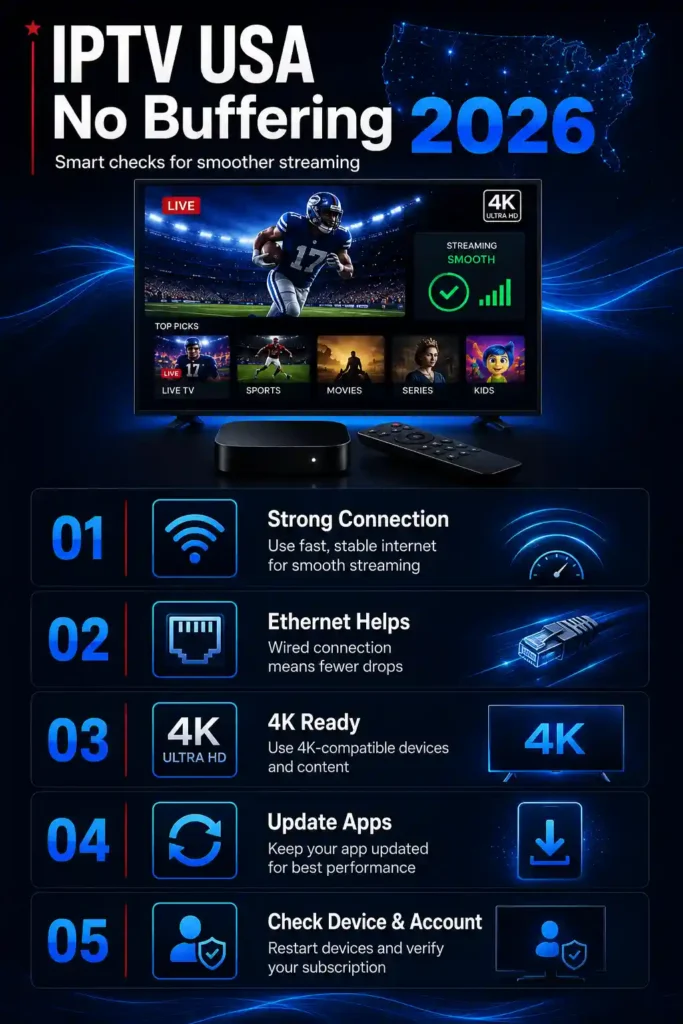
1. Test the connection on the streaming device
Run the test from the television, Fire TV, Apple TV, Android TV device, or computer that is actually buffering.
Testing on a phone beside the router may not reflect the signal reaching a television in another room. Netflix includes a network check in supported television apps, while Disney+ documents device-specific testing methods for smart TVs and streaming hardware.
Record:
- Download speed
- Whether the result changes across several tests
- Time of day
- Wi-Fi or Ethernet connection
- Whether other devices were active
2. Close and reopen the application
Fully close the IPTV player instead of leaving it suspended in the background. Reopen it and test the same content.
Do not immediately delete application data because that may remove settings and account information.
3. Restart the streaming device
A restart can clear a temporary memory problem, stalled process, or network session.
Use the device’s normal restart option where available. Avoid a factory reset unless ordinary troubleshooting fails and you understand what will be erased.
4. Restart the modem and router
Disconnect the modem and router from power using the manufacturer’s recommended procedure. Allow them to restart fully before testing playback.
This may restore a stalled connection, but it will not fix an external provider outage.
5. Use Ethernet when practical
A wired Ethernet connection avoids many forms of wireless interference. Apple TV models with Ethernet can connect directly to a router, and Hulu lists a direct Ethernet connection as a step for improving an inconsistent connection.
Ethernet is particularly useful when:
- The television is far from the router
- Several walls separate the devices
- Nearby Wi-Fi networks are crowded
- Live sports repeatedly freeze
- 4K quality changes frequently
6. Improve the Wi-Fi connection
When Ethernet is not practical:
- Move the router into an open, central position
- Avoid placing it behind a television or inside a cabinet
- Reduce the number of walls between the router and device
- Use the appropriate router band for your distance and environment
- Consider a properly configured mesh system for larger homes
- Test the device close to the router before buying new equipment
Do not assume a range extender will automatically solve the issue. Poor placement can repeat an already weak signal.
7. Pause competing network activity
Temporarily stop:
- Downloads
- Cloud backups
- Other 4K streams
- Game updates
- Large file transfers
- Video uploads
Retest the same channel. A clear improvement suggests that household congestion contributes to the problem.
8. Update the device and application
Install updates from:
- The device manufacturer
- Google Play
- Apple App Store
- Amazon Appstore
- Samsung or LG application stores
- The verified application developer
Apple recommends keeping the operating system and streaming application current when playback fails.
9. Lower the video quality temporarily
Select 1080p or 720p instead of forcing 4K. This is useful when:
- The connection is unstable
- Several people share the network
- Mobile or satellite internet is being used
- The provider’s high-bitrate version is unreliable
Lowering quality is a diagnostic step. If lower resolutions work consistently, the connection may not have enough stable capacity for the higher bitrate.
10. Check simultaneous-stream limits
Some accounts permit only one active stream. Starting playback on another device may stop or interrupt the first session.
Confirm the limit in official account documentation rather than relying on reseller messages.
11. Compare another lawful application or service
Test a reputable streaming application on the same device and connection.
- If every service buffers, investigate the home network, device, or ISP.
- If only one app buffers, investigate the app or account.
- If only one channel buffers, the issue is likely connected to that channel or provider feed.
- If the service fails across several networks and devices, contact the provider.
12. Contact the correct party
Contact your:
- Internet provider when speeds are consistently below your plan
- Device manufacturer for hardware or operating-system problems
- Application developer for app crashes and player errors
- Content provider for channel, account, billing, or service outages
Netflix and Apple both recommend contacting the internet provider when testing suggests a connection problem.
IPTV Buffering Diagnosis Table
| Symptom | Most likely category | First action |
| Every app buffers on every device | Home network or ISP | Test speed and restart network equipment |
| Every app buffers on one television | Device or Wi-Fi signal | Test another device in the same location |
| One IPTV app buffers, but other apps work | Application, account, or provider | Restart and update the affected app |
| One channel buffers, but others work | Provider feed | Report the exact channel and time |
| Playback fails when a second device connects | Account limit or network capacity | Check simultaneous-stream rules |
| Menus and applications are slow | Device storage or performance | Restart and close background applications |
| Picture quality drops but playback continues | Adaptive bitrate response | Test connection stability and reduce congestion |
| Buffering occurs mainly during major events | Provider or network congestion | Compare another lawful service and report the issue |
| Ethernet works but Wi-Fi does not | Wireless signal or interference | Improve router placement or Wi-Fi coverage |
| Unexpected payment message appears | Account issue or phishing | Visit the official account page directly |
How to Evaluate an IPTV Service in the USA
A service should not be selected solely because it advertises thousands of channels, 4K quality, or zero buffering.
Check company transparency
Look for:
- Legal company name
- Verifiable contact details
- Working support channels
- Terms and conditions
- Privacy policy
- Refund policy
- Cancellation instructions
- Clear billing descriptor
- Identifiable application developer
A polished website alone does not prove legitimacy or reliability.
Review licensing information carefully
IPTV is a delivery technology. It is not automatically lawful or unlawful.
The important question is whether the service has authorization to distribute the channels, films, sports, and programs it offers in the user’s country.
Do not assume authorization because a provider:
- Accepts credit cards
- Has a professional website
- Offers customer support
- Has positive reviews
- Provides an application
- Uses a legal disclaimer
- Claims to be licensed
U.S. enforcement actions have involved services distributing copyrighted television programming without authorization.
When licensing information cannot be independently confirmed, treat it as unverified.
Confirm supported devices and applications
Check whether the provider supports your exact:
- Device model
- Operating system
- Application
- Video resolution
- Audio format
- Number of simultaneous devices
Prefer official application stores and verified developer websites.
Examine billing, renewal, and cancellation terms
Before paying, confirm:
- Total price
- Billing frequency
- Auto-renewal status
- Trial conversion terms
- Refund window
- Cancellation process
- Accepted payment method
- Whether cancellation can be completed without contacting an unrelated reseller
Keep a copy of the offer, receipt, cancellation policy, and support messages.
Look for realistic performance information
Credible information should describe:
- Where testing occurred
- Which device was used
- Connection type
- Test date
- Resolution
- Time of day
- Number of streams
- Limitations
Be cautious when a provider publishes precise uptime, buffering, or speed figures without explaining how they were measured.
Protect your account and payment information
The Federal Trade Commission warns that unexpected messages about suspended streaming accounts or payment problems may be phishing attempts. Instead of following the message link, contact the company through an official address or telephone number you already trust.
Never share:
- Full card information through chat
- Account credentials with strangers
- Authentication tokens
- Portal addresses publicly
- One-time security codes
- Remote access to your device
IPTV Provider Warning Signs
Use additional caution when a provider:
- Promises permanent zero buffering
- Claims every premium channel is included worldwide
- Offers unusually low lifetime access
- Accepts only irreversible payment methods
- Has no identifiable company
- Has no cancellation process
- Uses copied legal policies
- Requests installation from an unknown APK website
- Provides shared usernames or passwords
- Encourages bypassing subscriptions or blackouts
- Hides renewal terms
- Uses fake countdown timers
- Claims to be “100% legal” without supporting evidence
- Publishes ratings without explaining the methodology
- Promotes implausibly large channel counts without a verifiable catalog
Device-Specific Tips
Fire TV and Android TV
- Restart the device through its settings menu.
- Update the operating system and player.
- Remove unused applications when storage is low.
- Close background applications.
- Use an application from an official store where possible.
- Test with Ethernet through supported hardware if Wi-Fi is inconsistent.
Apple TV
- Update tvOS and the application.
- Restart Apple TV.
- Test another application on the same connection.
- Use Ethernet on a model that supports it.
- Check whether other household activity is reducing available speed.
Apple recommends checking service status, testing another device on the same connection, pausing competing internet activity, and restarting the device when streaming quality is poor.
Samsung and LG Smart TVs
- Update the television firmware.
- Update the streaming application.
- Restart the television fully.
- Test the TV’s own network connection.
- Remove unused applications if storage is restricted.
- Compare Wi-Fi performance with a wired connection where supported.
Phones, tablets, and computers
- Disable unnecessary background downloads.
- Update the browser or application.
- Compare Wi-Fi and cellular performance.
- Confirm that battery-saving or data-saving settings are not limiting playback.
- Test another browser where officially supported.
- Avoid browser extensions that interfere with media playback.
Frequently Asked Questions
Can IPTV really work without buffering?
IPTV can play smoothly for long periods, but no provider can responsibly guarantee permanent zero buffering. Playback depends on the home network, device, application, account, provider infrastructure, and content source.
What internet speed is best for IPTV?
Official streaming-service recommendations range from around 3 to 8 Mbps for lower-resolution or live HD streaming and 15 to 25 Mbps for 4K. A household generally needs additional capacity when several devices are active.
Why does IPTV buffer when my internet is fast?
A speed test may not reveal packet loss, jitter, Wi-Fi interference, device limitations, app errors, account limits, or provider-side congestion. Test several applications and devices to isolate the failing layer.
Is Ethernet better than Wi-Fi for IPTV?
Ethernet is often more consistent because it avoids wireless interference and signal loss. It can improve home-network stability, but it cannot repair a provider outage or overloaded streaming server.
Should I clear the IPTV app cache?
Clearing temporary cache may help when one app is slow or malfunctioning. Restart and update the app first. Avoid clearing all application data unless you have saved the authorized account details required to sign in again.
Does a VPN stop IPTV buffering?
Not necessarily. A VPN adds another network route and may reduce speed or introduce latency. It can be used for ordinary privacy when permitted, but it should not be presented as a universal buffering solution.
A VPN does not make unauthorized streaming legal and may violate platform terms when used to bypass geographic restrictions.
How can I tell whether an IPTV provider is legal?
Look for verifiable company identity, public licensing information, official applications, clear terms, and realistic content claims. If authorization cannot be confirmed through reliable public information, describe the provider’s licensing status as unverified.
Final Recommendation
The best response to IPTV buffering is diagnosis, not marketing.
Start with the actual streaming device. Test the connection, compare other applications, restart the app and hardware, reduce competing network traffic, and try Ethernet where practical. If every other service works normally and the IPTV service still fails across different devices or connections, the provider should investigate its account, feed, or delivery infrastructure.
When comparing services, prioritize company transparency, official applications, realistic performance information, clear billing, cancellation procedures, and verifiable content authorization. Avoid any service that treats “no buffering” as an unconditional promise.
Copyright and lawful-use notice: This article is intended for general education and lawful troubleshooting. VibeCastTV does not sell IPTV subscriptions, host television channels, provide streaming credentials, distribute playlists, or encourage copyright infringement. Readers should use only services and content they are authorized to access. Provider licensing, platform availability, and streaming rights vary by country and may change over time.