By KAVANI | Fact-checked: July 26, 2026
Direct answer: You can watch internet-delivered television and video on a PS5 through supported apps in the console’s Media section. However, PS5 does not use Android TV and does not offer the same IPTV-player installation options as Fire TV or Google TV. If an authorized IPTV service has no official PS5 app, a smart TV or dedicated streaming device is usually the better choice.
Searching for IPTV for PS5 USA can lead to confusing instructions. Some guides treat the PlayStation 5 like an Android streaming box, suggest installing Android APK files, or claim that any IPTV player can run directly on the console.
That is not how the PS5 media environment normally works.
PS5 supports approved entertainment applications through its Media interface. It is suitable for official streaming services with compatible PlayStation apps, but it is not designed as an open platform for installing generic IPTV players, importing arbitrary playlists, or sideloading Android applications.
This guide explains what works on PS5, which common IPTV methods are unsupported or unreliable, how to troubleshoot official streaming apps, and which safer alternatives to consider.
Table of Contents
Key Takeaways
- PS5 supports compatible streaming services through its Media section.
- App availability depends on the PlayStation Store region and the service developer.
- Android and Fire TV installation instructions do not apply to PS5.
- PS Remote Play does not cast ordinary phone video to a PS5.
- A smart TV or dedicated streaming device is usually more flexible for authorized IPTV players.
- IPTV technology is not inherently illegal, but the content provider must have permission to distribute its programming.
- Avoid jailbreaking, unknown web portals, cracked applications, and shared IPTV credentials.
Can You Use IPTV for PS5 in the USA?
Yes, but only in certain ways.
The term IPTV refers broadly to television or video delivered over an internet connection. Many legitimate streaming platforms use internet-based delivery technology.
If a streaming service has an official PS5 application available in the United States, you can normally install it through the PS5 Media section and sign in with an authorized account.
PlayStation instructs users to access supported entertainment services through Media home and TV & Video. The exact services available can vary by country, account region, and platform support.
The situation is different when a provider gives you:
- An M3U or M3U8 playlist address
- A portal URL
- A server address
- Xtream-style account information
- Instructions to install an Android APK
- A Downloader code intended for Fire TV
- A generic IPTV player recommendation
PS5 does not operate like an Android TV, Google TV, or Fire TV device. Instructions written for those platforms should not be assumed to work on PlayStation 5.
What “IPTV for PS5” Can Mean
The phrase can refer to several different streaming methods. Understanding the difference prevents unnecessary installation attempts and security risks.
Official Streaming and Television Apps
This is the most reliable way to stream video on PS5.
PlayStation promotes entertainment applications such as:
- YouTube
- Netflix
- Prime Video
- Apple TV
- Crunchyroll
- Sony Pictures Core
The available applications and their features can change. A service may also offer different functionality on PS5 than it provides on a phone, smart TV, or web browser.
For example, an application may support:
- On-demand films
- Television series
- Live events
- Selected live channels
- Purchased or rented content
Its presence on PS5 does not guarantee access to every channel, sport, or program.
Generic IPTV Players
A generic IPTV player is an application that organizes and plays content supplied by another source. The player itself usually does not provide television channels.
Depending on the application, it may support:
- Provider usernames and passwords
- Playlist URLs
- Electronic program guides
- Portal connections
- Home media servers
These players are common on:
- Android TV
- Google TV
- Fire TV
- Apple TV
- Smartphones
- Tablets
- Windows
- macOS
PS5 does not provide the same open application-installation environment as these platforms.
Sony’s public PS5 support instructions explain how to download approved media apps but do not document a general process for installing Android packages or importing arbitrary IPTV playlists directly into the console.
Casting From a Phone
PS5 is not documented as a general Google Cast or Apple AirPlay receiver.
Your television may independently support casting even when the PS5 does not. For example, a compatible smart TV may include:
- Google Cast
- Apple AirPlay
- Miracast
- A manufacturer-specific casting feature
- An official streaming application
In that setup, the phone sends video directly to the television. The PS5 is not involved in the playback path.
PS Remote Play
PS Remote Play is sometimes incorrectly described as an IPTV casting method.
Remote Play sends supported PS4 or PS5 gameplay and console access from the PlayStation console to another device. It can be used with supported phones, tablets, computers, Android TV devices, and PlayStation Portal.
It does not turn the PS5 into a receiver for an IPTV stream playing on your phone.
What PS5 Officially Supports
Installing Media Applications
To look for a supported streaming app:
- Turn on the PS5.
- Connect the console to the internet.
- Sign in to your PlayStation account.
- Open the Media section.
- Select All Apps or TV & Video.
- Search for the service by its exact name.
- Select the application.
- Choose Download.
- Open the app and follow its official sign-in process.
Application availability can depend on:
- Your PlayStation account country
- The app developer
- Licensing agreements
- The service’s regional availability
- The PS5 system-software version
If the application does not appear, do not assume that a version made for Android, Windows, Xbox, or PS4 can be installed instead.
Using a Subscription Through an Official App
Before subscribing to a service for PS5, verify:
- The service has an official PS5 app
- The app is available in the United States
- The subscription includes the content you want
- Live television is supported if that is your goal
- Regional or sports restrictions apply
- The subscription renews automatically or manually
- Cancellation is handled by the service, PlayStation, or another billing provider
A service may be available on PS5 without accepting credentials from an unrelated IPTV provider.
Video Quality and Display Compatibility
PS5 supports modern video output, but the final streaming quality depends on more than the console.
Important factors include:
- Your television’s supported resolution
- HDMI cable and port compatibility
- PS5 video-output settings
- The streaming application
- The subscription tier
- Source-video quality
- Network stability
- Regional content availability
Do not assume a stream will play in 4K simply because both the PS5 and television support 4K.
You can review display settings under:
Settings → Screen and Video → Video Output
Best IPTV Service For PS5 USA 2026 (Tested & Verified)
VibeCastTV Review (2026): IPTV Service for PS5 USA & Streaming Entertainment
VibeCastTV is an IPTV subscription service designed for users who want to stream live television and on-demand entertainment across multiple devices. The platform focuses on providing an easy setup experience, flexible subscription plans, and compatibility with many popular IPTV applications.
Whether you’re looking for news, entertainment, sports programming, or international channels, VibeCastTV aims to offer a convenient streaming solution for users in the USA, Canada, and other supported regions.
Key Features
📺 Live Television
VibeCastTV provides access to a wide range of live television categories, including entertainment, news, lifestyle, children’s programming, and international content.
🎬 Video on Demand
Subscribers can browse a library of on-demand content, with new titles added periodically depending on availability.
🖥️ Multi-Device Compatibility
The service is compatible with many popular IPTV devices and applications, including:
- Amazon Fire TV & Fire Stick
- Android TV
- Android smartphones and tablets
- iPhone & iPad
- Windows PCs
- Mac computers
- Smart TVs
- IPTV Smarters
- TiviMate
- XCIPTV
- Other apps that support M3U playlists or Xtream Codes API
📡 Streaming Quality
Where supported by the source and internet connection, streams may be available in:
- HD
- Full HD (1080p)
- 4K Ultra HD
Actual quality may vary depending on content availability, device capabilities, and network performance.
⚡ Quick Setup
New customers receive setup information after subscribing, making it possible to start using the service in a short amount of time.
💬 Customer Support
VibeCastTV provides customer assistance for account setup, installation, and general service questions.
Services
Depending on the subscription plan, VibeCastTV may include access to:
- Live TV
- Entertainment channels
- News channels
- Sports programming
- Kids’ content
- International channels
- Video-on-Demand (VOD)
- Electronic Program Guide (where supported)
- Multi-device compatibility
- Setup assistance
Available content may vary over time.
Pricing
VibeCastTV offers several subscription lengths, allowing users to choose the option that best fits their needs.
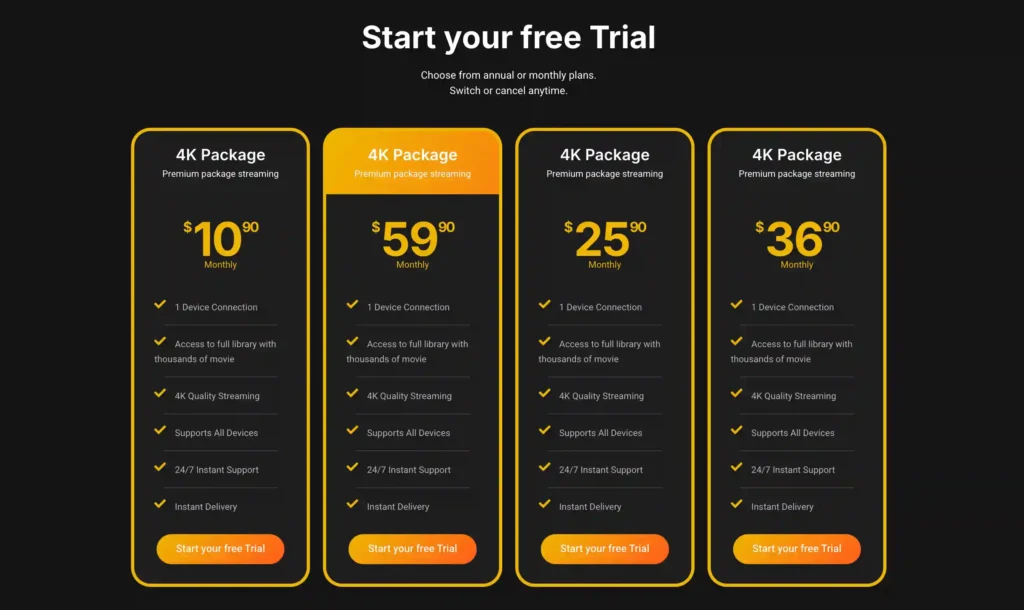
A free trial is available for eligible new users. Subscription prices and promotions can change, so it’s recommended to check the official VibeC
Can You Install an IPTV Player on PS5?
There is no universal answer for every application that may appear in the future. However, PS5 does not currently provide the same installation workflow used by Android-based streaming devices.
Use this practical rule:
If the app appears in the United States PS5 Media catalogue, review and install it there. If it does not appear, do not attempt to install an Android, Fire TV, Windows, or mobile application package on the console.
Why Android and Fire TV Instructions Do Not Apply
Many IPTV setup guides tell readers to:
- Enable unknown sources
- Install Downloader
- Enter a Downloader code
- Download an APK
- Install a third-party player manually
These are platform-specific instructions.
An APK is an Android application package. PS5 does not run Android TV and does not provide an official APK installation process.
A Downloader code intended for Fire TV does not make the same application compatible with PlayStation 5.
Problems With Hidden-Browser Workarounds
Some websites describe methods for opening internal web pages through messages, help links, or connected services. They may refer to this as the “hidden PS5 browser.”
Even when a web page opens, that does not mean it is a supported television-streaming solution.
Possible limitations include:
- Incomplete video-codec support
- DRM playback failures
- Unstable live-video playback
- Poor controller navigation
- No secure credential storage
- No full-screen support
- Session interruptions
- Features disappearing after system updates
Do not enter account credentials, payment details, playlist addresses, or provider server information into an unknown web player.
Why Jailbreaking Is Not a Safe Solution
Modifying a PS5 or bypassing platform protections is not a responsible IPTV setup method.
Potential consequences include:
- Console instability
- Security vulnerabilities
- Malware exposure
- Loss of official support
- PlayStation account restrictions
- Console-access restrictions
- Loss of online features
- Copyright or access-control concerns
A streaming setup should not require console exploits, modified firmware, shared accounts, or instructions for bypassing platform security.
Safest Ways to Watch Internet Television
Option 1: Use an Official PS5 Media App
Choose this method when the service has an official PS5 application in the United States.
Advantages
- Installed through the supported PlayStation interface
- Designed for controller or media-remote navigation
- Better compatibility with platform security and DRM
- Easier application updates
- Clearer account-management process
Limitations
- Fewer apps than some smart-TV platforms
- Generic playlist support may be unavailable
- Live-TV functions can differ between devices
- Regional availability may change
Option 2: Use the Authorized Smart-TV App
Your television may offer an official application even when PS5 does not.
This can be the simplest option when:
- The app appears in the television’s official store
- The developer is clearly identified
- The service documents compatibility with your TV
- The application receives regular updates
The PS5 can remain connected to another HDMI input.
Option 3: Use a Dedicated Streaming Device
A dedicated streaming device is often more suitable when an authorized service requires a generic IPTV player, playlist support, or a provider-specific application.
Potential platforms include:
- Google TV
- Android TV
- Fire TV
- Apple TV
- Roku, when the required official application is supported
Compare devices using:
- Official-store application availability
- Software-update support
- Storage capacity
- Ethernet support
- Privacy controls
- Remote usability
- Developer transparency
- Supported video formats
Avoid products promoted mainly as “fully unlocked” or guaranteed to provide paid channels for free.
Option 4: Use an Authorized Web Player on a Computer
Some legitimate services provide a secure browser-based player.
Before signing in, confirm:
- The domain belongs to the official service
- The page uses HTTPS
- The service supports your browser
- The player supports the required DRM
- The login form is not a copied or redirected page
A computer can be connected to the television through HDMI when necessary. This is generally safer than relying on an undocumented PS5 web-view method.
Which Option Should You Choose?
| Your situation | Recommended approach | Main limitation |
|---|---|---|
| The service has an official PS5 app | Install it through PS5 Media | Confirm US availability and included content |
| The service has a smart-TV app but no PS5 app | Use the television application | Compatibility depends on the TV model |
| The service requires a generic IPTV player | Use a compatible streaming device | Verify the provider’s content authorization |
| The service provides a secure browser player | Use a supported computer browser | Avoid unknown or copied login portals |
| You want to cast from a phone | Cast to a compatible TV or receiver | PS5 is not the casting receiver |
| The instructions require an Android APK | Use another compatible platform | APK files are not PS5 applications |
| The instructions require jailbreaking | Do not proceed | Security, account, and legal risks |
| You want mainstream streaming services | Use official PS5 Media apps | App catalogue and subscriptions vary |
How to Install an Official Streaming App on PS5
Follow these steps only for applications available through the official PS5 interface:
- Open the Media tab on the PS5 home screen.
- Select All Apps.
- Search for the official service name.
- Check that the app identity matches the service.
- Select Download.
- Wait for installation to finish.
- Open the application.
- Sign in through the official login screen.
- Review privacy, playback, and parental-control settings.
- Test a video you are authorized to watch.
Do not enter credentials from an unrelated IPTV reseller into an official streaming application unless the application and provider explicitly support that account type.
Troubleshooting PS5 Streaming Problems
The App Is Missing
Possible causes include:
- The service does not offer a PS5 app
- The application is unavailable in the United States
- The application was removed
- Your account uses a different country or region
- The instructions were written for another platform
- The guide is outdated
Try the following:
- Search the PS5 Media catalogue.
- Check the service’s official supported-device page.
- Confirm your PlayStation account region.
- Check whether the app is available on your smart TV.
- Use a compatible dedicated streaming device when necessary.
Do not download an application package intended for Android, Windows, or Fire TV.
The App Will Not Open
Try these steps in order:
- Close and reopen the application.
- Restart the PS5.
- Check for an app update.
- Check for a PS5 system-software update.
- Review PlayStation Network status.
- Review the streaming service’s status page.
- Reinstall the app only after confirming your login details.
Update the console through:
Settings → System → System Software → System Software Update and Settings
Video Buffers or Loses Quality
Buffering can result from:
- Weak Wi-Fi
- Household network congestion
- Large downloads
- An application issue
- Provider-side capacity
- A high video bitrate
- Service outages
- Regional delivery problems
Use this troubleshooting sequence:
- Test another video in the same app.
- Test another reputable streaming app.
- Pause active game or system downloads.
- Restart the application.
- Restart the PS5.
- Restart the router.
- Move the console closer to the router.
- Use Ethernet when practical.
- Test the service on another supported device.
- Contact the service if only its content fails.
Do not automatically change DNS settings, install a VPN, or reset the entire console.
Sign-In Fails
Check:
- Email address and password
- Capitalization
- Subscription status
- PlayStation account region
- Device-activation limits
- Simultaneous-stream limits
- Billing-platform differences
- Service outages
Never send full credentials through public comments, social media, or unencrypted messages.
Use a unique password or supported passkey and enable stronger account protection where available.
Black Screen or No Sound
Possible causes include:
- HDMI communication problems
- Unsupported display settings
- Application playback failure
- DRM errors
- Television audio settings
- An individual stream problem
Try:
- Opening another video.
- Testing another official app.
- Restarting the application.
- Restarting the PS5 and television.
- Checking the HDMI connection.
- Reviewing PS5 video-output settings.
- Checking the television’s audio output.
- Contacting the application provider if the issue affects only one service.
Only One Service Fails
If other streaming applications work, the problem is more likely connected to:
- The service’s servers
- Your service account
- An expired subscription
- A particular stream
- Regional availability
- Billing
- An application update
Do not factory-reset the PS5 for a problem limited to one application.
Security and Consumer-Safety Checklist
Before using any streaming service connected with your PS5:
- Install applications through the official PS5 Media interface.
- Verify the service and developer name.
- Use a unique password or passkey.
- Enable stronger account security.
- Keep the console and applications updated.
- Never publish playlist or server information.
- Do not install modified console software.
- Avoid unknown IPTV web portals.
- Do not enter payment details into unfamiliar web players.
- Read renewal and cancellation terms.
- Check whether the provider identifies its legal business entity.
- Confirm that support emails use the official company domain.
- Treat implausibly cheap “every premium channel” claims as warning signs.
- Do not assume that payment acceptance proves content licensing.
- Do not assume that an app-store listing validates an unrelated provider.
Is IPTV Legal on PS5 in the USA?
IPTV is a technology, not a legal classification.
Legality depends on:
- Whether the provider has permission to distribute the content
- Whether the customer is authorized to access it
- Whether subscriptions and access controls are respected
- Whether copyrighted programming is retransmitted without permission
- Whether regional or contractual restrictions are being bypassed
A professional-looking website, payment system, application, customer-support channel, or legal disclaimer does not independently prove that a provider has broadcasting rights.
Similarly, installing a lawful IPTV player does not make every playlist or provider lawful.
A VPN may provide ordinary network privacy, but it does not make unauthorized streaming legal. Using one to evade regional restrictions may also violate a platform’s terms.
Limitations of This Guide
This article does not claim hands-on testing of:
- Generic IPTV players on PS5
- IPTV subscriptions
- Hidden-browser playback
- M3U playlist compatibility
- Provider reliability
- Channel availability
- Video quality
- Buffering frequency
- Customer support
- Refund processing
- Cancellation procedures
- Licensing arrangements
- Sports broadcasting rights
The guide is based on official PlayStation documentation, public copyright information, and independent editorial research rather than hands-on testing.
Application availability, policies, and device support can change. Check the current United States PS5 Media catalogue and the service’s official documentation before subscribing.
Frequently Asked Questions
Can I install IPTV Smarters on PS5?
Sony’s public PS5 documentation does not provide a method for installing Android APK packages. Check the live US PS5 Media catalogue, but do not attempt to use Android or Fire TV installation files on PS5.
Can PS5 play an M3U playlist directly?
The official PS5 media instructions reviewed do not document direct M3U playlist importing. Use an authorized application on a device that officially supports the required playlist format.
Can I cast IPTV from my phone to PS5?
PS5 is not documented as a general Google Cast or AirPlay receiver. Cast to a compatible television or separate streaming receiver instead.
Does PS Remote Play send phone video to PS5?
No. PS Remote Play sends supported console gameplay and access from the PS5 to another device. It does not send normal phone video to the console.
Can I watch live television on PS5?
You may be able to watch live television through an official PS5 application that offers live programming in the United States. Availability depends on the app, subscription, location, and content rights.
Is the hidden PS5 browser safe for IPTV?
An internal web view may open certain pages, but Sony does not present it as the normal PS5 media-streaming workflow. Video support, DRM, security, navigation, and long-term availability may be unreliable.
Is PS5 a good device for a generic IPTV service?
PS5 is best suited to supported official media applications. A smart TV or dedicated streaming device is generally more flexible when an authorized service requires a generic player, playlist, or provider-specific app.
Conclusion
PS5 can be a useful entertainment device when a streaming service offers an official PlayStation application. It is less suitable for generic IPTV players, Android APK files, arbitrary playlist importing, or unsupported browser workarounds.
Start by checking the PS5 Media catalogue. If your authorized service is unavailable, use its official smart-TV application, a compatible streaming device, or a secure browser player on a computer.
Avoid instructions that require unknown portals, modified console software, shared credentials, cracked applications, or access-control bypasses.
Independent Research Disclosure
This article is based on official PlayStation documentation, public US copyright information, and independent editorial research. Provider marketing claims have not been treated as proof of licensing, compatibility, reliability, or performance.
Testing Disclosure
VibeCastTV did not provide evidence of hands-on testing involving a PS5, generic IPTV player, IPTV provider, playlist, browser player, or subscription for this article. The article should not be described as hands-on tested or verified.
Copyright and Lawful-Use Notice
This article is intended for general education and lawful troubleshooting. VibeCastTV does not sell IPTV subscriptions, host television channels, provide streaming credentials, distribute playlists, or encourage copyright infringement. Readers should use only services and content they are authorized to access. Provider licensing, application availability, and streaming rights vary by country and may change over time.