By KAVANI | Fact-checked: July 26, 2026
You can use an authorized IPTV service with Chromecast in the USA, but the correct method depends on the device. A classic Chromecast receives video cast from a phone, tablet, or computer. Chromecast with Google TV and Google TV Streamer can also install compatible applications directly. Chromecast itself does not supply channels, subscriptions, playlists, or streaming rights.
Research note: This guide is based on official Google documentation, current product information, US copyright guidance, and independent editorial research. It does not contain hands-on performance testing.
Table of Contents
Can You Use IPTV for Chromecast?
Yes, provided that you have:
- A compatible Chromecast or Google TV device
- A lawful source of television or video content
- A player or application that supports your device
- A stable home network
- Valid account or playlist information supplied by a service you are authorized to use
The term IPTV describes television or video delivered through internet protocol. It does not identify a particular provider and does not establish whether a service has permission to distribute its content.
A Chromecast is only a playback device. It does not include an IPTV subscription, premium channels, usernames, passwords, portal addresses, or playlists.
Identify Your Chromecast or Google TV Device
Your setup method depends on which Google device you own.
| Device | Install applications directly? | Cast from a phone? | Remote included? | Recommended setup |
|---|---|---|---|---|
| Classic Chromecast | No | Yes | No | Cast from a compatible mobile or web application |
| Chromecast Ultra | No | Yes | No | Cast from a compatible application |
| Chromecast with Google TV | Yes | Yes | Yes | Install a reputable player from Google Play |
| Google TV Streamer | Yes | Yes | Yes | Install a reputable player or use an official streaming application |
| TV with Google Cast | Depends on TV platform | Yes | Depends on TV | Use its installed application or cast from another device |
Google ended production of Chromecast in 2024 and introduced Google TV Streamer as its replacement. Existing Chromecast devices can still be used, and Google continues to maintain support documentation for them.
Classic Chromecast and Chromecast Ultra
Older Chromecast devices do not have a conventional home screen or app store. You open the content in a compatible application on your phone, tablet, or computer and send it to the Chromecast.
Your phone usually acts as the controller, while the Chromecast retrieves and plays the stream.
Chromecast With Google TV
Chromecast with Google TV includes:
- A home screen
- A remote
- Google TV
- Access to compatible Google Play applications
- Native application playback
- Google Cast support
You can install a player directly when that application is available for Google TV.
Google TV Streamer
Google TV Streamer is Google’s current successor to Chromecast. It runs Android TV OS and supports application installation, Google Cast, Wi-Fi, and Ethernet. The current US model supports up to 4K HDR at 60 frames per second, subject to the television, application, source video, and connection.
Television With Google Cast Built In
Some televisions include Google Cast without using a separate Chromecast dongle. Casting instructions are broadly similar, but native application availability depends on the television’s operating system and manufacturer.
What You Need Before Setup
Prepare the following:
- A Chromecast, Google TV Streamer, or compatible television
- An Android phone, iPhone, tablet, or computer when casting
- The Google Home application when required for initial setup
- A secure Wi-Fi or Ethernet connection
- A compatible application from an official store
- Credentials or playlist information from a source you are authorized to use
Enter only account information or playlist details provided by an authorized service. VibeCastTV does not provide playlists, server access, portal addresses, usernames, passwords, authentication tokens, or television credentials.
Best IPTV Service For Chromecast 2026 (Tested & Verified)
VibeCastTV Review (2026): IPTV Service for Chromecast & Streaming Entertainment
VibeCastTV is an IPTV subscription service designed for users who want to stream live television and on-demand entertainment across multiple devices. The platform focuses on providing an easy setup experience, flexible subscription plans, and compatibility with many popular IPTV applications.
Whether you’re looking for news, entertainment, sports programming, or international channels, VibeCastTV aims to offer a convenient streaming solution for users in the USA, Canada, and other supported regions.
Key Features
📺 Live Television
VibeCastTV provides access to a wide range of live television categories, including entertainment, news, lifestyle, children’s programming, and international content.
🎬 Video on Demand
Subscribers can browse a library of on-demand content, with new titles added periodically depending on availability.
🖥️ Multi-Device Compatibility
The service is compatible with many popular IPTV devices and applications, including:
- Amazon Fire TV & Fire Stick
- Android TV
- Android smartphones and tablets
- iPhone & iPad
- Windows PCs
- Mac computers
- Smart TVs
- IPTV Smarters
- TiviMate
- XCIPTV
- Other apps that support M3U playlists or Xtream Codes API
📡 Streaming Quality
Where supported by the source and internet connection, streams may be available in:
- HD
- Full HD (1080p)
- 4K Ultra HD
Actual quality may vary depending on content availability, device capabilities, and network performance.
⚡ Quick Setup
New customers receive setup information after subscribing, making it possible to start using the service in a short amount of time.
💬 Customer Support
VibeCastTV provides customer assistance for account setup, installation, and general service questions.
Services
Depending on the subscription plan, VibeCastTV may include access to:
- Live TV
- Entertainment channels
- News channels
- Sports programming
- Kids’ content
- International channels
- Video-on-Demand (VOD)
- Electronic Program Guide (where supported)
- Multi-device compatibility
- Setup assistance
Available content may vary over time.
Pricing
VibeCastTV offers several subscription lengths, allowing users to choose the option that best fits their needs.
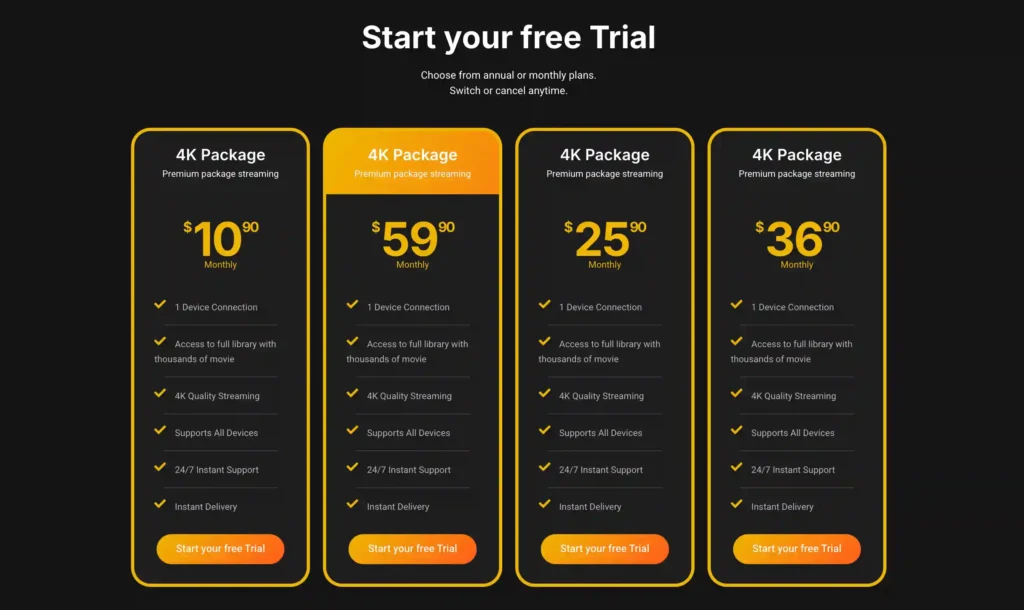
A free trial is available for eligible new users. Subscription prices and promotions can change, so it’s recommended to check the official VibeCasttv
Method 1 — Cast From a Compatible Mobile Application
Use this method for:
- Classic Chromecast
- Chromecast Ultra
- Chromecast with Google TV
- Google TV Streamer
- TVs with Google Cast
The application itself must support Google Cast. Installing an application on your phone does not automatically mean that it can cast video.
Android instructions
- Connect the Android device and Chromecast to the same Wi-Fi network.
- Open the authorized streaming or IPTV application.
- Start the content you are permitted to watch.
- Look for the Google Cast icon.
- Select the Chromecast, Google TV Streamer, or television.
- Wait for the Cast icon to show that the connection is active.
- Control playback from the mobile application.
- Select Disconnect when finished.
Google’s instructions require the casting device and receiver to be on the same Wi-Fi network.
iPhone and iPad instructions
- Connect the iPhone or iPad to the same Wi-Fi network as the Chromecast.
- Open Settings and check the application’s Local Network permission.
- Open a Google Cast-enabled application.
- Select the Cast icon.
- Choose the receiving device.
- Begin playback.
On current Apple devices, an application may need Local Network permission before it can discover a Chromecast. Refusing that permission can prevent casting.
Native casting versus screen mirroring
Native Google Cast and screen mirroring are not identical.
With native casting, the receiving device normally plays the media stream while the phone acts as a controller. With screen mirroring, the television displays a copy of the phone’s screen.
Native casting is generally preferable because:
- The phone is not continuously duplicating its display
- Playback controls are designed for casting
- Notifications are less likely to appear on the television
- Video may remain active while the phone performs another task
Use screen mirroring only when the application permits it and native Cast support is unavailable. Some protected video services intentionally restrict mirroring.
Method 2 — Install a Player on Chromecast With Google TV
Use this method for:
- Chromecast with Google TV
- Google TV Streamer
- Other Google TV devices that support application installation
Install from Google Play
- Open the Google TV home screen.
- Select Apps, or use Search.
- Enter the exact player or service name.
- Check the developer or seller name.
- Review the permissions and purchase terms.
- Install the application.
- Open it and complete its setup.
Google documents direct application installation through Search or the Apps area on Google TV.
Application availability can vary by country, device, account, and developer support. Do not assume that an application mentioned in an older guide is still available.
Add an authorized account or playlist
The exact options depend on the player. It may accept:
- A provider login
- An M3U or M3U8 address
- XMLTV program-guide information
- A connection to a lawful home media server
- Another format documented by the application
Follow these precautions:
- Enter only information provided for your authorized account.
- Confirm that the login format is supported.
- Do not post the account URL or password publicly.
- Do not reuse a banking or primary-email password.
- Check the simultaneous-connection limit.
- Remove your account before selling or giving away the device.
A playlist address may contain account identifiers or authentication information. Treat it like a password.
Why official stores are preferable
Prefer Google Play or a developer’s verified website.
Avoid:
- Cracked players
- “Premium unlocked” applications
- Unknown APK repositories
- Modified applications
- Download codes published by an unrelated IPTV seller
- Applications promising free access to paid channels
An application store listing can reduce installation risk, but it does not prove that a separate content provider has broadcasting rights.
Method 3 — Cast an Authorized Web Stream From Chrome
Chrome casting can be useful when an authorized service works in a browser but has no compatible television application.
- Connect the computer and Chromecast to the same Wi-Fi network.
- Open an updated version of Google Chrome.
- Open the authorized service.
- Start the video.
- Open Chrome’s casting controls.
- Select the Chromecast or Google TV device.
- Choose the appropriate tab or supported media source.
Google states that Chrome casting requires a supported receiver, an updated Chrome browser, and a strong connection on the same Wi-Fi network.
This method has limitations. Some services:
- Block tab casting
- Require their official application
- Use digital-rights controls that prevent mirroring
- Provide lower-quality browser playback
- Do not support live video through browser casting
Do not attempt to bypass those restrictions.
Which Setup Method Should You Use?
| Your situation | Recommended method |
|---|---|
| You own a classic Chromecast | Cast from a compatible phone, tablet, or Chrome browser |
| You own Chromecast with Google TV | Install an official-store application |
| You own Google TV Streamer | Install an official-store application; consider Ethernet for persistent network problems |
| Your mobile application has a Cast icon | Use native Google Cast |
| Your service has an official Google TV app | Use the official app |
| Your service only works in a browser | Try Chrome casting if the service permits it |
| The application requires an unknown APK | Look for an official alternative rather than disabling security controls |
Chromecast IPTV Troubleshooting
Diagnose the category of the problem before changing settings.
| Symptom | Likely category | First checks |
|---|---|---|
| No Cast icon | Application | Confirm that the app supports Google Cast and is updated |
| Chromecast not found | Network or permission | Check Wi-Fi, Local Network permission, and guest-network isolation |
| Buffering on every stream | Home network or provider | Test another authorized app and another device |
| Only one channel buffers | Source or provider | Report the affected stream to the provider |
| Login rejected | Account | Check spelling, expiration, device limit, and subscription status |
| Audio but no picture | Codec or decoder | Update the app and test an alternative authorized player |
| App crashes on Google TV | Application or storage | Restart, update, and check free storage |
Cast icon is missing
Possible causes include:
- The application does not support Google Cast
- The application is outdated
- Cast support is limited to a paid application tier
- The phone and Chromecast are on different networks
- Local Network permission is disabled on an Apple device
- The application has temporarily removed or broken Cast support
Recommended actions:
- Check the application’s official feature list.
- Update it through the official store.
- Confirm that both devices use the same Wi-Fi network.
- Check Local Network permission on iPhone or iPad.
- Try casting from another known Cast-enabled application.
Do not install a modified application merely to add a Cast button.
Chromecast is not found
Check whether:
- The phone and Chromecast use the same network name
- One device is connected to a guest network
- The router has client or access-point isolation enabled
- A VPN or security application is interfering with local discovery
- The Google streaming device needs to be restarted
- The router needs to be restarted
Google notes that Chrome cannot find a Google streaming device located on a different network.
Video buffers or freezes
Buffering can originate from:
- Weak Wi-Fi
- Network congestion
- A high stream bitrate
- Provider-side capacity
- Device overheating
- Insufficient storage
- Application instability
- Too many simultaneous streams
- A codec problem
Use this sequence:
- Test another authorized channel or video.
- Test a reputable official streaming application.
- Restart the player.
- Restart the Google streaming device.
- Pause large downloads on other household devices.
- Move closer to the router.
- Test Ethernet when the device supports it.
- Test the account on another compatible device.
- Contact the provider if the problem affects several devices and networks.
Changing DNS, installing a VPN, or clearing all app data should not be the first response to ordinary buffering.
Audio plays without video
This can indicate:
- Unsupported video encoding
- A decoder problem
- An HDR compatibility issue
- A damaged source stream
- Outdated device software
- An application-specific playback bug
Try:
- Updating the application and Google TV software.
- Testing another authorized stream.
- Selecting a lower-quality version when available.
- Trying another reputable player compatible with the same lawful source.
- Reporting the affected stream to its provider.
Login or authorization fails
A login error usually concerns the account or provider rather than Chromecast.
Check:
- Capitalization
- Leading or trailing spaces
- Subscription expiration
- Device limit
- Simultaneous connection limit
- Correct server or service address
- Whether the provider changed its login method
Do not send complete credentials through a public forum or social-media comment.
Google TV application crashes
Try these actions in order:
- Close and reopen the application.
- Restart the device.
- Install application updates.
- Install Google TV system updates.
- Check available storage.
- Clear only the application cache.
- Reinstall only after saving necessary account details.
- Contact the developer if the crash is reproducible.
Clearing all application data can erase playlists, favorites, guide information, and settings, so it should not be the first step.
Privacy and Account-Security Checklist
Before using an IPTV player with Chromecast:
- Use a secure home network.
- Keep the router, device, and application updated.
- Install applications from official sources.
- Verify the developer’s name.
- Review permissions and privacy disclosures.
- Use unique account credentials.
- Do not expose playlist URLs.
- Avoid paying through methods that offer no meaningful dispute process.
- Read renewal and cancellation conditions.
- Remove accounts from old devices.
- Avoid cracked or modified applications.
Google recommends using a secure network because unknown users who gain access to the same network may be able to cast content to the television.
Is IPTV Legal on Chromecast in the USA?
Chromecast is a lawful general-purpose streaming device. IPTV is also a general delivery technology. Legality depends on whether the service and viewer are authorized to distribute and access the specific content.
Warning signs include:
- Every premium network offered at an implausibly low price
- No identifiable company
- No terms, privacy policy, or cancellation process
- Payment requested only through irreversible methods
- Shared credentials
- Publicly distributed playlists
- Instructions to bypass subscriptions or access controls
- Claims that a VPN automatically makes the service legal
- No information about content authorization
A professional website, app-store listing, payment system, disclaimer, or long operating history does not independently prove that a provider has distribution rights.
The U.S. Copyright Office explains that the DMCA prohibits bypassing certain technological controls, including password systems used to prevent unauthorized access to streaming services.
Limitations of This Guide
This guide does not independently test:
- Chromecast playback performance
- Individual IPTV applications
- IPTV provider reliability
- Channel availability
- Streaming rights
- Buffering frequency
- Picture quality
- Support response time
- Refund processing
- Subscription cancellation
Application availability, device support, prices, and platform policies can change. Confirm current information through the official application store, device documentation, and service terms.
Frequently Asked Questions
Does Chromecast include IPTV channels?
No. Chromecast and Google TV Streamer are playback devices. They do not automatically include an IPTV subscription, playlists, credentials, or premium television rights.
Can I install an IPTV player on a classic Chromecast?
No. A classic Chromecast does not provide a conventional app store. Use a compatible application on a phone, tablet, or computer and cast from that device.
Can I install applications on Chromecast with Google TV?
Yes. Chromecast with Google TV supports compatible Google TV applications. Search through the device’s Apps area or Google TV search.
Why can’t my IPTV app find Chromecast?
The application may not support Google Cast, the devices may be on different networks, or local network access may be blocked. Confirm app compatibility, Wi-Fi, permissions, and router settings.
Is an IPTV player the same as an IPTV provider?
No. A player is software that organizes and plays streams. A provider supplies the content source or account. Paying for a player upgrade normally does not include television channels.
Should I sideload an IPTV application?
Prefer Google Play or another official store. Sideloading should be considered only when the developer is verified, the application is lawful, and the official source supplies the package. Do not use cracked applications or unknown APK repositories.
Does a VPN make unauthorized IPTV legal?
No. Privacy software does not create distribution rights or permission to access copyrighted content. It may also violate a platform’s terms when used to evade regional or subscription restrictions.
Conclusion
The safest way to use IPTV with Chromecast in the USA is to begin with the device model.
Use a compatible Cast-enabled application for a classic Chromecast. Install a reputable official-store application on Chromecast with Google TV or Google TV Streamer. Keep the phone and receiving device on the same secure network, and use only accounts, playlists, and content you are authorized to access.
When playback fails, identify whether the problem comes from the network, device, application, account, or provider before resetting settings or installing new software.
Copyright and lawful-use notice: This article is intended for general education and lawful troubleshooting. VibeCastTV does not sell IPTV subscriptions, host television channels, provide streaming credentials, distribute playlists, or encourage copyright infringement. Readers should use only services and content they are authorized to access. Provider licensing, platform availability, and streaming rights vary by country and may change over time.