By KAVANI | Fact-checked: July 25, 2026
Quick answer: To use IPTV on Kodi in the USA, install Kodi from an official source, add the official PVR IPTV Simple Client, and enter an M3U playlist supplied by a service you are authorized to use. You can also add an XMLTV source for program-guide information. Kodi does not provide television channels, subscriptions, playlists, or streaming credentials.
Kodi can turn a compatible computer, television, or streaming device into a flexible media center with live-TV support. However, Kodi is only the player. It does not include US television channels or determine whether a playlist or streaming service is authorized.
This guide explains how to configure IPTV on Kodi safely, add an electronic program guide, troubleshoot common errors, and avoid risky add-ons or unauthorized streaming sources.
This article is based on official documentation, publicly available policies, and independent editorial research rather than hands-on testing.
Lawful-use reminder: Enter only playlist details or account information supplied by a provider you are authorized to use. VibeCastTV does not provide playlists, server access, portal URLs, usernames, passwords, authentication tokens, or television credentials.
Table of Contents
What You Need Before Setting Up IPTV on Kodi
Before opening Kodi’s settings, make sure you have the following.
A Supported Device
Kodi is available for several operating systems and device types, including:
- Windows
- Android
- Linux
- macOS
- iOS
- tvOS
- webOS
- Raspberry Pi
The installation method varies by platform. Whenever possible, download Kodi from its official website or an official application store.
Avoid modified Kodi installers, “fully loaded” builds, and unofficial packages promising free premium channels.
The Current Stable Kodi Version
Kodi 21.3 “Omega” is the current stable version as of July 25, 2026.
Kodi 22 “Piers” Beta 1 is also available, but it is prerelease software. Most users should install the stable version unless they specifically want to test beta software and are prepared to encounter bugs.
An Authorized M3U Playlist
Kodi’s IPTV Simple Client does not supply channels. You need a playlist provided by a television service, media server, tuner system, organization, or streaming provider that authorizes your access.
The provider may supply:
- A remote M3U or M3U8 URL
- A local M3U file
- An XMLTV program-guide URL
- Authentication information connected to the playlist
Playlist addresses can contain usernames, passwords, account IDs, or access tokens. Treat the complete URL like a password and never post it publicly.
An Optional XMLTV Guide
An XMLTV source provides electronic program guide information such as:
- Program names
- Start and end times
- Channel identifiers
- Program descriptions
- Episode details
Your channels may still play without an XMLTV source, but the Kodi Guide screen could remain empty.
Best IPTV Service For Kodi 2026 (Tested & Verified)
VibeCastTV Review (2026): IPTV Service for Kodi & Streaming Entertainment
VibeCastTV is an IPTV subscription service designed for users who want to stream live television and on-demand entertainment across multiple devices. The platform focuses on providing an easy setup experience, flexible subscription plans, and compatibility with many popular IPTV applications.
Whether you’re looking for news, entertainment, sports programming, or international channels, VibeCastTV aims to offer a convenient streaming solution for users in the USA, Canada, and other supported regions.
Key Features
📺 Live Television
VibeCastTV provides access to a wide range of live television categories, including entertainment, news, lifestyle, children’s programming, and international content.
🎬 Video on Demand
Subscribers can browse a library of on-demand content, with new titles added periodically depending on availability.
🖥️ Multi-Device Compatibility
The service is compatible with many popular IPTV devices and applications, including:
- Amazon Fire TV & Fire Stick
- Android TV
- Android smartphones and tablets
- iPhone & iPad
- Windows PCs
- Mac computers
- Smart TVs
- IPTV Smarters
- TiviMate
- XCIPTV
- Other apps that support M3U playlists or Xtream Codes API
📡 Streaming Quality
Where supported by the source and internet connection, streams may be available in:
- HD
- Full HD (1080p)
- 4K Ultra HD
Actual quality may vary depending on content availability, device capabilities, and network performance.
⚡ Quick Setup
New customers receive setup information after subscribing, making it possible to start using the service in a short amount of time.
💬 Customer Support
VibeCastTV provides customer assistance for account setup, installation, and general service questions.
Services
Depending on the subscription plan, VibeCastTV may include access to:
- Live TV
- Entertainment channels
- News channels
- Sports programming
- Kids’ content
- International channels
- Video-on-Demand (VOD)
- Electronic Program Guide (where supported)
- Multi-device compatibility
- Setup assistance
Available content may vary over time.
Pricing
VibeCastTV offers several subscription lengths, allowing users to choose the option that best fits their needs.
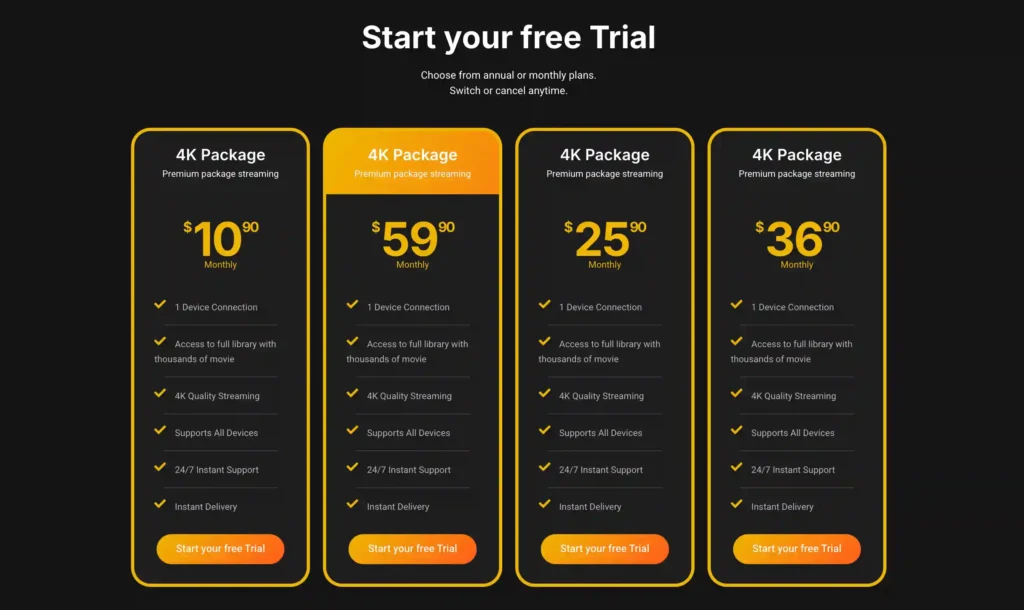
A free trial is available for eligible new users. Subscription prices and promotions can change, so it’s recommended to check the official VibeCastT
How to Set Up IPTV on Kodi in the USA
Step 1: Install Kodi From an Official Source
Install Kodi using its official website or your device’s official application store.
Once installed, open Kodi and complete any initial language, display, and audio settings.
The official Kodi application does not contain channels, films, sports packages, or streaming subscriptions. Content must come from a source you own or are authorized to access.
Step 2: Install PVR IPTV Simple Client
Kodi uses PVR clients to manage live television and electronic program guide information.
From the Kodi home screen:
- Open Settings.
- Select Add-ons.
- Select Install from repository.
- Open PVR clients.
- Select IPTV Simple Client or PVR IPTV Simple Client.
- Select Install.
The exact menu wording may differ slightly depending on your Kodi version, device, interface language, or installed skin.
Use the version available through Kodi’s official repository. Avoid downloading similarly named ZIP files from unknown websites.
Step 3: Add Your Authorized M3U Playlist
After installing IPTV Simple Client:
- Open Settings.
- Select Add-ons.
- Open My add-ons.
- Select PVR clients.
- Open IPTV Simple Client.
- Select Configure.
- Open the playlist or general configuration section.
- Choose either Remote path or Local path.
- Enter your authorized M3U URL or select your local playlist file.
- Save the configuration.
Check the playlist address carefully before continuing.
Common errors include:
- A missing character
- An accidental space
- Incorrect capitalization
- An expired account
- A moved or renamed local file
- A copied URL that was cut off
- Incorrect authentication information
Do not replace your authorized source with a playlist advertised as a “free working USA M3U.” Public playlist lists frequently create copyright, privacy, reliability, and malware risks.
Step 4: Add an XMLTV EPG
When your authorized source provides an XMLTV guide:
- Open the IPTV Simple Client configuration.
- Select the EPG section.
- Choose a remote URL or local XMLTV file.
- Enter the XMLTV address or select the file.
- Save your changes.
Kodi associates guide information with channels using identifiers contained in the playlist and XMLTV data.
If those identifiers do not match, a channel may play successfully while its guide entry shows no information.
Step 5: Restart Kodi
After saving your playlist and guide configuration:
- Close Kodi completely.
- Reopen the application.
- Wait for the PVR manager to load the channels.
- Allow additional time for the electronic program guide to update.
- Open TV, Channels, or Guide.
A restart is often necessary after the first PVR client configuration.
Step 6: Test Several Channels
Do not rely on a single stream when evaluating whether the setup works.
Test several authorized channels and confirm that:
- The channel list opens
- Multiple channels play
- Channel groups appear correctly
- The program guide loads
- Guide entries match the correct channels
- Audio and video both work
- The device has the correct time zone
- Playback remains stable for several minutes
When only one channel fails, the problem is more likely related to that stream. When every channel fails, investigate the playlist, account, application, network, or provider.
Kodi IPTV Configuration Explained
What Is an M3U Playlist?
An M3U playlist is a text-based file that organizes media stream addresses.
An IPTV playlist may contain:
- Channel names
- Stream URLs
- Channel numbers
- Group names
- Logo references
- EPG identifiers
- Authentication information
Kodi reads the information included in the playlist. It does not verify whether the streams are licensed or whether the playlist supplier has permission to distribute them.
What Is an XMLTV File?
XMLTV is a structured format used for television schedule information.
It can include:
- Channel IDs
- Program titles
- Program descriptions
- Broadcast times
- Episode information
- Category information
The channel IDs in the playlist and XMLTV data must be compatible for accurate automatic matching.
Can Kodi Use Multiple IPTV Playlists?
IPTV Simple Client supports multiple M3U and XMLTV configurations in current Kodi versions.
This can be useful when a reader has multiple authorized sources, such as:
- A home television tuner
- A personal media server
- An organization’s internal stream
- A supported streaming subscription
Give every configuration a clear name so you can identify and troubleshoot it later.
Does Kodi Support Catch-Up and Timeshift?
Pause, rewind, timeshift, recording, and catch-up features are not guaranteed.
These functions depend on:
- The provider or source
- The stream format
- Kodi’s inputstream component
- Device storage
- PVR backend support
- Account connection limits
- Provider permissions
A channel playing successfully does not automatically mean it can be paused or recorded.
IPTV on Kodi Troubleshooting
Use the following table to identify the most likely cause before changing advanced settings.
| Problem | Likely cause | What to check first |
|---|---|---|
| No channels appear | Playlist, account or Kodi configuration | Confirm IPTV Simple Client is enabled and the M3U address is complete |
| Playlist fails to load | URL, authentication or provider issue | Check for typing errors, expiration and provider availability |
| EPG is empty | XMLTV or channel-ID mismatch | Verify the XMLTV source and matching identifiers |
| Guide times are incorrect | Time-zone or EPG setting | Confirm the device’s date and time zone |
| Every channel buffers | Network, device or provider issue | Test Ethernet, stop downloads and compare another authorized source |
| One channel does not work | Individual stream issue | Test other channels and contact the authorized provider |
| IPTV Simple Client is missing | Installation or platform packaging | Check the official Kodi PVR repository or platform documentation |
| Audio plays without video | Codec or hardware decoding issue | Update Kodi and check device decoding compatibility |
No Channels Appear
Check the following:
- IPTV Simple Client is installed.
- The add-on is enabled.
- The correct add-on configuration is active.
- The M3U URL is complete.
- The subscription or authorization has not expired.
- The device is connected to the internet.
- Kodi has been restarted.
- The PVR manager has finished loading.
Do not publish your complete playlist URL when requesting support.
The Playlist Cannot Be Loaded
A playlist may fail because of:
- Incorrect login information
- Expired authorization
- A provider outage
- Unsupported playlist formatting
- A connection or certificate problem
- A local file that Kodi cannot access
- Too many simultaneous streams
- An account restriction
Kodi cannot reactivate an expired account or repair a provider’s server.
Contact the authorized source and ask it to confirm the supported Kodi setup method.
The EPG Shows No Information
Check whether:
- An XMLTV source was supplied
- The XMLTV URL is complete
- The guide source is still active
- Playlist channel IDs match XMLTV channel IDs
- Kodi has completed its guide update
- The device time zone is correct
- An unnecessary time offset has been applied
Clearing Kodi’s guide data may help after correcting the source, but it should not be the first step. Kodi must download and rebuild the guide afterward.
Guide Times Are Incorrect
Incorrect program times are often caused by:
- A wrong device time zone
- Incorrect daylight-saving settings
- An unnecessary EPG time shift
- Incorrect timestamps supplied by the XMLTV source
Confirm your device’s date, time, and time zone before changing Kodi’s EPG offset.
Streams Buffer or Freeze
Buffering can originate from the home network, device, application, account, or source server.
Home-Network Checks
- Test a wired Ethernet connection
- Move closer to the Wi-Fi access point
- Stop large downloads
- Pause cloud backups
- Restart the router once
- Test another device on the same network
Device Checks
- Restart Kodi
- Close background applications
- Check available storage
- Check whether the device is overheating
- Install stable operating-system updates
- Install the current stable Kodi version
Source Checks
- Try another authorized channel
- Test at a different time
- Confirm the permitted number of simultaneous connections
- Ask the source about a service outage
- Compare playback with its officially supported application
Increasing Kodi’s cache cannot make an overloaded or slow source server faster.
Only One Channel Fails
When most channels work and one does not, the likely causes include:
- An inactive stream
- A changed stream address
- Temporary source maintenance
- A channel-specific format issue
- Regional or account availability restrictions
Report the affected channel to the authorized source. Do not search for an unauthorized replacement stream.
IPTV Simple Client Is Missing
On most Kodi installations, PVR clients are available through the official repository.
Some Linux distributions package binary PVR add-ons separately. Ubuntu users, for example, may need to install the appropriate IPTV Simple Client package through their system’s software repository.
Use current official Kodi documentation for your operating system rather than downloading an unknown add-on archive.
Audio Works but Video Does Not
This can indicate:
- An unsupported video codec
- A hardware-decoding problem
- An outdated operating system
- An outdated Kodi version
- A damaged stream
- Limited device capability
Update Kodi and your device first. If the problem affects only one channel, contact the authorized source.
Is IPTV on Kodi Legal in the USA?
Kodi itself is legal media-center software.
The official Kodi application does not include copyrighted television channels, sports packages, films, or subscriptions. Whether a specific IPTV setup is lawful depends on the content source and the reader’s authorization.
Important factors include:
- Who supplies the content
- Whether the supplier has distribution rights
- Whether the viewer has a valid account
- Whether the content is available in the United States
- Whether credentials are being shared
- Whether access controls are being bypassed
- Whether the source complies with applicable terms
A working playlist is not automatically an authorized playlist.
How to Evaluate an IPTV Source
Before entering a playlist into Kodi, check whether the supplier provides:
- A verifiable business identity
- Clear terms and conditions
- A privacy policy
- Published cancellation instructions
- Refund conditions
- Supported-device information
- Normal billing records
- Accessible customer support
- Clear geographic availability
- Public authorization information where applicable
The following do not independently prove that a service is authorized:
- A professional website
- A payment page
- Positive online reviews
- An app-store listing
- Customer support
- A legal disclaimer
- A large advertised channel count
- Several years of operation
Kodi Add-ons and Repositories to Avoid
Kodi supports third-party add-ons, but third-party repositories are not automatically reviewed or endorsed by the Kodi team.
Avoid:
- “Fully loaded” Kodi builds
- Add-ons promising paid channels for free
- Repositories with hidden operators
- Modified premium applications
- Public credential lists
- Public M3U playlist dumps
- Add-ons requiring security protections to be disabled
- Installers that bundle unrelated software
- Applications claiming to unlock subscriptions
Use Kodi’s official repository whenever possible.
Access-Control and Copyright Risks
US copyright law restricts certain methods of bypassing technological access controls protecting copyrighted works.
Do not use Kodi or related tools to:
- Bypass subscriptions
- Defeat DRM
- Avoid payment
- Share account credentials
- Defeat sports blackouts
- Extract protected streams
- Access content outside an authorized territory in violation of platform rules
This article provides general consumer information and is not legal advice.
Do You Need a VPN for IPTV on Kodi?
Kodi and IPTV Simple Client do not inherently require a VPN.
A VPN may provide ordinary privacy protection on an untrusted network, but it does not:
- Supply television rights
- Make an unauthorized playlist legal
- Replace a paid subscription
- Permit account sharing
- Authorize regional content
- Make blackout avoidance lawful
- Override a platform’s terms
A VPN does not make unauthorized streaming legal and may violate a streaming platform’s terms when used to bypass geographic restrictions.
Kodi IPTV Security Checklist
Before using IPTV through Kodi:
- Download Kodi from an official source.
- Prefer Kodi’s official add-on repository.
- Keep Kodi updated.
- Keep your operating system updated.
- Use only authorized playlist information.
- Never publish a playlist URL containing credentials.
- Do not reuse your primary email or banking password.
- Avoid unknown Kodi repositories.
- Avoid modified or “fully loaded” builds.
- Remove account details before selling a device.
- Review active devices through the provider when possible.
- Do not disable security controls to install an add-on.
- Do not send credentials to strangers offering remote setup.
- Keep a private backup of your Kodi configuration.
When Kodi Is the Right IPTV Player
Kodi may be suitable when you:
- Want local media and live television in one interface
- Have an authorized M3U and XMLTV source
- Want detailed PVR configuration
- Use Windows, Android, Linux, macOS, or Raspberry Pi
- Are comfortable configuring add-ons
- Prefer open-source software
- Need multiple authorized playlist configurations
Kodi is powerful, but it requires more configuration than many dedicated streaming applications.
When to Use the Provider’s Official App Instead
Use the service’s official application when:
- It does not provide M3U access
- It requires protected DRM playback
- Its terms do not permit third-party players
- You need provider-managed downloads
- You need subscription or billing controls
- You want the simplest supported setup
- Kodi repeatedly fails while the official app works
- The official app provides features unavailable through M3U
Do not attempt to extract or bypass protected streams to make them work in Kodi.
Limitations of This Guide
This article does not independently verify:
- Third-party provider licensing
- Channel availability
- Sports broadcasting rights
- Provider uptime
- Stream quality
- Customer-support performance
- Refund handling
- Channel-switching speed
- EPG accuracy
- Compatibility with a particular subscription
VibeCastTV did not conduct hands-on playback, buffering, recording, timeshift, EPG, cancellation, or provider-performance tests for this article.
Frequently Asked Questions
Does Kodi include free US television channels?
No. The official Kodi application does not include television channels, streaming subscriptions, films, or sports packages. You must connect media you own or a source you are authorized to access.
Where can I get a lawful M3U playlist?
Obtain it directly from a television provider, organization, tuner system, personal media server, or streaming service that authorizes your access and officially supports M3U playback.
VibeCastTV does not distribute playlists or credentials.
Can IPTV Simple Client use Xtream Codes directly?
IPTV Simple Client is primarily designed around M3U playlists and XMLTV guide data.
When a provider supplies only another login format, ask it which officially supported application or Kodi integration you should use. Do not submit your credentials to an unofficial online converter.
Why is the TV option missing from Kodi?
The TV section may not appear until:
- A PVR client is installed
- The PVR client is enabled
- A valid source is configured
- Kodi has restarted
- The PVR manager has loaded channel data
Check the IPTV Simple Client configuration and restart Kodi.
Why does my Kodi EPG show no information?
Common causes include:
- No XMLTV source
- An incorrect XMLTV URL
- Mismatched channel identifiers
- An incomplete guide update
- An incorrect device time zone
- An inactive guide source
Do I need a VPN to use Kodi IPTV?
No. Kodi and IPTV Simple Client do not require a VPN.
A VPN does not authorize copyrighted content and should not be used to bypass subscriptions, DRM, sports blackouts, or platform restrictions.
Can Kodi record IPTV channels?
Recording support depends on the stream, provider, inputstream, backend, storage, connection limits, and provider permissions.
A channel that plays successfully is not automatically recordable.
Should I install Kodi 22 Beta?
Most readers should use the current stable Kodi release.
Beta versions are intended for users who understand that unfinished software may contain bugs, compatibility problems, and incomplete features.
Conclusion
Setting up IPTV on Kodi in the USA requires three main components:
- The official Kodi application
- The official IPTV Simple Client
- A playlist supplied by a source you are authorized to use
Install the PVR client through Kodi’s official repository, add your authorized M3U source, configure an XMLTV guide when available, and troubleshoot network, device, application, account, and provider problems separately.
Kodi provides the playback interface. It does not provide television subscriptions, channels, playlists, server accounts, portal URLs, or streaming credentials.
Independent Research Disclosure
This article was prepared using official Kodi documentation, official software-release information, US government copyright information, publicly accessible policies, and independent editorial analysis.
Testing Disclosure
This article is based on documentation and editorial research rather than VibeCastTV hands-on testing. VibeCastTV did not independently test playlist loading, buffering, channel-switching speed, EPG accuracy, recording, timeshift, provider uptime, or stream quality.
Copyright and Lawful-Use Notice
This article is intended for general education and lawful troubleshooting. VibeCastTV does not sell IPTV subscriptions, host television channels, provide streaming credentials, distribute playlists, or encourage copyright infringement.
Readers should use only services and content they are authorized to access. Provider licensing, platform availability, and streaming rights vary by country and may change over time.
Sources
- Official Kodi download page
- Kodi 21.3 Omega release information
- Kodi IPTV Simple Client installation guide
- Kodi IPTV Simple Client configuration documentation
- Official IPTV Simple Client source documentation
- Kodi legal-use information
- Kodi banned add-ons policy
- US Copyright Office DMCA information
- Kodi caching documentation