By KAVANI | Fact-checked: July 22, 2026
You can use IPTV on an Apple TV HD or Apple TV 4K by downloading a compatible media player from the tvOS App Store and entering playlist or account information supplied by a service you are authorized to use. Apple TV 3rd generation does not have an App Store, so it cannot install modern third-party IPTV players. plains the lawful technical process. It does not provide television channels, playlists, portal addresses, server credentials, shared accounts, or instructions for bypassing subscriptions or regional restrictions.
This article is based on official Apple documentation, current US App Store listings, government consumer guidance, and independent editorial research rather than hands-on testing.
Table of Contents
Key Takeaways
- Use an Apple TV HD or Apple TV 4K with access to the tvOS App Store.
- Install the player from the official App Store rather than an unofficial download source.
- Enter only an M3U, M3U8, EPG, or account login you are authorized to use.
- A player does not automatically include channels or prove that a third-party service is licensed.
- Check the app’s supported input methods before paying for it.
- Diagnose buffering by testing the network, another device, another stream, and the provider separately.
- Keep tvOS and the player updated.
What IPTV Means on Apple TV
IPTV is a delivery method in which television or video is transmitted through an internet connection. On Apple TV, the term usually refers to a third-party media player that reads a user-supplied playlist, account, or media source.
An IPTV Player Does Not Supply Television Channels
A legitimate player is similar to a media browser: it organizes and plays information provided by the user or an authorized service.
Installing a player normally does not give you:
- A television subscription.
- Premium channels.
- Sports rights.
- Movies or series.
- A provider account.
- An M3U playlist.
- Xtream credentials.
- A portal address.
- Permission to view copyrighted content.
Applications such as IPTVX and iPlayTV expressly state in their App Store descriptions that they do not provide the television or video content displayed through the player. the Apple TV App, and Apple TV Subscriptions Are Different
These names are easily confused:
- Apple TV hardware is the physical streaming box connected to your television.
- The Apple TV app is Apple’s viewing application.
- An Apple TV subscription provides access to Apple’s subscription content.
- A third-party IPTV player is a separate application downloaded from the App Store.
A problem inside a third-party player is not necessarily an Apple TV subscription or Apple TV app problem.
Which Apple TV Models Support IPTV Players?
| Apple TV model | Can install tvOS IPTV players? | Important limitation |
| Apple TV 4K, all generations | Yes | The specific application may require a newer tvOS release. |
| Apple TV HD, previously called Apple TV 4th generation | Yes | Older hardware may feel slower with very large playlists or demanding interfaces. |
| Apple TV 3rd generation | No | It has no App Store for installing new third-party applications. |
| Apple TV 2nd generation or earlier | No | These models are no longer supported by current tvOS software. |
Apple identifies Apple TV HD and all Apple TV 4K generations as the models supported by tvOS. Previous models are no longer software-supported. our device, open:
Settings → General → About → Model
You can also find the model number on the bottom of the device or its original box. eed Before Setup
Prepare the following before installing a player:
- Apple TV HD or Apple TV 4K
- Apple Account for downloading App Store applications
- Current tvOS software
- Internet connection
- Authorized playlist or account information
- Optional EPG URL, when it is supplied separately
- Provider support contact, in case the account or server rejects the connection
Apple’s security-release page listed tvOS 26.5 as the latest version when this guide was checked. Because software releases change, open Settings → System → Software Updates → Update Software and use the version Apple currently offers for your device. cations to Compare for Apple TV
The following applications were available in the US App Store when this article was checked. Inclusion is not an endorsement, ranking, legality determination, or claim of first-hand testing.
| Player | Apple TV support | Listed input or media support | Notable developer-listed features | Important limitation |
| IPTVX | Yes | M3U, M3U8, Xtream API, Plex, SMB | EPG grid, iCloud synchronization, AirPlay 2, subtitles, multiple playlists | Free download with in-app purchases; valid iCloud account requested |
| UHF | Yes; tvOS 17.0 or later listed | M3U8, Xtream and other supported sources | Global search, EPG, cross-device support, playlist management | Some features or ad removal may require payment |
| iPlayTV | Apple TV only | Remote playlist, file upload, Xtream | EPG, favorites, frame-rate matching, audio and subtitle selection | Paid application; no content is included |
| Smarters IPTV Player | Yes | M3U playback | tvOS support and media-player interface | App listing advertises a limited trial followed by device activation |
App details and pricing can change without notice. Check the current App Store page, privacy information, subscription conditions, cancellation terms, and minimum tvOS requirement before paying. oose a Player
Choose according to the information your authorized service supplies:
- Select an M3U-compatible player when you receive a playlist URL or file.
- Select an Xtream-compatible player when you receive a server address, username, and password intended for that login method.
- Select an app with XMLTV or EPG support when the guide information is supplied separately.
- Select mobile synchronization or QR pairing when you want to avoid entering a long URL using the Siri Remote.
- Check parental controls when children use the device.
- Check multiple-playlist support when you have more than one authorized source.
- Review the app’s privacy label before entering account or playlist information.
Best IPTV Service For Apple TV 2026 (Tested & Verified)
VibeCastTV Review (2026): IPTV Service for Apple TV & Streaming Entertainment
VibeCastTV is an IPTV subscription service designed for users who want to stream live television and on-demand entertainment across multiple devices. The platform focuses on providing an easy setup experience, flexible subscription plans, and compatibility with many popular IPTV applications.
Whether you’re looking for news, entertainment, sports programming, or international channels, VibeCastTV aims to offer a convenient streaming solution for users in the USA, Canada, and other supported regions.
Key Features
📺 Live Television
VibeCastTV provides access to a wide range of live television categories, including entertainment, news, lifestyle, children’s programming, and international content.
🎬 Video on Demand
Subscribers can browse a library of on-demand content, with new titles added periodically depending on availability.
🖥️ Multi-Device Compatibility
The service is compatible with many popular IPTV devices and applications, including:
- Amazon Fire TV & Fire Stick
- Android TV
- Android smartphones and tablets
- iPhone & iPad
- Windows PCs
- Mac computers
- Smart TVs
- IPTV Smarters
- TiviMate
- XCIPTV
- Other apps that support M3U playlists or Xtream Codes API
📡 Streaming Quality
Where supported by the source and internet connection, streams may be available in:
- HD
- Full HD (1080p)
- 4K Ultra HD
Actual quality may vary depending on content availability, device capabilities, and network performance.
⚡ Quick Setup
New customers receive setup information after subscribing, making it possible to start using the service in a short amount of time.
💬 Customer Support
VibeCastTV provides customer assistance for account setup, installation, and general service questions.
Services
Depending on the subscription plan, VibeCastTV may include access to:
- Live TV
- Entertainment channels
- News channels
- Sports programming
- Kids’ content
- International channels
- Video-on-Demand (VOD)
- Electronic Program Guide (where supported)
- Multi-device compatibility
- Setup assistance
Available content may vary over time.
Pricing
VibeCastTV offers several subscription lengths, allowing users to choose the option that best fits their needs.
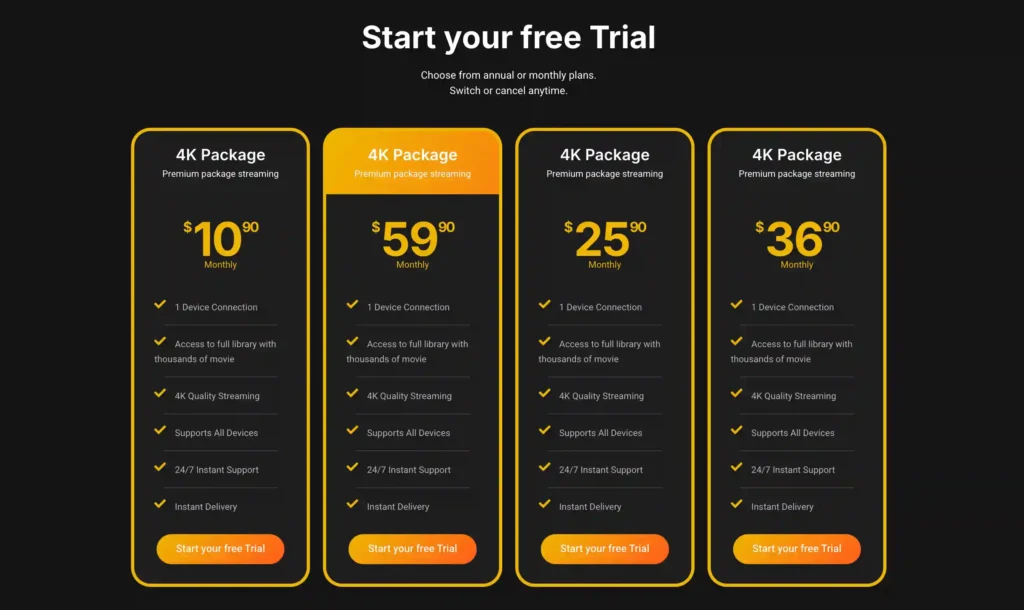
A free trial is available for eligible new users. Subscription prices and promotions can change, so it’s recommended to check the official VibeCastT
How to Install an IPTV Player on Apple TV
- Open the App Store from the Apple TV Home Screen.
- Select the search option.
- Enter the exact name of the player.
- Confirm that the developer and application name match the official listing.
- Open the application page.
- Select Get, the displayed price, or Install.
- Wait for installation to finish.
- Open the application.
Apple explains that Get indicates a free download, while Install may appear when the application was downloaded previously. Some free applications include subscriptions or in-app purchases. l an unrelated application simply because its name contains “IPTV.” Similar names can belong to different developers and may have different privacy, billing, and compatibility terms.
How to Connect Your Authorized Service
Menu labels vary between applications, but most players use one of the following methods.
Method 1: M3U or M3U8 URL
Use this method when the provider or organization gives you an authorized playlist address.
- Open the player.
- Choose Add Playlist, New Playlist, or a similar option.
- Select M3U, M3U URL, or Remote Playlist.
- Enter a recognizable playlist name.
- Enter the complete URL exactly as supplied.
- Save the playlist.
- Wait for the player to import and organize the entries.
Check carefully for:
- Missing
https://orhttp:// - Extra spaces
- Mistyped characters
- Expired authentication information
- A URL copied only partially
- A provider that requires a different login method
Enter only playlist information supplied by a source you are authorized to use. VibeCastTV does not provide playlists, server access, portal URLs, or television credentials.
Method 2: Xtream-Style Login
Some services provide:
- A server or host address.
- A username.
- A password.
To connect:
- Choose Add User, Xtream, or Login with API.
- Enter a name for the account.
- Enter the host exactly as supplied.
- Enter the username and password.
- Save or sign in.
- Allow the application to load available categories and guide information.
Do not reuse your Apple Account password or email password as the IPTV password. Use only the credentials created for the authorized media account.
If login fails, do not repeatedly change unrelated Apple TV settings. First confirm that the account is active, the server address is complete, and the provider has not limited the number of simultaneous connections.
Method 3: QR Code, Mobile Synchronization, or Web Portal
Typing a long address with the Siri Remote can cause errors. Some players let you:
- Scan a QR code with an iPhone.
- Sign in through the player’s website.
- Add the playlist on an iPhone or iPad and synchronize it.
- Use iCloud to synchronize playlists between Apple devices.
Before entering credentials through a website, confirm that the domain belongs to the application developer. Do not enter account details into a link received through an unsolicited message.
Add an EPG
An electronic program guide, or EPG, adds information such as the current program, next program, start time, and description.
The guide may be:
- Included automatically with the authorized account.
- Embedded in the playlist.
- Supplied as a separate XMLTV URL.
- Matched by the application using channel identifiers.
If the EPG is empty or incorrect:
- Refresh the guide.
- Confirm that the EPG URL is complete.
- Check the timezone setting.
- Confirm that the channel identifiers match.
- Ask the account provider whether its guide service is operating.
An IPTV player cannot create accurate schedule information when the source does not supply usable EPG data.
Recommended Apple TV Video Settings
Match Dynamic Range
On Apple TV 4K, open:
Settings → Video and Audio → Match Content → Match Dynamic Range
When enabled, Apple TV attempts to use the original dynamic range of supported content rather than forcing everything into one output mode. me Rate
In the same menu, turn on Match Frame Rate when you want Apple TV to match supported source frame rates.
Apple notes that the television may briefly go black or flicker while changing formats. This is not necessarily buffering or an application crash. Audio Settings
When you have a black screen, flickering, unusual colors, or no sound:
- Connect Apple TV directly to the television temporarily.
- Remove an HDMI switch or AV receiver from the test.
- Try another HDMI input.
- Test another certified HDMI cable.
- Return Apple TV video settings to a widely supported format.
- Check whether the stream contains an audio codec supported by the application and equipment.
Apple recommends testing a direct television connection when an HDMI switch or receiver may be causing a display problem. IPTV Problems on Apple TV
Use the table to identify which part of the system is most likely responsible.
| Problem | Likely category | What to check |
| Application does not appear in the App Store | Device, country, or compatibility | Confirm the Apple TV model, App Store country, and minimum tvOS version. |
| Application will not install | Device, account, storage, or network | Update tvOS, check the Apple Account, restart Apple TV, and free storage if required. |
| Playlist will not import | Playlist or input error | Check the complete URL, spaces, expiration, protocol, and selected login type. |
| Login is rejected | Account or provider | Confirm the host, username, password, subscription status, and connection limit. |
| Categories load but streams do not play | Provider, codec, region, or account | Test several authorized streams and another device using the same account. |
| Only one channel fails | Source-specific | The individual stream may be unavailable or incorrectly configured. |
| Every channel buffers | Network or provider | Test Ethernet, restart the router, pause other heavy downloads, and compare another app or device. |
| Video works but EPG is empty | Guide source | Refresh the EPG and verify its URL, timezone, and channel identifiers. |
| EPG times are wrong | Timezone or source metadata | Check Apple TV region/time settings and the player’s EPG offset. |
| Picture but no sound | Audio codec or equipment | Try another stream, audio track, television input, or direct HDMI connection. |
| Black screen when playback starts | Video-format switch or HDMI | Test Match Content settings, HDMI cable, television format, or direct connection. |
| App closes unexpectedly | App, memory, or playlist size | Restart Apple TV, update the app, test a smaller playlist, and contact the developer. |
Fix Buffering Step by Step
- Test another stream in the same application.
- Test the same authorized account on another device.
- Test another streaming application on the Apple TV.
- Restart Apple TV.
- Restart the router and modem.
- Temporarily stop large downloads, cloud backups, or gaming updates.
- Use Ethernet when the Apple TV model has an Ethernet port.
- Update tvOS and the IPTV application.
- Ask the provider whether its service is experiencing an interruption.
- Contact the app developer when only that player fails.
Apple recommends restarting Apple TV and network equipment, trying Ethernet where available, and checking for software updates when network playback fails. Mbit/s as a requirement for HD playback in its own Apple TV application. That figure can be treated as a basic reference point, not a guarantee for every third-party IPTV stream. Actual requirements depend on the stream’s bitrate, codec, resolution, network congestion, and provider delivery quality. tructive Troubleshooting Too Early
Do not begin by:
- Factory-resetting Apple TV.
- Deleting every application.
- Clearing all saved player information.
- Changing DNS settings.
- Disabling security features.
- Buying a VPN.
- Re-entering every playlist.
- Replacing the router.
Start with the least disruptive test that isolates one possible cause.
Is IPTV Legal on Apple TV?
The technology itself has lawful uses. Internet-delivered television is used by authorized broadcasters, cable companies, subscription platforms, institutions, and personal media systems.
The legal and contractual question concerns the source and authorization of the content, not whether the device is an Apple TV.
Use content only when:
- The service has permission to provide it.
- You have a valid subscription or other authorization.
- You are within the permitted country or territory.
- You follow the service’s account-sharing and simultaneous-stream rules.
- You do not bypass access controls, subscriptions, or regional restrictions.
The U.S. Copyright Office advises consumers that accessing protected works without authorization can create infringement risk and that authorized services reduce both legal and security exposure. esence in the App Store does not independently prove that every third-party playlist entered into it is authorized.
Security and Privacy Checklist
Before entering playlist or account details, check:
- Is the application downloaded from the official App Store?
- Does the developer have a clear identity and support channel?
- Does the app explain what data it collects?
- Are subscriptions and renewal terms visible?
- Can you cancel through Apple’s subscription settings?
- Does the service use a normal payment method rather than gift cards or cryptocurrency-only pressure?
- Does the provider publish a privacy policy, terms, refund process, and contact details?
- Are premium content claims commercially plausible?
- Does the provider explain where it is available?
- Does it make unsupported claims such as “every channel,” “fully legal,” or “never buffers”?
- Are you being asked to disable Apple security protections?
- Are you being sent to an unknown website or unofficial application download?
The FTC has warned that pirate streaming applications may distribute malware capable of stealing payment information, login credentials, banking data, and personal files. tect traffic on an untrusted network, but it does not make unauthorized streaming legal. Using one to bypass geographic restrictions may also violate a platform’s terms.
Frequently Asked Questions
Can Apple TV install IPTV apps?
Apple TV HD and Apple TV 4K can install compatible applications from the tvOS App Store. Apple TV 3rd generation cannot install new third-party applications because it does not have the App Store. PTV player include channels?
Normally, no. The player organizes and plays a playlist, account, or media source supplied by the user. Check the application description carefully because the player and content provider are separate services.
Which is better: M3U or Xtream login?
Neither method is universally better. Use the format your authorized service supports. M3U normally uses a playlist URL, while an Xtream-style login normally uses a host, username, and password.
Can I use AirPlay instead of installing an app?
Yes, when an authorized iPhone or iPad application supports AirPlay. A native tvOS application may provide easier remote navigation, searching, favorites, and EPG access, but actual features depend on the application.
Why is my IPTV EPG showing the wrong time?
The player, Apple TV region, EPG source, or provider may be using a different timezone. Check the device time settings, player EPG offset, and guide-source configuration before editing the playlist.
Why does IPTV buffer while Netflix or another application works?
Different services use different servers, bitrates, codecs, and delivery systems. Successful playback in another application proves that the connection works generally, but it does not prove that the IPTV source, account, or player is functioning correctly.
Should I use a VPN for IPTV on Apple TV?
A VPN is not a standard fix for every playback problem. Test the network, application, account, and provider first. Do not use a VPN to access unauthorized content, defeat a blackout, avoid payment, or violate regional rules.
Conclusion
A safe Apple TV IPTV setup requires three separate elements:
- A compatible Apple TV HD or Apple TV 4K.
- A suitable media player downloaded from the official App Store.
- An account, playlist, or media source you are authorized to use.
Choose the player according to the input format you have, not according to unsupported promises about free channels or perfect performance. Keep tvOS updated, review privacy and billing terms, and troubleshoot systematically by separating network, device, application, account, and provider-side causes.
Copyright and lawful-use notice: This article is intended for general education and lawful troubleshooting. VibeCastTV does not sell IPTV subscriptions, host television channels, provide streaming credentials, distribute playlists, or encourage copyright infringement. Readers should use only services and content they are authorized to access. Provider licensing, platform availability, and streaming rights vary by country and may change over time.